
Quick Links
- Open the Day Tour browser
- Search for a Day Tour
- Preview a Day Tour
- Add a Day Tour
- How Day Tours display on outputs
- Need Help?
Navigating to your Itinerary Builder
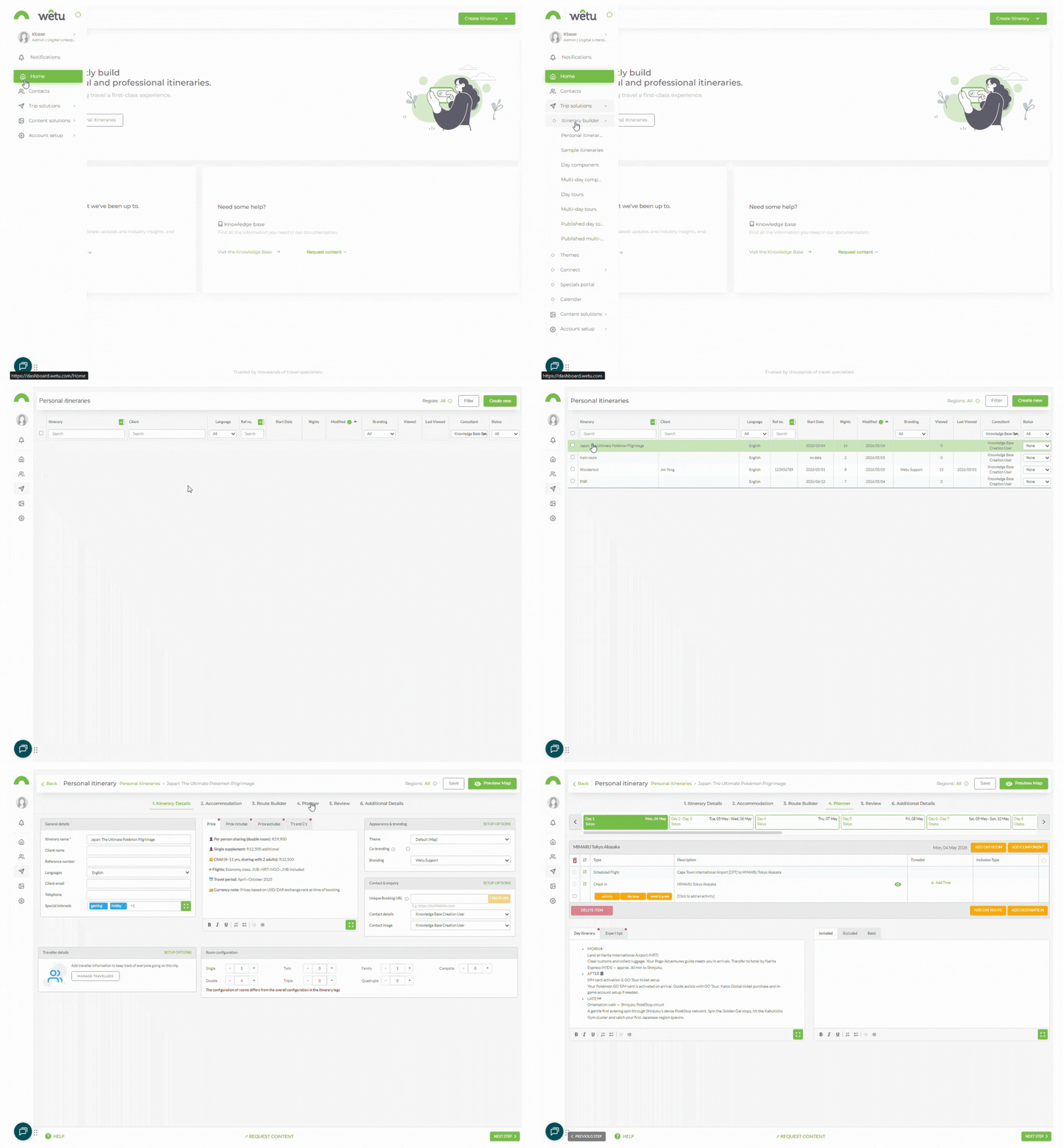
Open the Day Tour browser
1. Open the itinerary and navigate to the Planner step.
2. Click Day Tour at the bottom left of the activity block.
3. The Day Tour browser will open.
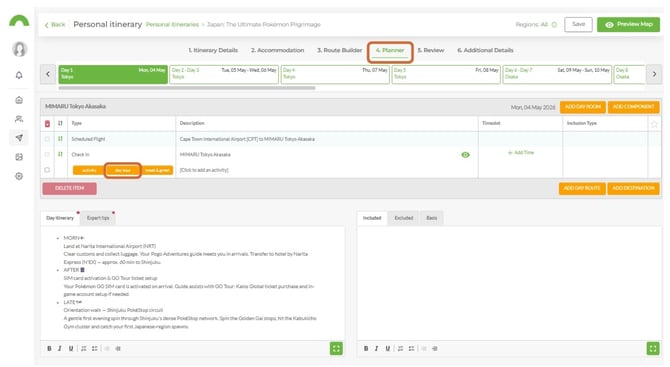
Search for a Day Tour
Use the following options to find the Day Tour you need:
Operators
1. Use the Operators dropdown - set to All by default - to filter by company.
2. To view your own Day Tours, select your company name from the dropdown.
Search
1. Type the name of the Day Tour in the Search field to find it directly.
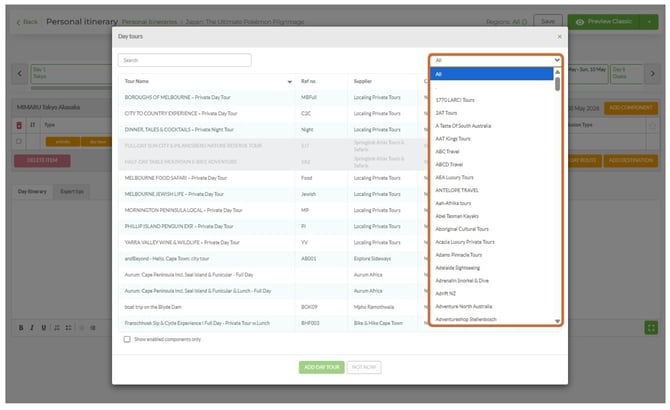
Preview a Day Tour
1. Click Preview on the right-hand side of the Day Tour listing.
2. The Day Tour itinerary will open, showing what is included and which attractions will be visited.
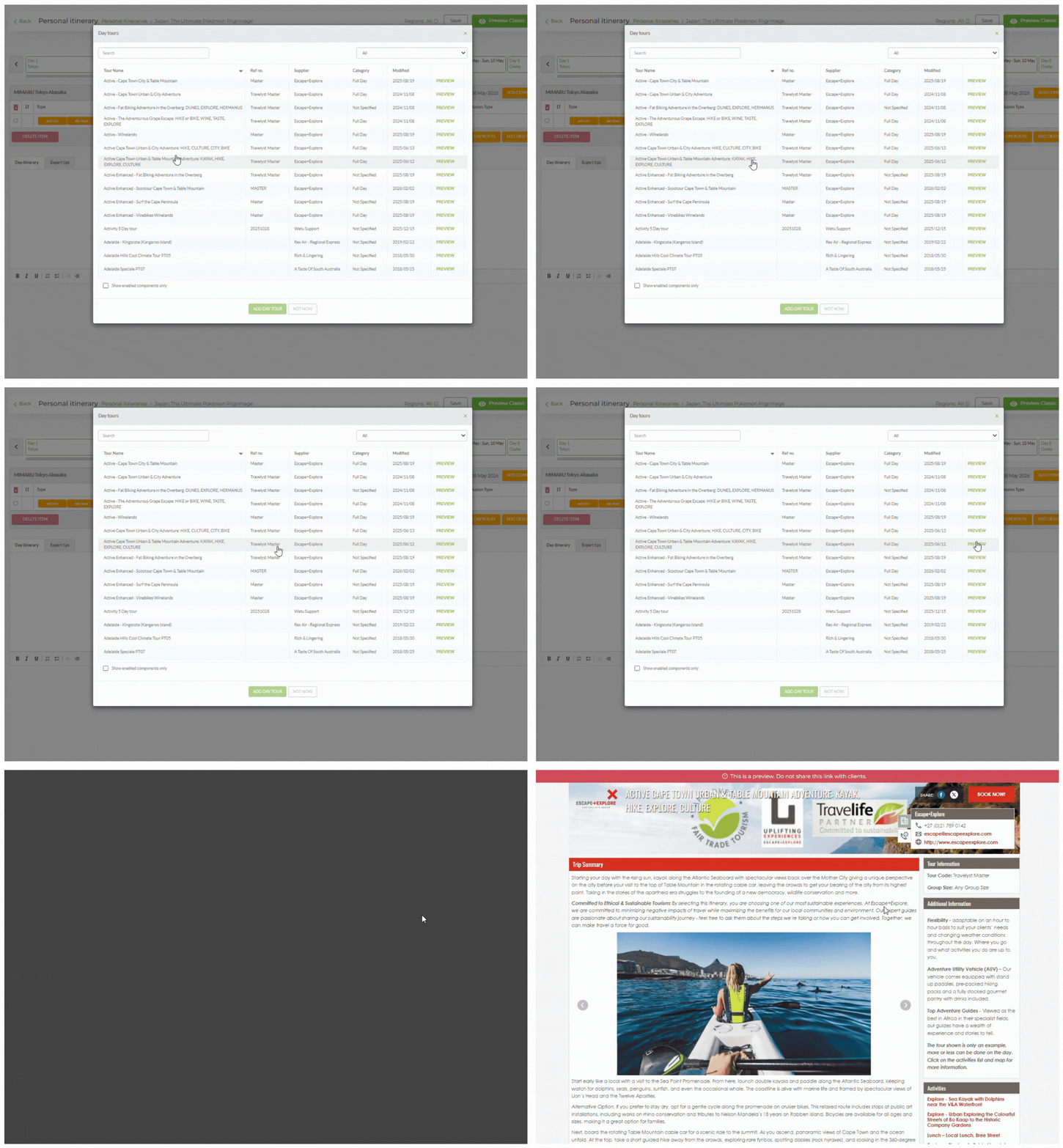
Note: The preview shows all Day Tour information, but not all of it will appear on the client itinerary. The full description, summary, map, and images will display for clients.
Add a Day Tour
1. Click the Day Tour you want to add - it will highlight green.
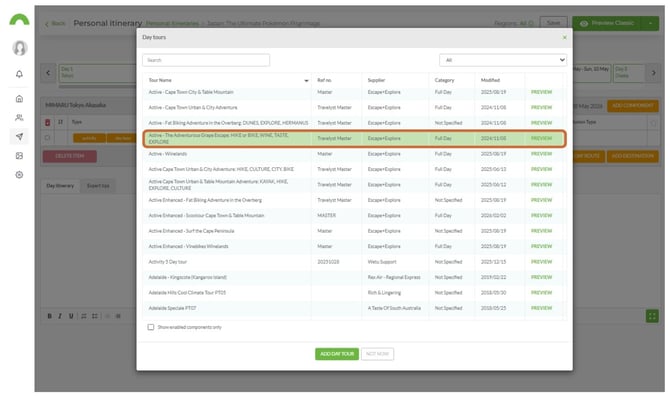
2. Scroll to the bottom of the page and click Add Day Tour.
3. The tour will be added to the day planner.
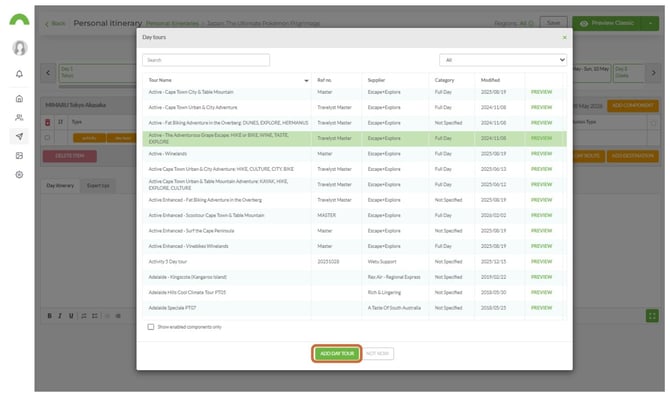
Note: More than one Day Tour can be added per day - useful when suggesting options for clients to choose from.
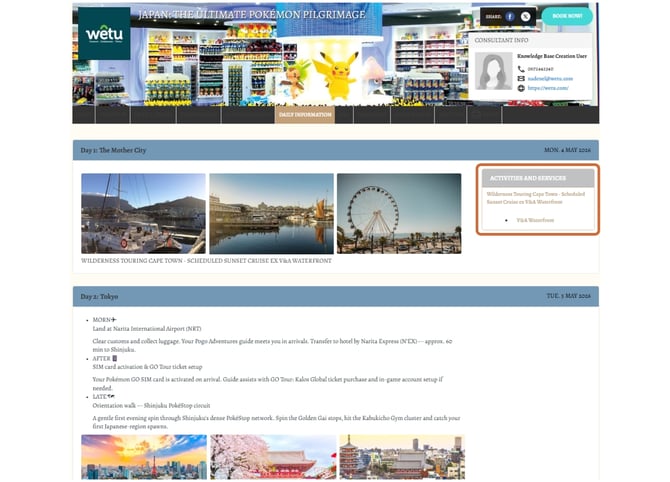
How Day Tours display on outputs
| Output | Where Day Tours display |
|---|---|
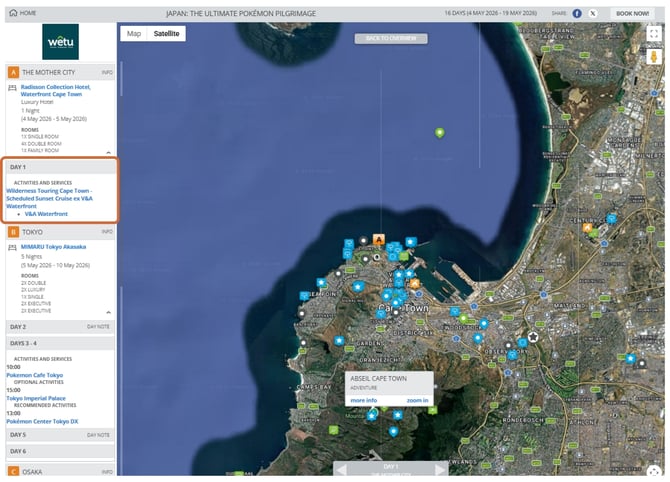
| Virtual | In the day view with tour details |
| Discovery | In the day view with tour details |
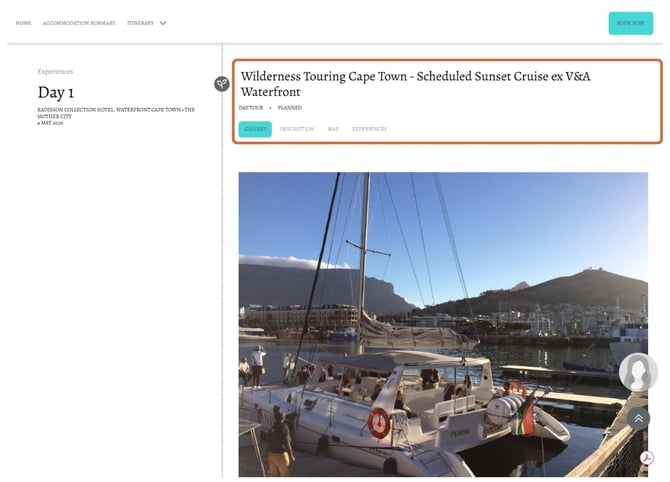
| Classic | In the day view with tour details |
Virtual
Discovery
Classic
Need Help?
- Contact Support: support@wetu.com
- Live Chat: Available on your Dashboard