
Quick Links
- Create and manage tags
- Assign a tag
- Search by tag
- Need help?
Create and manage tags
1. From the Wetu Dashboard, navigate to Account Setup › Account.
2. Click the Options tab.
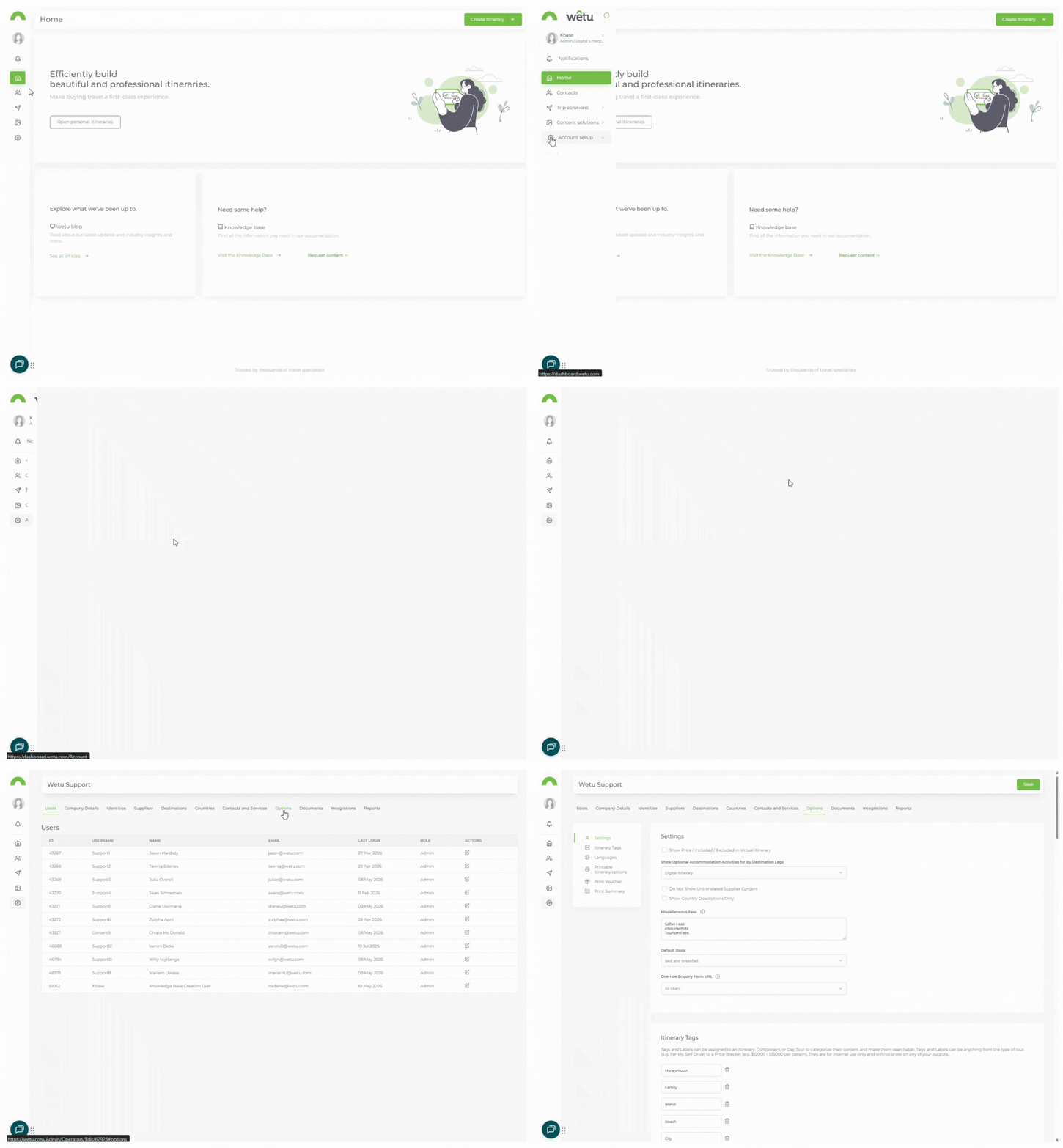
3. In the left-hand menu, click Itinerary Tags.
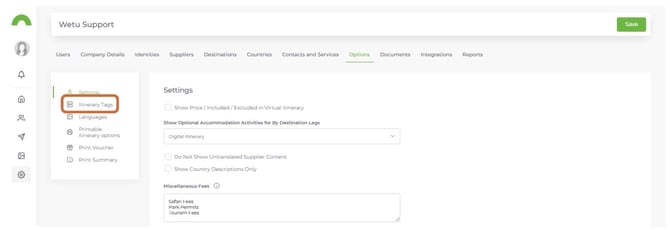
4. Default system tags are displayed. To remove a tag, click the bin icon next to it - it will grey out.
5. To undo a deletion before saving, click the restore icon next to the greyed-out tag.
6. Click Save to apply changes.
Important
If you navigate away from this screen without clicking Save, your changes will not be saved.
Note: Deleting a tag removes it from all itineraries, Day Tours, and components it was previously assigned to.
7. Once saved, the updated tag will apply across all itineraries, Day Tours, and components it is assigned to, and will update in both the Itinerary Builder and Itinerary Browser.
Assign a tag
1. Open the itinerary, component, or Day Tour in the Itinerary Builder.
2. Click the tag you want to assign - the tag background will change to indicate it is selected.
3. To remove the tag, click it again - the background will revert to white.
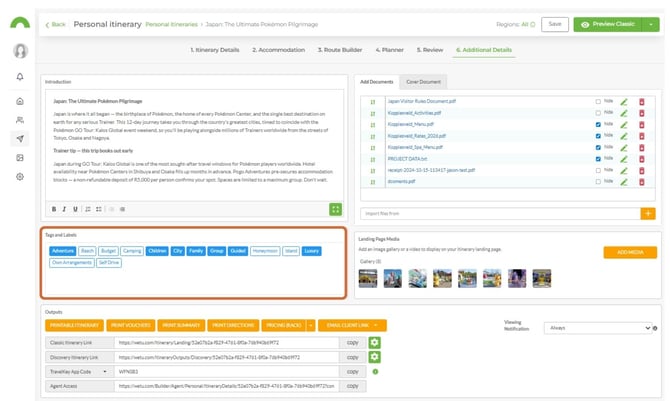
Note: Assigned tags are visible on the itinerary in the Itinerary Browser and can be used to filter and search.
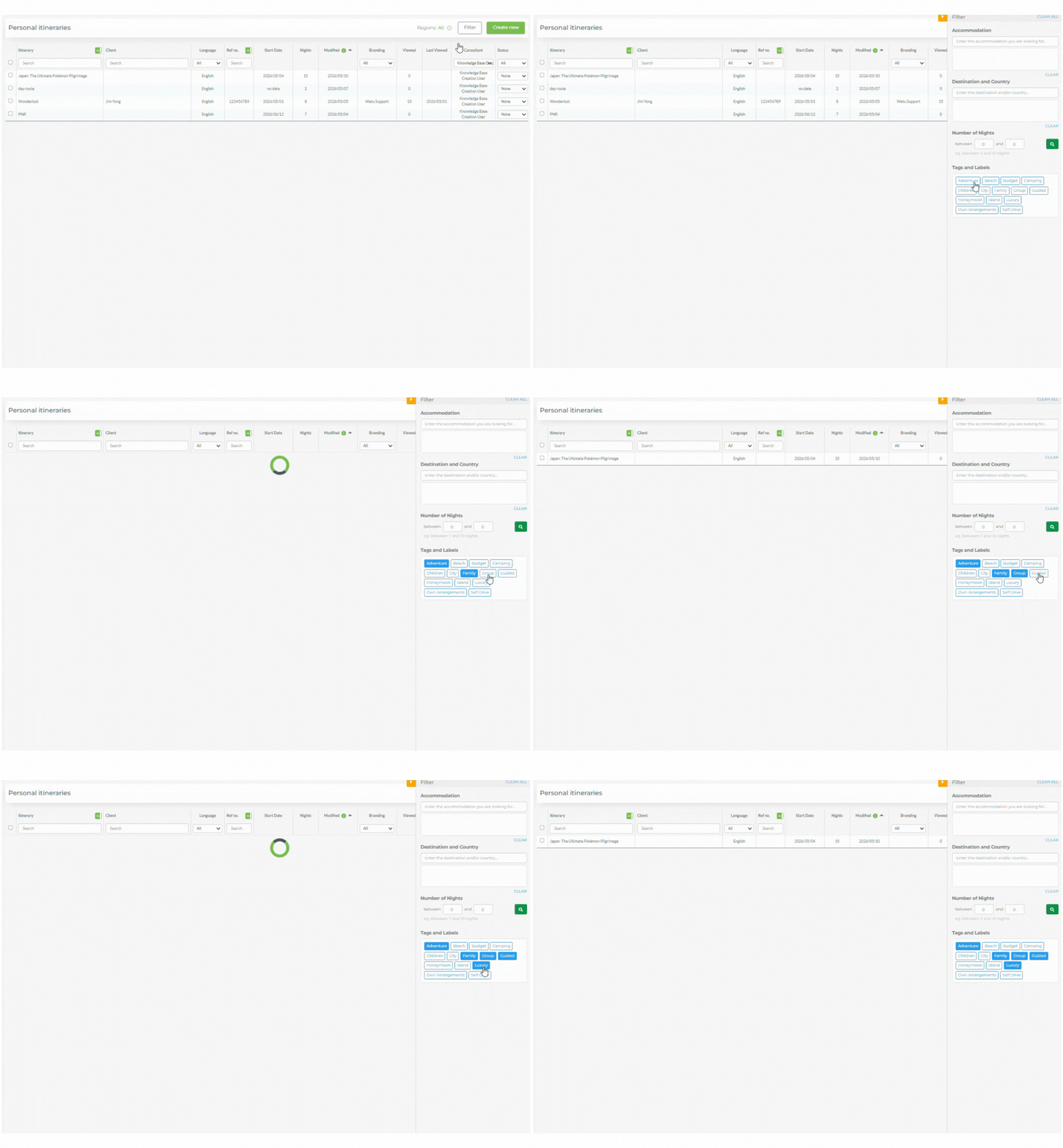
Search by tag
1. In the Itinerary Browser, click Filter.
2. Scroll to the Tags and Labels section.
3. Select the tag or label you want to filter by.
Need Help?
- Contact Support: support@wetu.com
- Live Chat: Available on your Dashboard