
Quick Links
- What is a profile?
- Key differences at a glance
- Profile types overview
- Public profiles
- Private profiles
- Important rules and limitations
- When to use each profile type
- Upgrading and changing profiles
- Managing your profiles
- Need help?
What is a profile?
A profile contains information about a supplier (accommodation, restaurant, activity, or service) including:
- Business details and descriptions
- Photos and media
- Facilities and amenities
- Contact information
- Pricing (optional)
Profiles are used by travel agents to build client itineraries.
Key differences at a glance
| Feature | Core (Public) | Professional (Public) | Private |
| Visibility | All Wetu users | All Wetu users | Your account only |
| Information fields | Limited | Comprehensive | Your choice |
| iBrochure | No | Yes | No |
| Wetu Share | No | Yes | No |
| Cost | Free | Subscription required | Included in your plan |
| Best for | Basic presence | Full marketing | Bespoke content |
Profile types overview
Wetu has two main categories:
Public Profiles - Visible to all Wetu users (available in the public database)
- Core Profile (limited information)
- Professional Profile (comprehensive information + iBrochure)
Private Profiles - Only visible to your account (bespoke content)
Public profiles
Core Profile
What it is:
- Limited information fields
- Formerly called "Basic listing"
- Free to create
- Visible to all Wetu users
Best for:
- Basic property presence
- Testing the platform
- Properties with simple offerings
What you can add:
- Basic details and description
- Maximum of 6 images
- and up to 6 images per room type
- Contact information
- Essential facilities
Professional Profile
What it is:
- Comprehensive information fields
- Formerly called "Enhanced listing"
- Requires subscription
- Visible to all Wetu users
Additional features:
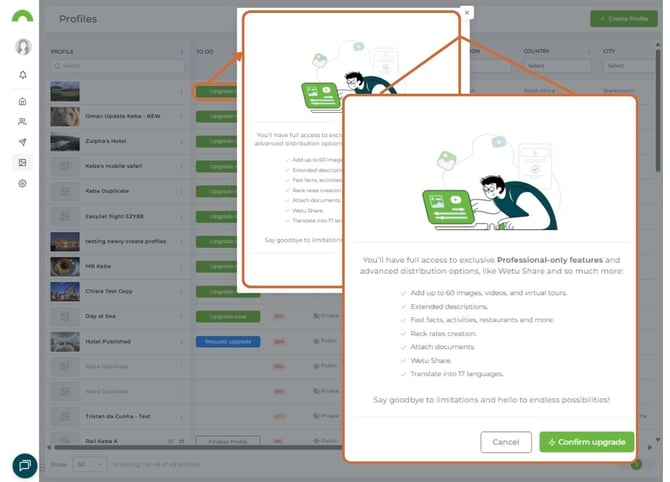
- iBrochure output - Shareable digital brochure
- Wetu Share function - Advanced sharing options
- Extended descriptions
- More detailed facilities and amenities
- Social media integration
- Additional content options become available.
Requirements:
- Must be property owner or management company
- Active Wetu subscription
Why upgrade? More visibility, better presentation, iBrochure marketing tool.
Private profiles
What it is:
- Bespoke content created specifically for your account
- Only your team can see and use it
- Not visible to other Wetu operators
- Complete control over information
When to use:
- Custom itinerary components unique to your brand
- Exclusive partnerships or rates
- Internal-only content
- Properties you don't want competitors to access
Creating a private profile
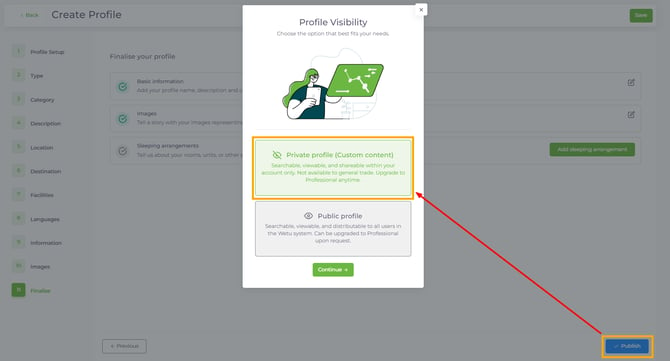
Critical: You must select "Private Profile" during creation, or it will publish as public.
Steps:
1. Follow the standard profile creation process
2. At the final step, select "Private Profile" option
3. Complete and save
Tip: Double-check the privacy setting before publishing.
Note: To convert your profile to private later on you will need to contact support@wetu.com who will then provide the necessary instructions.
Important rules and limitations
No duplicate profiles
You cannot create duplicate profiles.
- If a property exists as a Public profile, you cannot create a Private version
- This prevents confusion and maintains database integrity
Alternative: Customize existing public profiles for your brand using profile editing features.
Ownership requirement (Public profiles only)
To create a Public profile, you must be:
- The property owner, OR
- The management company
Why? Ensures accurate, authorized information on public listings.
Photo requirement
- Core profiles: Maximum of 6 images, and 6 images per room type- Professional profiles: Maximum of 60 images, and 60 images per room type
- Must have copyright permission for all images
Tip: If you're on a Core Profile, choose 6 images that best represent your property as a whole - avoid using room-specific photos here, as you can upload up to 6 images per room type separately.
Copyright and permissions
For all content you upload:
- You must own the copyright, OR
- You must have written permission to use it
This includes:
- Photos
- Videos
- Text descriptions
- Logos
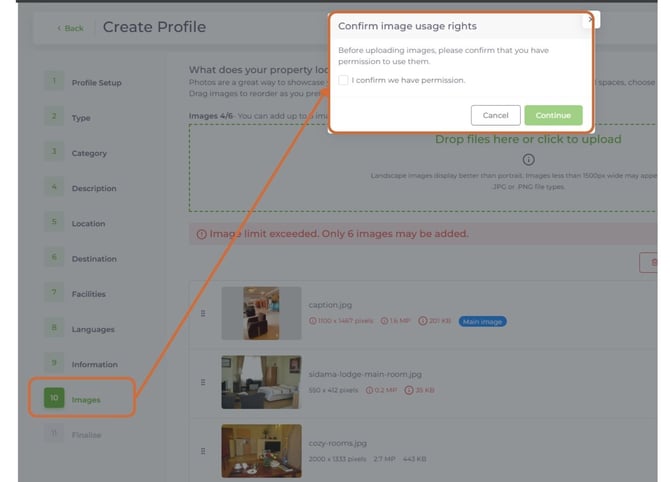
Legal requirement: Using unauthorized content can result in profile suspension and legal issues.
When to use each profile type
Choose Core (Public) if:
- You want basic visibility in the Wetu database
- You're testing the platform
- Budget is limited
- Your property has straightforward offerings
Choose Professional (Public) if:
- You want maximum visibility and marketing tools
- You need iBrochure for direct client sharing
- You want comprehensive information displayed
- You're the property owner/manager and ready to invest
Choose Private if:
- Content is exclusive to your brand
- You have special partnerships or rates
- You don't want competitors accessing the information
- You need bespoke itinerary components
Upgrading and changing profiles
From Core to Professional:
- Available to property owners/managers
- Requires subscription activation
- All existing content transfers
- Additional fields become available
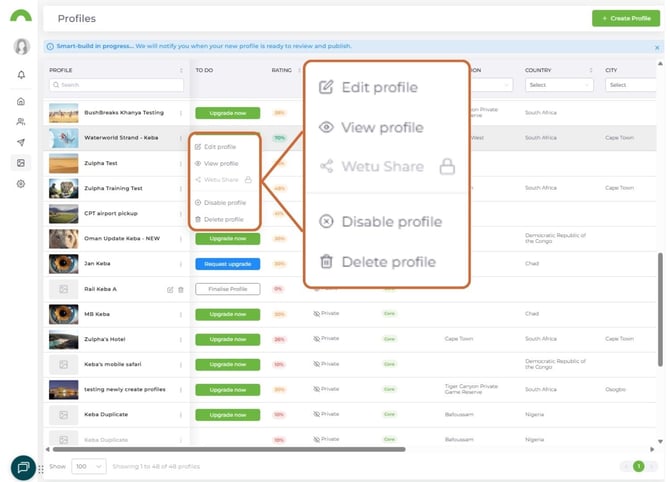
Contact Support to: Convert public profiles to private profiles.
support@wetu.com
Managing your profiles
Public profiles:
- Accessible via Profile Library
- Edit anytime
- Updates visible to all Wetu users immediately
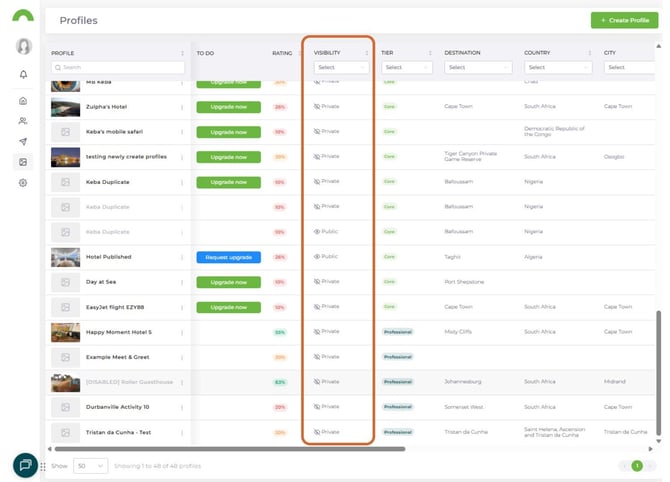
Private profiles:
- Also in Profile Library
- Marked as "Private" for easy identification
- Only your team can view and use
Need help?
For profile creation support:
- Email: support@wetu.com
- Live chat: Available in your dashboard
For upgrading to Professional:
- Email: sales@wetu.com