
Quick Links
- What is a Sample Itinerary?
- How they differ from Personal Itineraries
- Accessing Sample Itineraries
- What you can do with them
- Turning one into a client booking
- Scheduled Departures
- Need Help
What is a Sample Itinerary?
A Sample Itinerary is a trip template that lives independently of any specific client or booking.
Think of it as your showcase version of a route. It has all the content, accommodation, routing, daily activities, descriptions, and imagery, but no client name, no travel dates, and no personal details attached.
That is what makes it reusable. The same Sample Itinerary can be shared with hundreds of potential clients, embedded on your website, or included in a catalogue, without ever being tied to a single booking.
How Sample Itineraries differ from Personal Itineraries
| Personal Itinerary | Sample Itinerary | |
| Purpose | Built for a specific client and booking | Built as a reusable template for marketing and sales |
| Travel dates | Yes | No |
| Client name and details | Yes | No |
| Shareable public link | Yes | Yes |
| Embed on website | Yes | Yes |
| Include in a Catalogue | No | Yes |
| Scheduled Departures with pricing | No | Yes |
| Book Now button on Discovery output | No | Yes (when Scheduled Departures are added) |
Accessing Sample Itineraries
How to get there
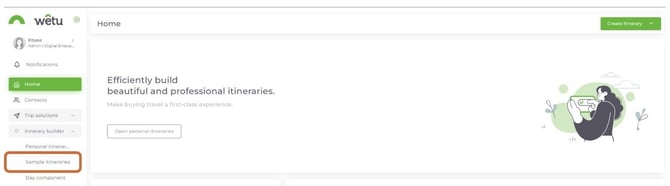
1. Select Trip Solutions from the left-hand navigation menu.
2. Select Itinerary Builder, then select Sample Itineraries.
What you can do with a Sample Itinerary
Share it as a link
Every Sample Itinerary has a shareable Discovery link and a Classic link. Send these to prospective clients, travel agents, or trade partners to showcase the route before any booking takes place.
Embed it on your website
Use the itinerary link or iFrame code to embed the Sample Itinerary directly on a webpage. Visitors can browse the trip without you needing to send anything manually.
Tip: If you embed a Sample Itinerary on your website, set your viewing notifications to First View Only or Never so you are not notified every time a visitor opens it.
Add it to a Catalogue
Group multiple Sample Itineraries together in the Catalogue Manager to create a curated collection, by destination, style, or duration. Share the catalogue link or embed it on your site as a portfolio of your offerings.
Add Scheduled Departures and a Book Now or Enquire button
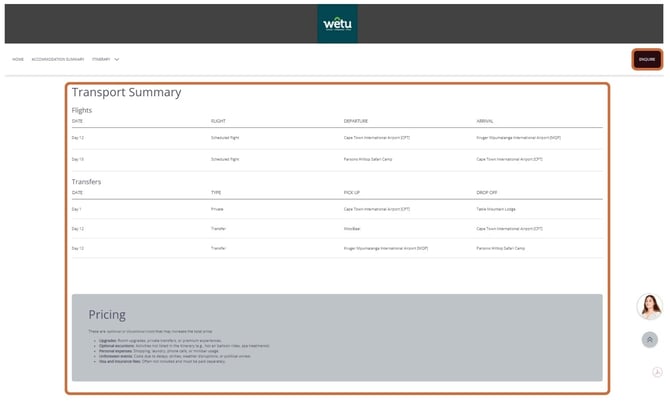
Sample Itineraries are the only itinerary type that supports Scheduled Departures. These are fixed departure dates with pricing that display on your itinerary outputs, including a Book Now or Enquire button on the Discovery view for direct client enquiries.
Turning a Sample Itinerary into a client booking
When a client expresses interest in a Sample Itinerary, convert it to a Personal Itinerary to add their details and travel dates.
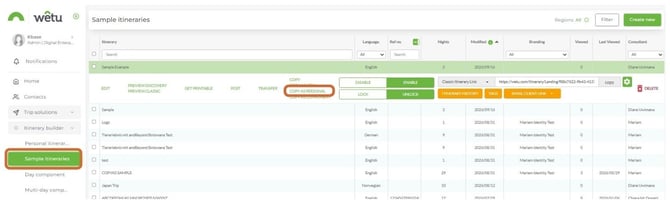
1. Open the Sample Itinerary in the Itinerary Builder.
2. Select Copy as Personal.
3. A Personal Itinerary will open with all the content from the Sample Itinerary intact.
4. Add the client's name, travel dates, and any personalised details.
5. Rename the itinerary and select Save.
Note: Your new Personal Itinerary will appear under Personal Itineraries. If you do not see it straight away, refresh your browser.
Scheduled Departures
Scheduled Departures let you attach fixed departure dates and pricing to a Sample Itinerary. They are used for group tours, set departure products, and any trip you sell at a defined price and date.
When Scheduled Departures are added, the Discovery output displays:
- The available departure dates
- The price per person
- A Book Now button that connects to your enquiry contact details
Note: Scheduled Departures are only available on Sample Itineraries. They cannot be added to Personal Itineraries.
For full instructions on setting up Scheduled Departures, see the article: How do I include Scheduled Departures in my itinerary?
Need help?
Email: support@wetu.com
Live chat: Available in your dashboard