
Quick Links
- 1. How to Use the Update Function
- 2. Service Lines
- 3. Free Text Field Options
- Need Help?
1. How to Use the Update Function
Use the Update Function when you need to sync changes from your booking system into an itinerary that has already been linked in Wetu.
1. Resend your booking from your operating system.
2. Open the Connect screen in Wetu.
3. Search for and locate your booking.
4. Select Update.
Selecting Update will push all updated services from your operating system into the existing Wetu itinerary.
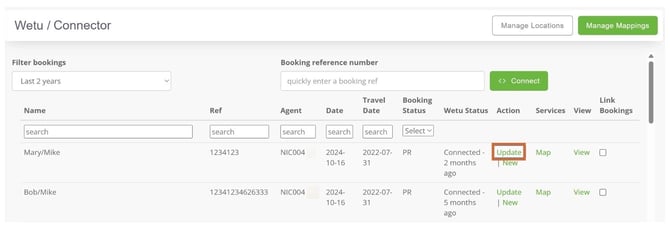
Note: Contact the internal team member responsible for your Wetu account to confirm how your Update option is configured.
2. Service Lines
The Update function will update any service lines you have removed or added from your Booking System by replacing them with the updated services.
3. Free Text Field Options
When updating a booking, you can choose how Wetu handles existing free text fields. There are three options:
Ignore
No changes are made to existing free text fields. Any updated notes coming from your operating system are disregarded - the current content is preserved as-is.
Overwrite
All existing free text field content is removed and replaced with the updated note pushed from your operating system.
Append
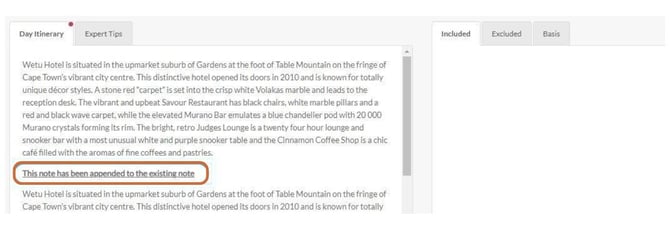
The updated note is added below the existing content, separated by the heading "This note has been appended to the existing note." You will need to review each free text field manually to ensure the content displays correctly.
To change your free text field option: Your internal admin user should contact enterprise@wetu.com
Need Help?
For support reach out to the Wetu enterprise team.
enterprise@wetu.com
vs.1.0.23.03.2026