
Quick Links
- Post an itinerary or component
- Receive an itinerary or component
- Need Help?
Post an itinerary or component
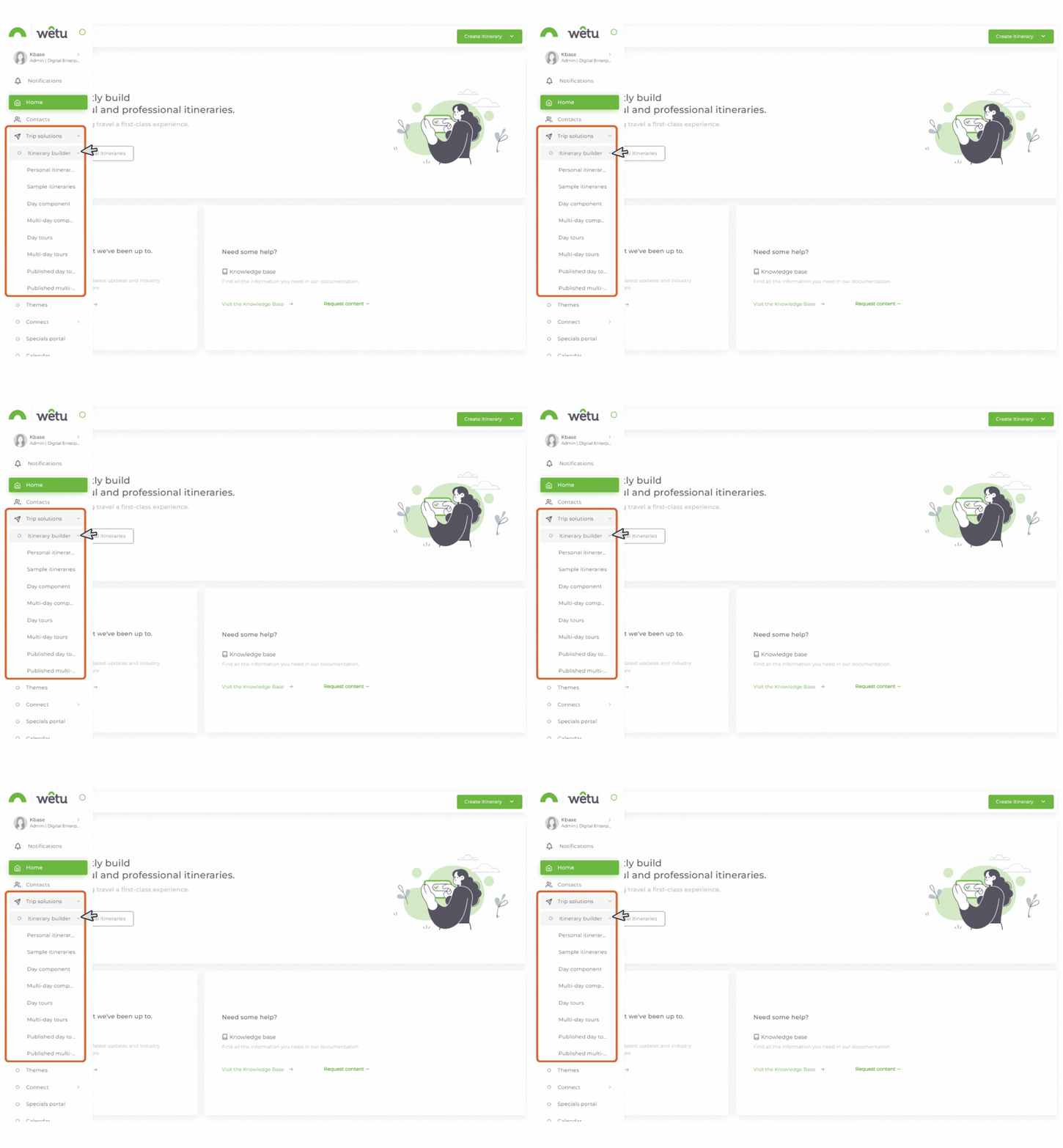
1. Open the Itinerary Browser and select the itinerary you want to post.
2. An expanded options menu will appear. Click Post.
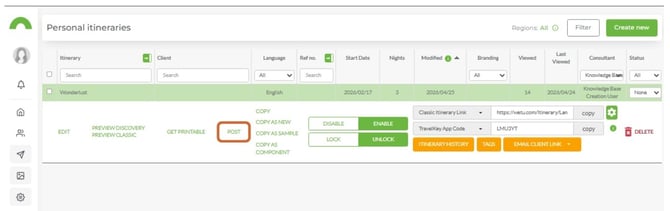
Note: You can post Personal Itineraries, Sample Itineraries, Day Tours, and Components.
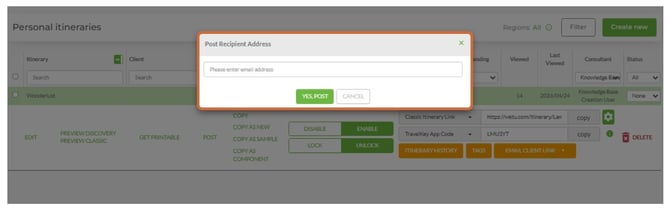
3. Enter the email address of the person you want to send the itinerary to.
4. Click Yes, Post.
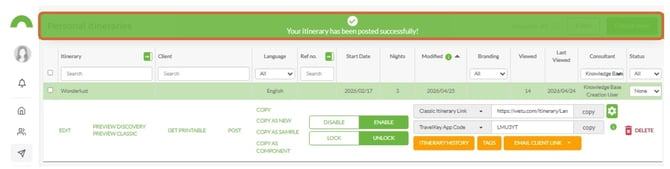
5. A confirmation message will appear to confirm the itinerary has been sent.
Sending to someone in the same account?: Use the Transfer function instead of Post.
Receive an itinerary or component
1. When an itinerary is posted to you, you will receive an email notification from Wetu.
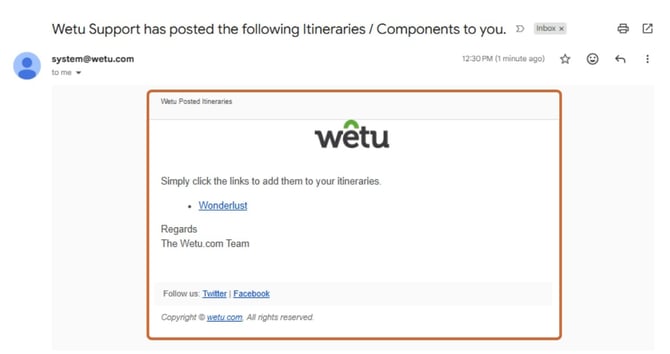
2. Click the link in the email.
3. You will be prompted to View the Itinerary, Log in, or Register.
4. Log in to your Wetu account.
5. The Itinerary Browser will open with the received itinerary at the top of the list.
Note: The received itinerary is now in your account as your own copy. It is not linked to the original - any changes you make will only affect your version.
Need Help?
- Contact Support: support@wetu.com
- Live Chat: Available on your Dashboard