
Quick Links
- Accessing your profile library
- Understanding the profile library layout
- Actions menu (three dots)
- Preview your profile
- Profile status explained
- Content rating
- Profile tier
- Upgrading from Core to Professional
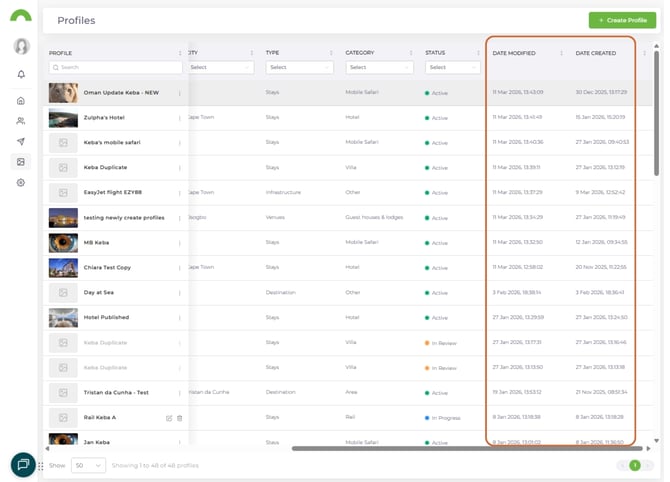
- Date modified and created
- Common actions explained
- Managing multiple profiles
- Troubleshooting
- Need help?
Accessing your profile library
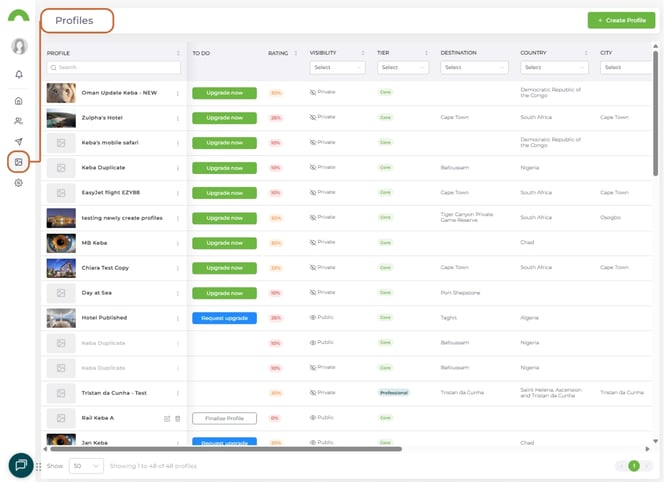
1. Click "Profiles" in your main navigation
2. Your profile library opens, showing all your profiles
Understanding the profile library layout
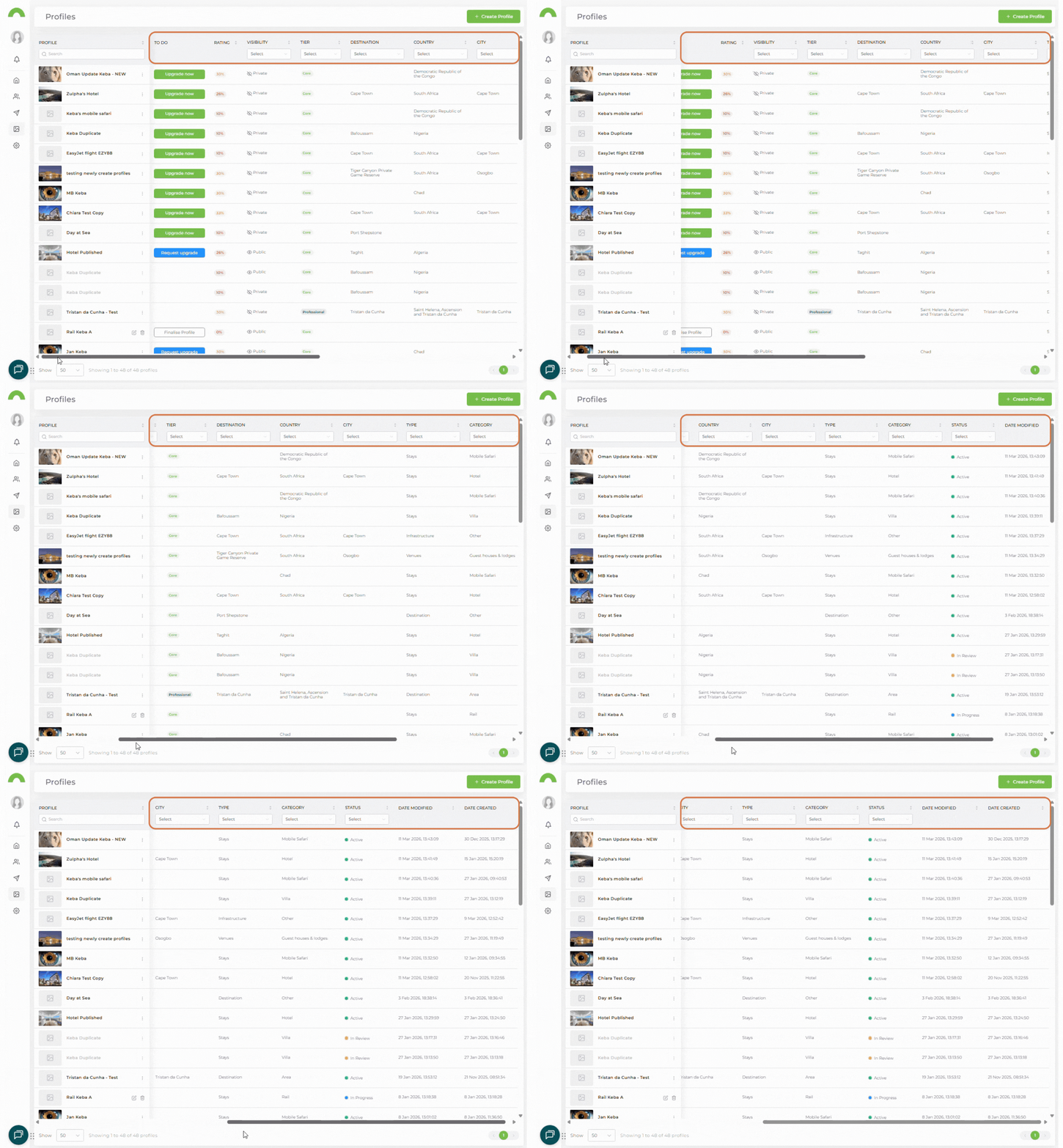
Your profile library displays profiles in a table with these columns:
- Profile name
- Actions Menu (⋮)
- Status
- Rating (content completeness)
- Tier (Core or Professional)
- Date modified
- Date created
Actions menu (three dots)
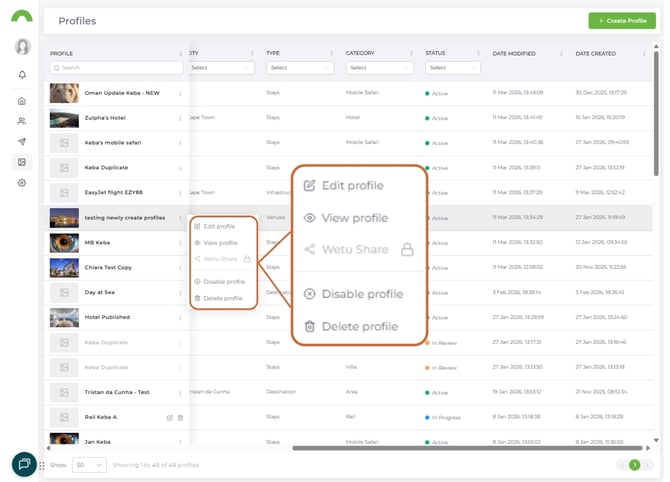
Click the three dots (⋮) next to your profile name to access profile options.
Core profile options
Core profiles have these actions available:
- Edit Profile - Modify profile information
- View Profile - See how it appears
- Disable Profile - Turn off visibility
- Delete Profile - Permanently removing a profile
Professional profile options
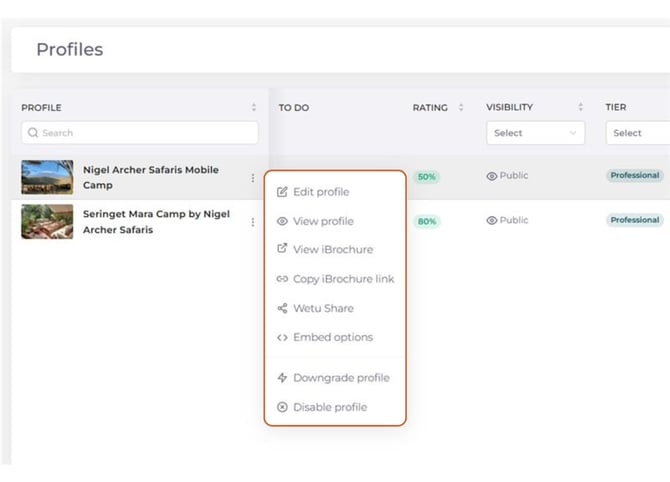
Professional profiles have additional actions:
- Edit Profile - Modify profile information
- View Profile - See how it appears
- View iBrochure - Opens your iBrochure in a new tab
- Copy iBrochure Link - Share iBrochure URL
- Wetu Share - Advanced sharing options
- Embed Options - Get embed codes
- Downgrade Profile - Revert to Core (if needed)
- Disable Profile - Turn off visibility
- Delete Profile - Permanently removing a profile
Preview your profile
Click the three dots (⋮) next to your profile name to access view profile (eye icon)
For all profiles:
- Shows how your profile appears in itineraries
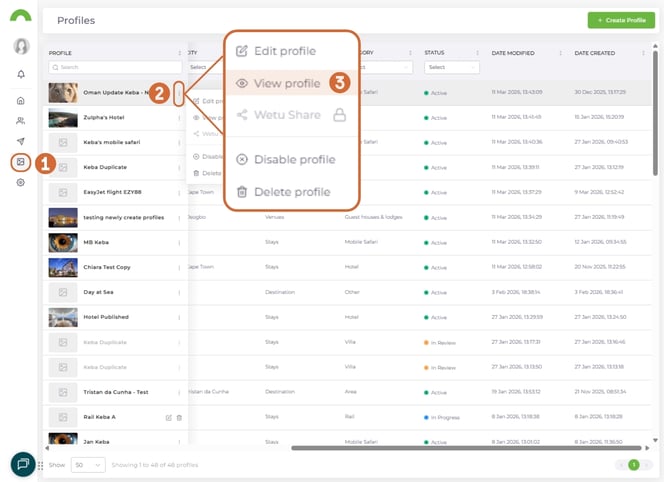
Use preview often to see what travel agents see when viewing your profile.
Profile status explained
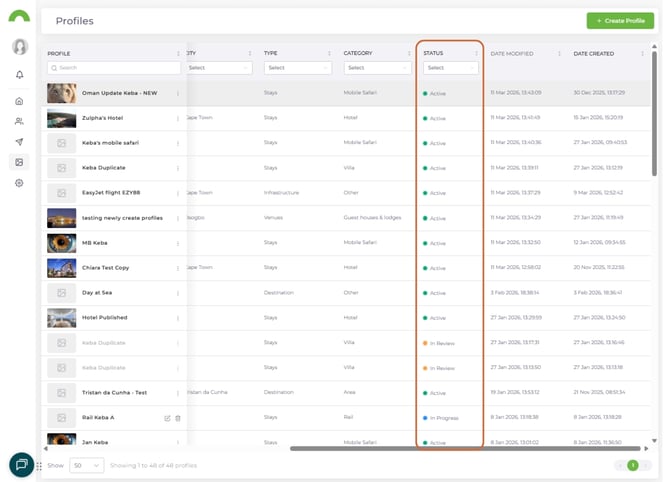
The Status column shows one of four states:
Active
Your profile is live and visible to the trade.
- Can be added to itineraries
- Appears in search results
- Fully functional
In Review
Your profile is being checked by our team.
- Possible duplicate detected in the system
- Content being verified
- Not yet visible to others
What to do: Wait for team review. You'll be notified when it's active.
In Progress
You haven't finished all required steps.
- Missing required information
- Not yet published
- Not visible to the trade
What to do: Click "Edit Profile" and complete all required sections.
Disabled
Your profile has been turned off.
- No longer visible to the trade
- Cannot be added to new itineraries
- "Disabled" appears before your name in existing itineraries
What to do: Re-enable if needed, or leave disabled if no longer offering this service.
Content rating
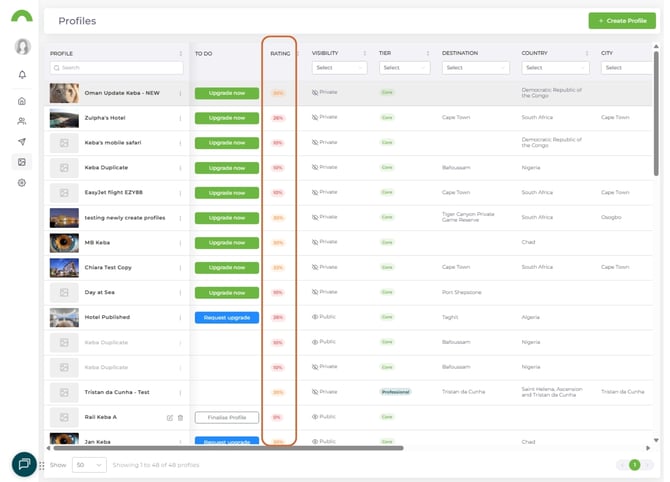
The Rating shows how complete your profile is.
Core profiles
- Maximum rating: 80%
- Limited fields available
- Basic completion only
Professional profiles
- Maximum rating: 100%
- All fields available
- Full content completion possible
Improving your rating
To increase your content rating:
1. Click "Edit Profile"
2. Complete empty sections
3. Replace low resolution or portrait images
4. Images highlighted in red indicate a 10% penalty applied to the overall content rating.
5. Fill in all facility details
6. Add descriptions and contact information
7. Add a tag – this contributes 5% towards the overall content rating.
8. Save changes
Higher ratings = better visibility in search results.
Profile tier
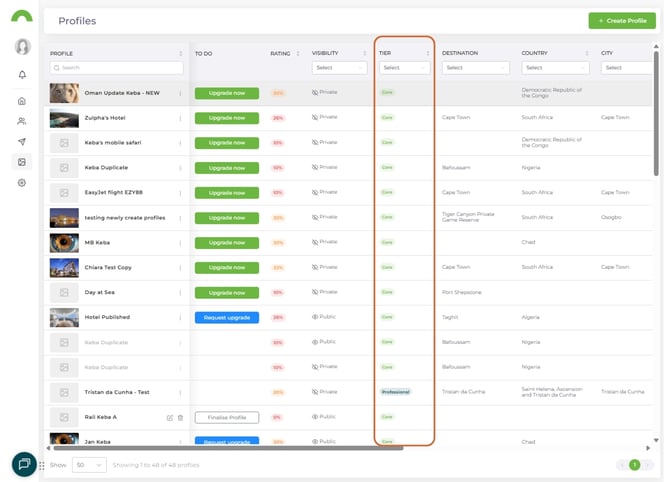
The Tier column shows your profile type:
- Core - Free, limited features
- Professional - Paid, full features including iBrochure
Upgrading from Core to Professional
If you have a Core profile, you can upgrade to Professional.
How to request an upgrade
1. Find your Core profile in the library
2. Click "Request Upgrade" (if available)
3. A popup explains Professional profile benefits
4. Click "Request Upgrade" to confirm
5. Sales team will contact you about pricing
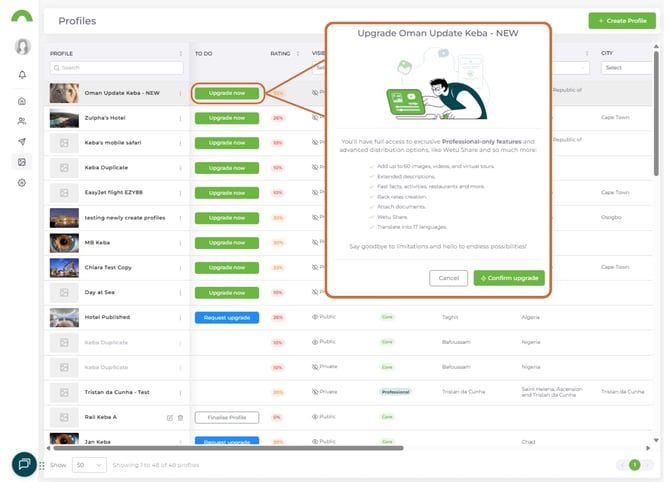
Professional benefits:
- iBrochure output
- Wetu Share functionality
- 100% content rating capability
- Advanced features and fields
- Priority visibility
Or email: sales@wetu.com to request upgrade
Date modified and created
Date Modified
Shows when your profile was last updated.
Use this to:
- Track when changes were made
- Identify profiles needing updates
- Maintain content freshness
Date Created
Shows when your profile was originally set up.
Use this to:
- See profile age
- Track profile history
- Identify oldest profiles for review
Tip: Update profiles quarterly to keep content fresh and relevant.
Common actions explained
Edit Profile
Opens the profile editor to update information.
When to use:
- Update descriptions
- Add new photos
- Change contact details
- Add facilities
- Update rates
View Profile
Preview how your profile appears to others.
When to use:
- After making changes
- Before sharing with team
- Quality check
Copy iBrochure Link (Professional only)
Copies the iBrochure URL to your clipboard.
When to use:
- Share directly with clients
- Include in email signatures
- Post on social media
Wetu Share (Professional only)
Advanced sharing options for iBrochure.
Features:
- Custom sharing settings
- Tracking and analytics
- Branded sharing
Embed Options
Get embed codes to add profile to your website.
When to use:
- Integrate profile on your website
- Display content externally
- Widget installation
Disable Profile
Turn off profile visibility.
When to disable:
- Property temporarily closed
- No longer offering this service
- Rebranding or major changes pending
- Duplicate profile cleanup
Warning: Existing itineraries will show "Disabled" before your name.
Downgrade Profile (Professional only)
Revert Professional profile to Core.
Consider before downgrading:
- You'll lose iBrochure functionality
- Wetu Share features removed
- Content rating capped at 80%
- Some fields may be hidden
Managing multiple profiles
If you have multiple properties or services:
Organizing your profiles
Sort by:
- Status (show Active first)
- Rating (prioritize low ratings for improvement)
- Date Modified (find outdated profiles)
- Name (alphabetical)
Filter options:
- Core vs Professional
- Active vs Disabled
- High vs low ratings
Best practices
Keep profiles current:
- Review quarterly
- Update photos annually
- Refresh descriptions regularly
- Verify contact information monthly
Maintain high ratings:
- Aim for 80% on Core, 100% on Professional
- Complete all available fields
- Add comprehensive information
Monitor status:
- Check for "In Review" profiles
- Complete "In Progress" profiles
- Re-enable "Disabled" profiles if reopening
Troubleshooting
My profile is stuck "In Review
- This usually means a duplicate was detected
- Contact support: support@wetu.com
- Team will resolve and activate
Can't increase my rating above 80%
- Core profiles max at 80%
- Upgrade to Professional for 100% capability
- Request upgrade or contact sales
Disabled" appears in itineraries
- Your profile was disabled after being added to itineraries
- Re-enable profile to remove label
- Or contact operators using it to replace
Don't see "Request Upgrade" option
- You may already be Professional
- Feature may not be available for your profile type
- Email sales@wetu.com
Need help?
For profile library questions:
- Email: support@wetu.com
- Live chat: Available in your dashboard
For upgrade requests:
- Click "Request Upgrade" in profile library
- Or email: sales@wetu.com
vs.1.0.14.03.2026