Contact Us
Skip to content
English
  • There are no suggestions because the search field is empty.

What is the Discovery Itinerary output layout?

The Discovery Output presents your itinerary as a modern, scroll-based experience - guiding clients through the trip visually, section by section, from landing page to contact details.

Quick Links
- What is the Discovery Output?
- Section-by-section layout
- Preview and share
- Need Help?

What is the Discovery Output?

The Discovery Output is a presentation-style itinerary designed for the modern client. Instead of a traditional document with pages or tabs, clients scroll through a continuous layout - experiencing the trip as a story rather than reading a file.

  • Fully responsive - works on desktop and mobile

  • Scroll-based layout - no clicking between pages

  • Visually rich with image galleries, interactive maps, and destination content

  • Designed to inspire and engage clients during the planning and comparison phases

back to top

Section-by-section layout

Each panel below shows what the client sees and where that content comes from in the Itinerary Builder.


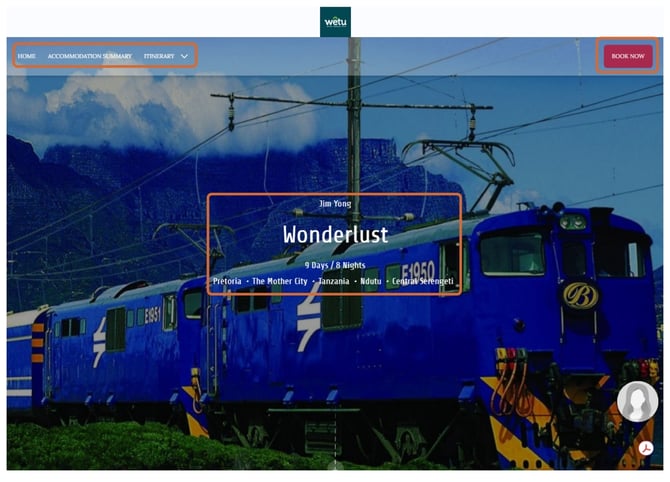
1. Landing Page

What the client sees

  • Full-width background image
  • Itinerary title
  • Client name
  • Trip duration (e.g. 22 Days / 21 Nights)
  • Destinations list
  • Navigation menu: Home, Accommodation Summary, Itinerary
  • Book Now button
  • Smooth scroll indicator

Where it comes from

  • Step 1 → Itinerary name (title)
  • Step 2 → Accommodation (destinations list)
  • Step 6 → Add Media (landing page image)
  • Branding settings → theme, logo, layout


Discovery 1


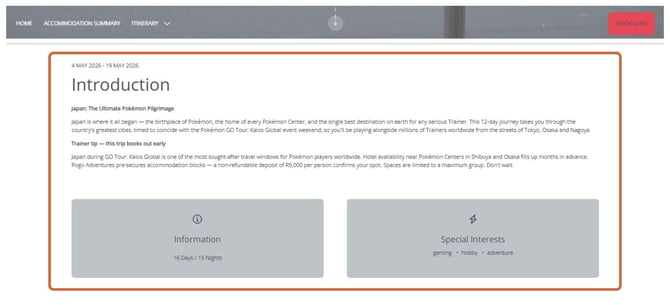
2. Introduction

What the client sees

  • Travel dates
  • Introduction heading
  • Welcome message or trip summary

Where it comes from

  • Step 2 → Travel dates
  • Step 6 → Introduction text

Discovery 2


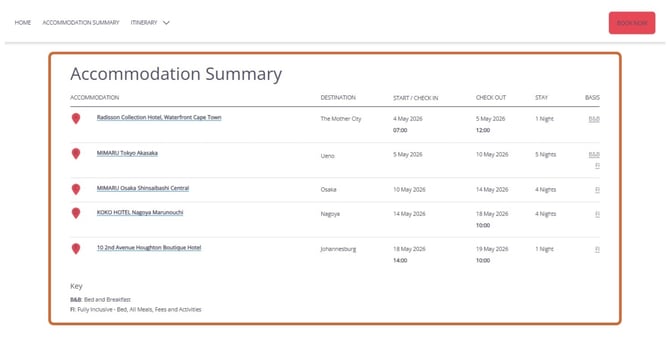
3. Accommodation summary

What the client sees

  • Table of all stays
  • Accommodation name (clickable)
  • Destination
  • Check-in / check-out dates
  • Length of stay
  • Meal basis (e.g. B&B)

Where it comes from

  • Step 2 → Accommodation entries
  • Property name, dates, nights, basis

Discovery 3


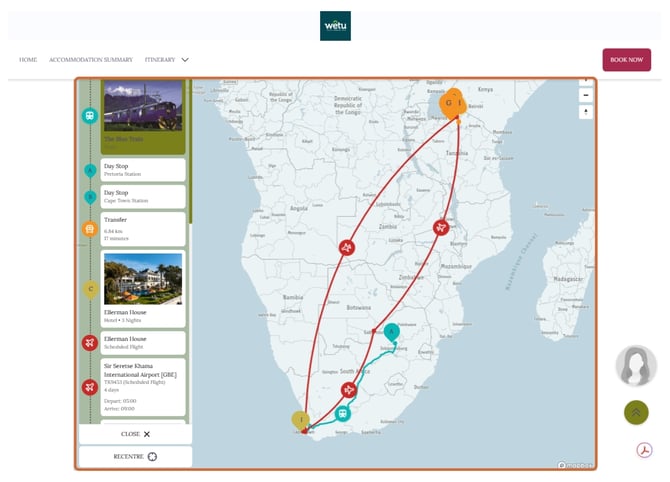
4. Interactive map & route

What the client sees

  • Large interactive Mapbox map
  • Route lines connecting destinations
  • Markers (A, B, C…)
  • Left-hand timeline: transport mode, distance and time, accommodation stops
  • Recenter button and expandable side panel

Where it comes from

  • Step 3 → Route Builder
  • Start/end points, transport mode, route structure

Discovery 4


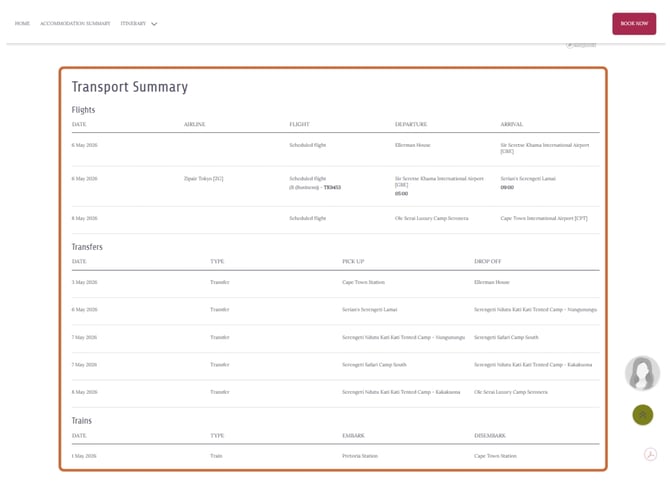
5. Transport summary

What the client sees

  • Flights table: date, airline, flight number, departure, arrival
  • Transfers table: date, company, type, pick-up / drop-off, time

Where it comes from

  • Step 3 → Route Builder
  • GDS Import (for flights)

Discovery 5


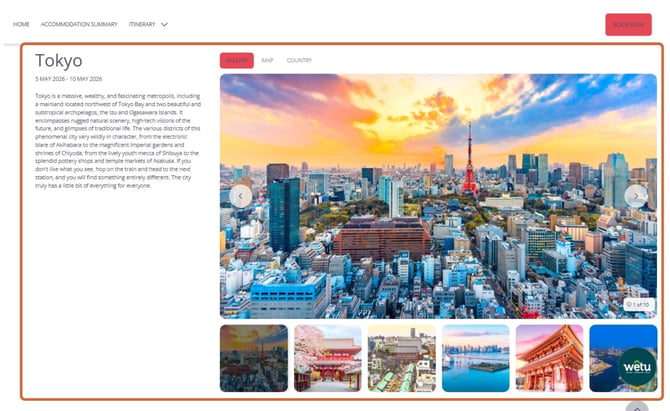
6. Destination sections

What the client sees

  • Destination title
  • Date range for that stay
  • Description of the destination
  • Tabs: Gallery, Map, Country
  • Large image carousel

Where it comes from

  • Step 2 → Destination selection
  • Wetu content library (descriptions, images, maps)

Discovery 6


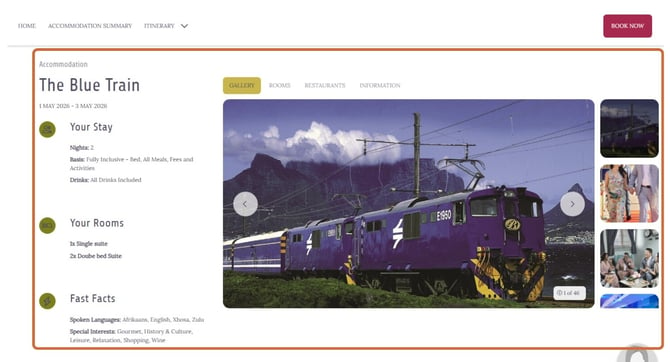
7. Accommodation details

What the client sees

  • "Your Stay" panel: nights, meal basis
  • "Fast Facts": star rating, check-in/out times, languages, activities
  • Large image gallery

Where it comes from

  • Step 2 → Accommodation entries
  • Wetu content library (property descriptions, images, facilities)

Discovery 7


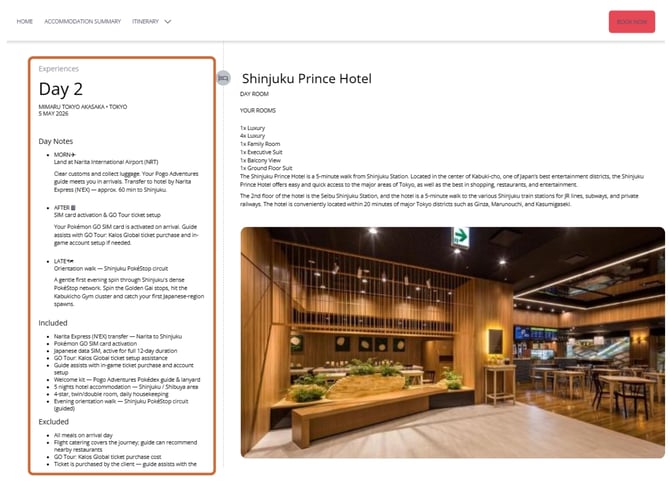
8. Daily itinerary (Experiences)

What the client sees

  • Day-by-day breakdown (Day 1, Day 2…)
  • Location and date
  • Activities in sequence: title, description, image carousel, status (e.g. Planned)

Where it comes from

  • Step 4 → Planner (main source)
  • Activity descriptions and day notes
  • Wetu content library (activity images)

Discovery 8


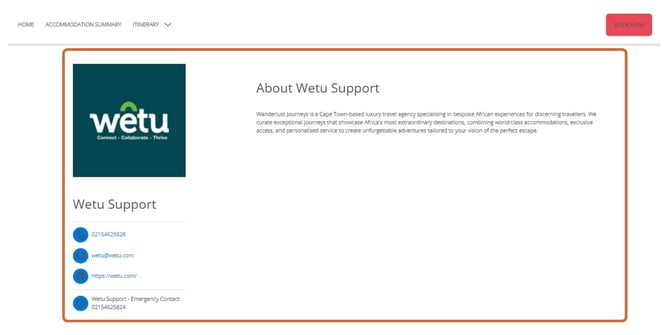
9. About / contact

What the client sees

  • Company logo
  • Company description
  • Contact details: phone, email, website, emergency contact

Where it comes from

  • Branding / Company profile
  • Step 1 → Contact settings

Discovery 9

back to top

Preview and share

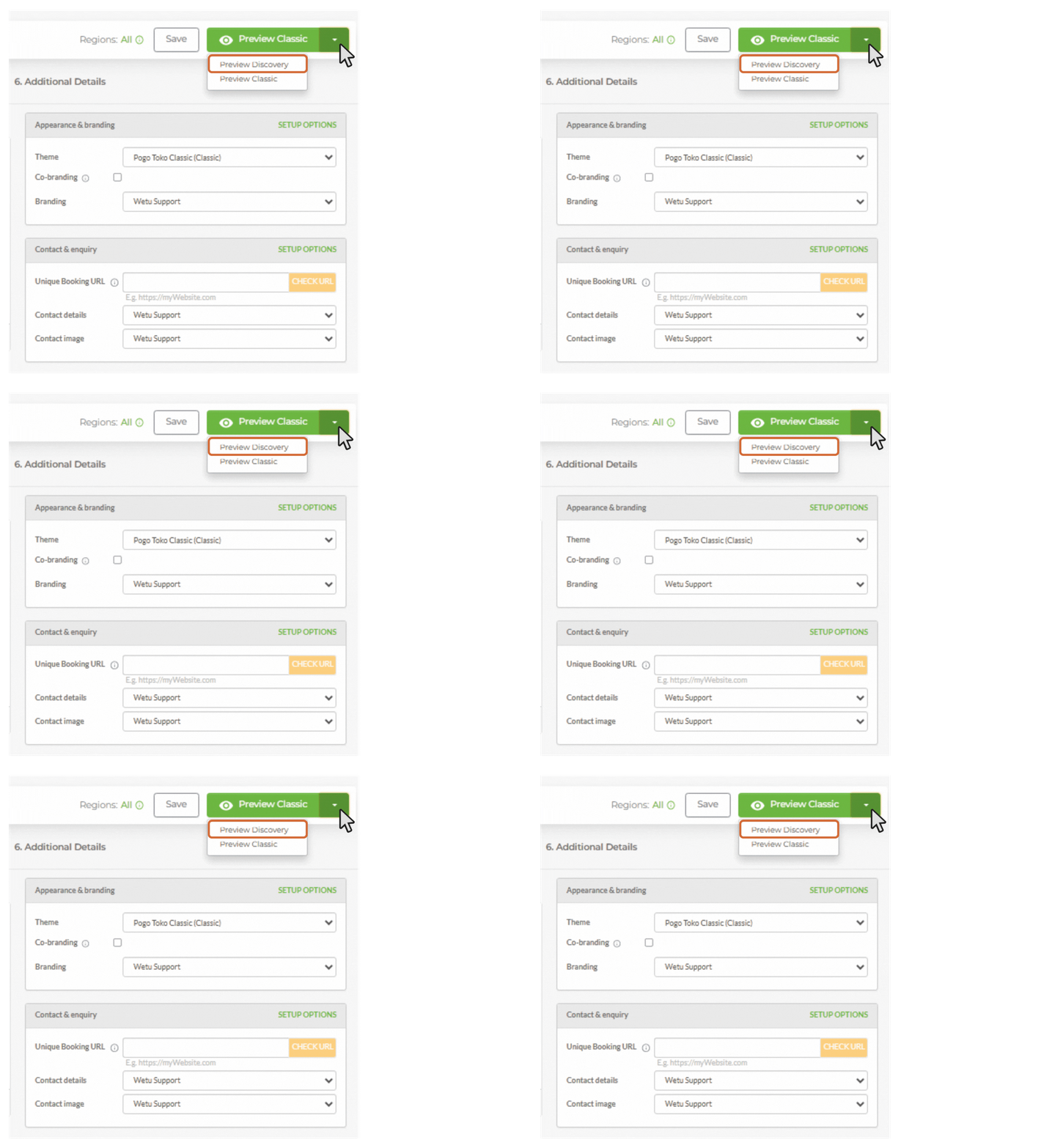
Preview (internal)

1. Open the itinerary in the Itinerary Builder.

2. Click Preview in the top right.

3. Select Preview Discovery.
Discovery 10a

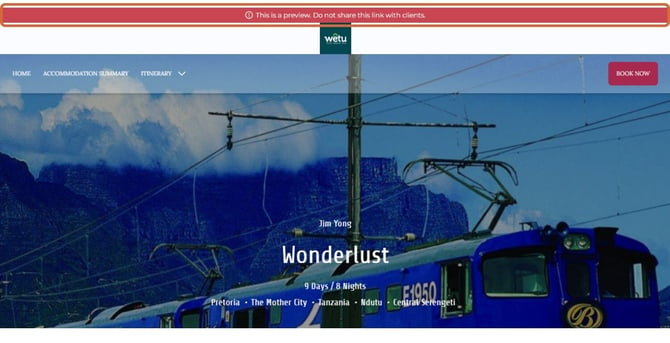
Do not share the preview link with clients

The preview link displays a red banner at the top: "This is a preview. Do not share this link with clients." Use the client share link instead.
Discovery 11

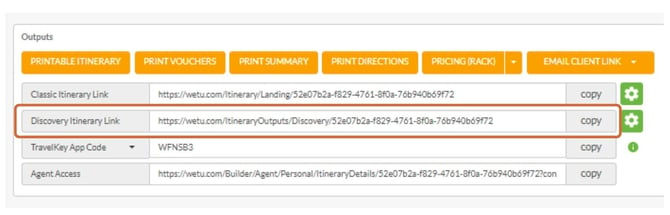
Share with clients

  1. Navigate to Step 6: Additional Details.
  2. Locate the Client Share Link (Discovery Itinerary Link).
  3. Copy and send the link to your client.
Discovery 12

back to top

Need Help?

- Contact Support: support@wetu.com
- Live Chat: Available on your Dashboard

back to top