
Quick Links
- What is the Product Manager?
- Who can access it?
- Accessing the Product Manager
- Accommodation tab
- View modes
- Filtering accommodations
- Quick preview
- Viewing detailed content
- Customising supplier information
- Preferred suppliers
- Activities tab
- Restaurants tab
- Best practices for Product Manager
- Streamlining itinerary building
- Common use cases
- Troubleshooting
- Need help?
What is the Product Manager?
The Product Manager houses all suppliers from your itineraries in one central space.
What you can view:
- Accommodation providers
- Activities
- Restaurants
- Supplier documentation
- Commission rates
- Preferred suppliers
- Flags and tags
- Internal notes
Use it for:
- Supplier research
- Training new team members
- Consistent itinerary quality
- Company-wide information sharing
- Quick supplier comparisons
Who can access it?
All users can view the Product Manager.
Admin users can customise supplier information and manage settings.
How access works:
- Consultants: View documentation, commissions, preferred suppliers, flags, and tags
- Admins: Full editing access to supplier information
- All users: View product information and content
Training tool: Use Product Manager to ensure consistent, quality itineraries every time.
Accessing the Product Manager
Method 1: Direct access
1. Navigate to Content Solutions in your main menu
2. Click "Product Manager"
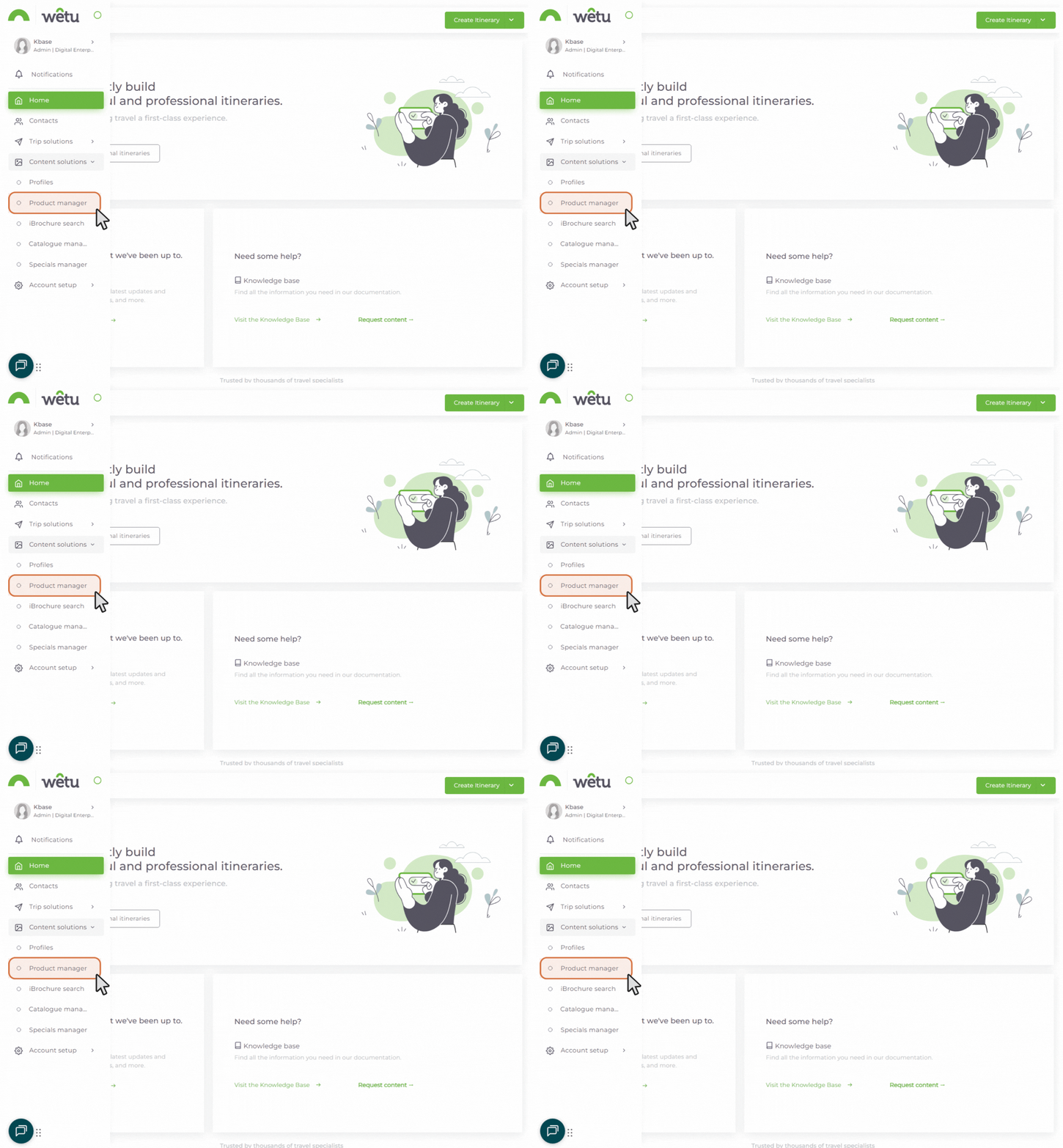
Method 2: From Itinerary Builder
1. Open any itinerary in Itinerary Builder
2. Go to the Accommodation step
3. Click "Product Manager" button
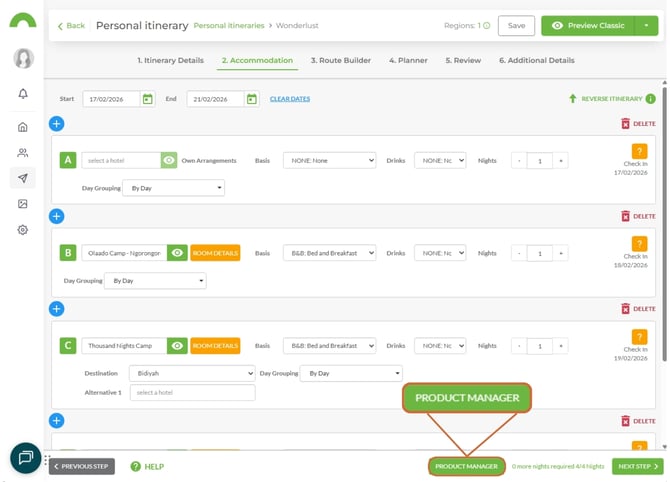
This opens Product Manager directly from your workflow.
Accommodation tab
The Accommodation tab lists all accommodation you've used in itineraries.
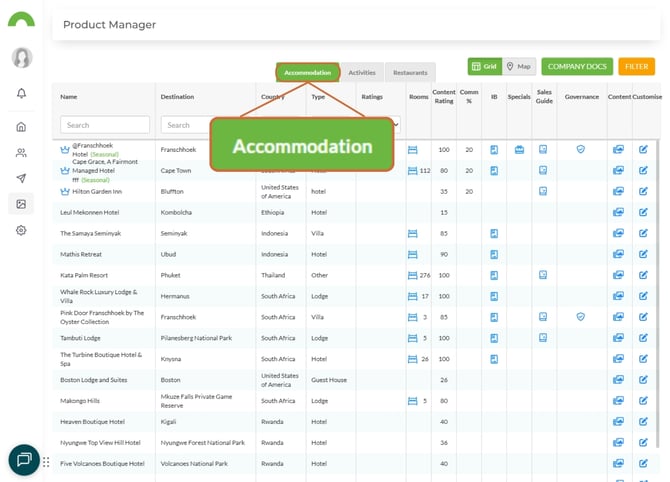
Note: Mobile accommodations and cruises do not show in Product Manager currently. Only standard accommodations appear.
View modes
Grid view
Displays accommodations in a card layout with key information visible.
What you see:
- Property image
- Property name
- Location
- Star rating
- Quick details
- Action buttons
Best for: Quick visual browsing, comparing properties side-by-side.
Map view
Displays accommodations plotted on a map by location.
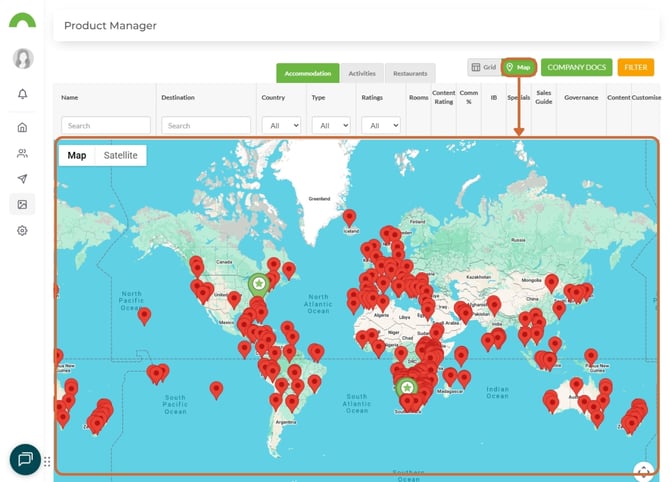
What you see:
- Map with property pins
- Cluster by region
- Click pin for details
- Zoom in/out
Best for: Regional planning, seeing proximity to attractions, route planning.
Switching views
Toggle between Grid and Map views using icons at the top.
Tip: Use Map view for destination planning, Grid view for supplier details.
Filtering accommodations
Use filters to narrow down properties matching your needs.
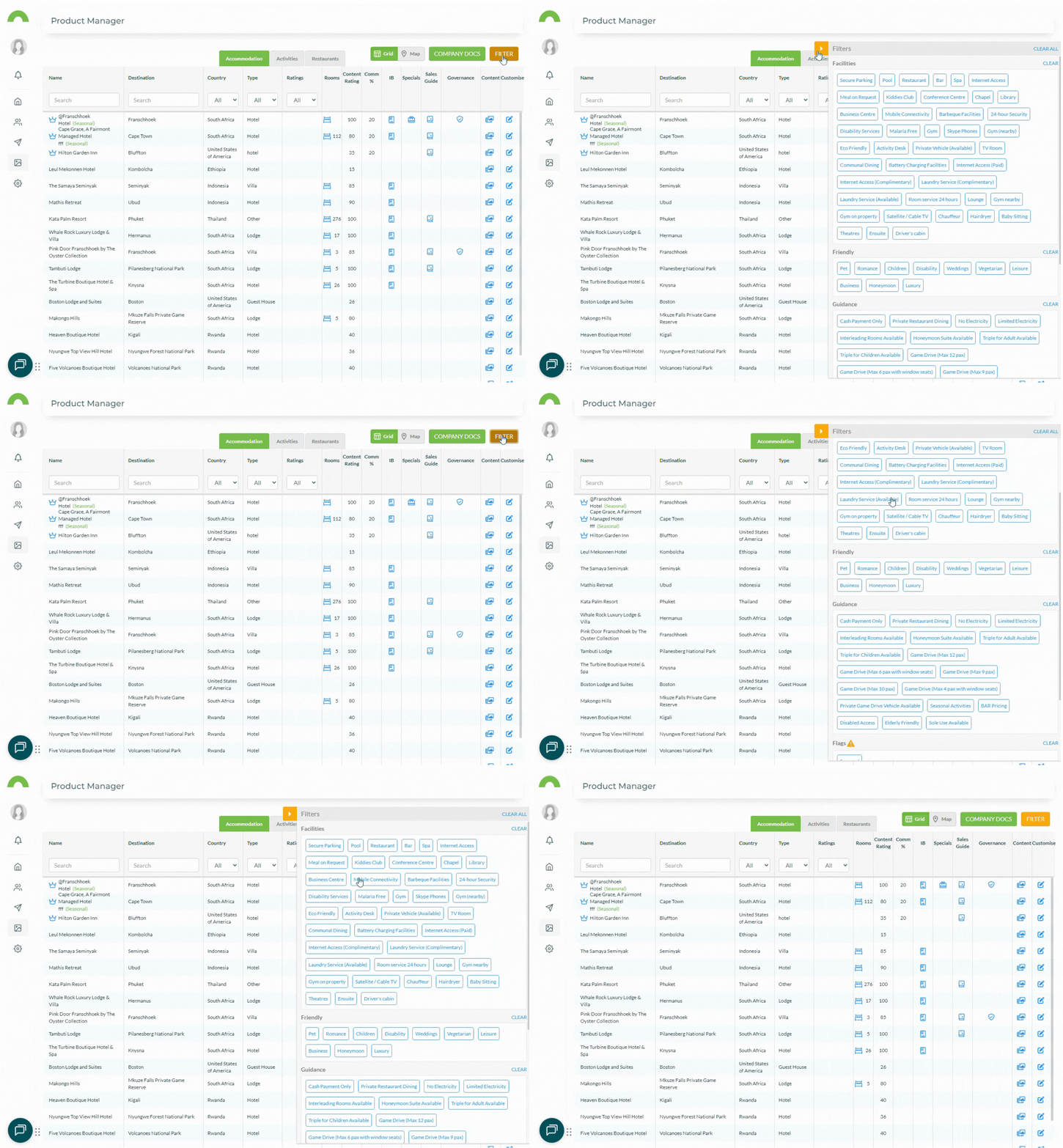
Standard filters
Filter by:
- Destination - Specific locations
- Country - Regional focus
- Star rating - Quality level
- Price range - Budget parameters
- Property type - Lodge, hotel, camp, resort
SS - Standard filter options
Advanced filters
Click "Filter" to access additional options:
Facilities:
- Swimming pool
- Spa
- Restaurant
- Conference facilities
- WiFi
- Family-friendly
- Pet-friendly
SS - Facilities filter options
Friendly filters:
- Family-friendly
- Honeymoon-friendly
- Wheelchair accessible
- Child-friendly
- Senior-friendly
SS - Friendly and Guidance filters
Use these filters to match properties to client needs quickly.
Quick preview
This does not seem to be working and might not be a feature anymore. Please advise.
Hover over or click an accommodation for a quick preview.
Preview shows:
- Property description
- Key facilities
- Contact information
- Commission details (if set)
- Internal notes (if added)
- Preferred status
- Flags and tags
SS - Quick preview popup with accommodation details
At a glance, you can:
- See if property suits client needs
- Check commission rates
- View internal notes
- Identify preferred suppliers
- Review flags/tags
Viewing detailed content
Click the "Content" icon to see all loaded content for a supplier.
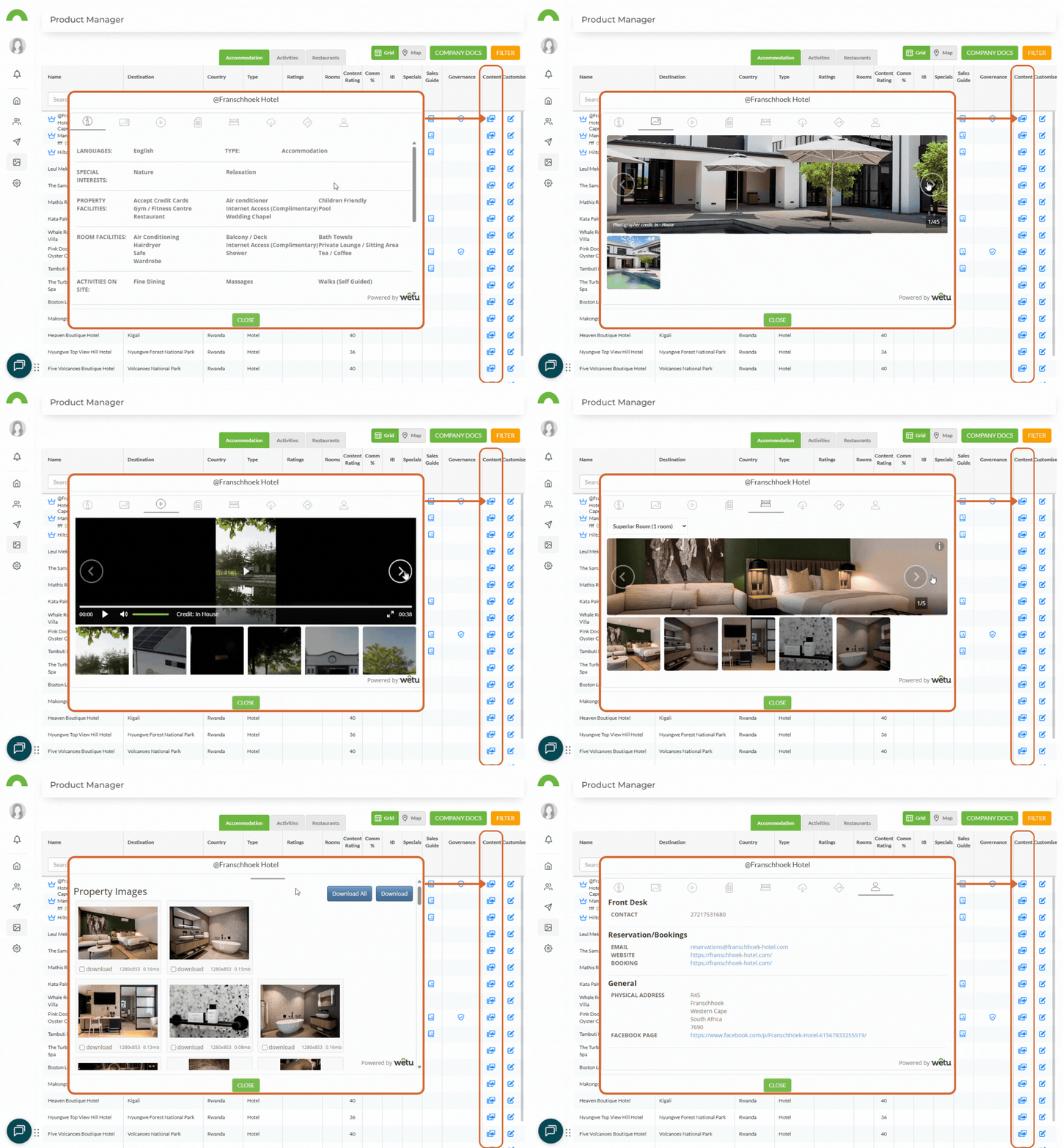
Content view
Opens a detailed view showing:
Profile information:
- Full descriptions
- All facilities listed
- Contact details
- Location and directions
Media:
- Image gallery
- Videos
- Virtual tours
Documentation:
- Rate sheets
- Brochures
- Terms & conditions
Room types:
- All sleeping arrangements
- Room descriptions
- Room facilities
- Pricing (if added)
Use this when:
- Researching property details
- Comparing multiple options
- Checking what information is available
- Building detailed proposals
Customising supplier information
Admin access required for customisation.
Click "Customise" to manage supplier information.
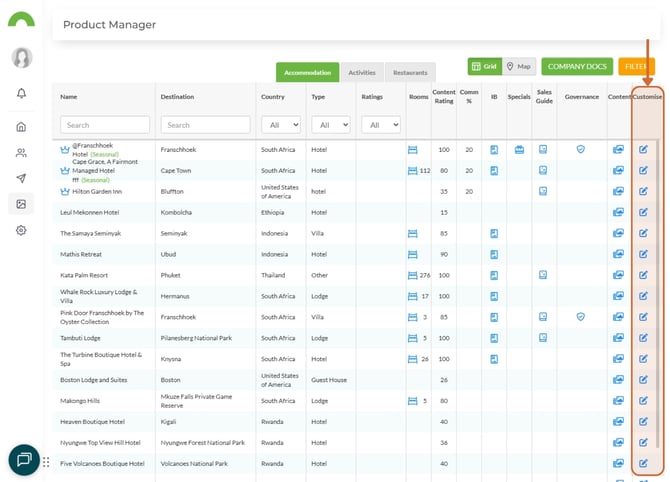
What you can customise
Opens Supplier Section in Account Settings where admins can manage:
Commission information:
- Commission percentage
- Payment terms
- Contract details
- Special arrangements
Internal notes:
- Booking procedures
- Special requirements
- Contact preferences
- Historical issues
- Partnership details
Flags and tags:
- Preferred supplier status
- Warning flags
- Category tags
- Custom classifications
Documentation:
- Upload contracts
- Add rate sheets
- Store correspondence
- Save agreements
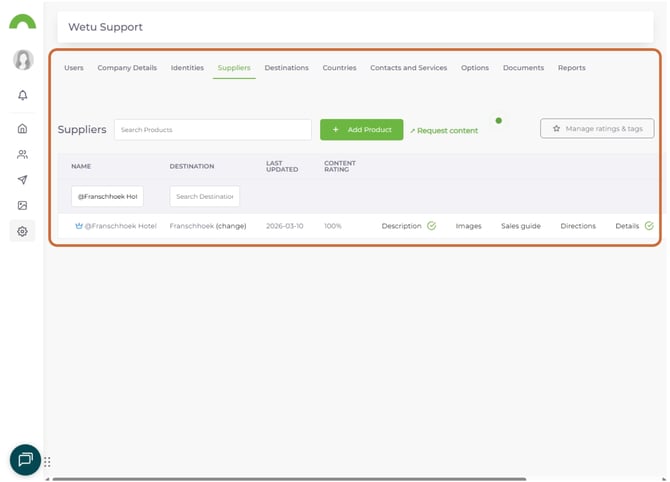
Company-wide visibility: Information is accessible to all team members from anywhere.
Preferred suppliers
Instructions out of date. I need someone to give me the up to date ones.
Manage preferred suppliers in Account Settings > Supplier Tab.
What are preferred suppliers?
Suppliers you've marked as:
- Trusted partners
- Best commission rates
- Consistent quality
- Reliable service
- Preferred inventory
Identifying preferred suppliers
In Product Manager:
- ⭐ Star or badge icon
- Highlighted in lists
- Filter option for "Preferred only"
SS - Preferred supplier badge on accommodation card
Why mark preferred:
- Quick identification
- Team consistency
- Better rates secured
- Reliable partnerships
- Quality assurance
Activities tab
Instructions out of date. I need someone to give me the up to date ones.
Activities must be manually added in the Supplier Section of Account Settings.
To add activities:
1. Go to Account Settings
2. Navigate to Supplier Section
3. Click "Add Supplier"
4. Select "Activity" type
5. Enter activity details
6. Save
SS - Add supplier interface for activities
Once added, activities appear in Product Manager for all team members to use.
back to top
Restaurants tab
View and manage restaurant partners.
Adding restaurants
Like activities, restaurants are manually added in the Supplier Section.
Filter restaurants by:
- Destination - Specific locations
- Country - Regional focus
- Category - Cuisine type, style, price range
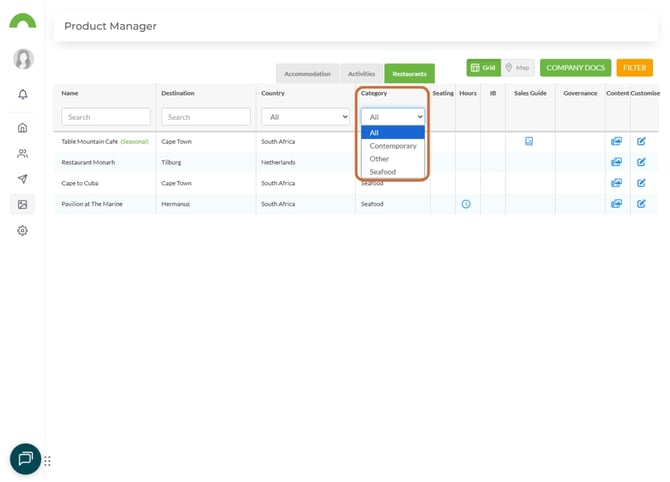
To add restaurants:
1. Account Settings > Supplier Section
2. Add Supplier > Select "Restaurant"
3. Enter details and save
Best practices for Product Manager
Create a project plan
Initial setup:
1. Identify all key suppliers
2. Gather commission information
3. Collect documentation
4. Add internal notes
5. Set flags and tags
6. Mark preferred suppliers
Allocate time:
- Initial setup: 2-4 weeks (depending on supplier count)
- Ongoing maintenance: 2-4 hours monthly
Ongoing maintenance plan
Monthly tasks:
- ☑ Update commission rates
- ☑ Add new suppliers used in itineraries
- ☑ Remove inactive suppliers
- ☑ Refresh internal notes
- ☑ Update contact information
Quarterly tasks:
- ☑ Review all supplier information
- ☑ Verify rate sheets current
- ☑ Update contracts and documentation
- ☑ Audit flags and tags
- ☑ Clean up duplicates
Annually:
- ☑ Comprehensive supplier audit
- ☑ Renegotiate commissions
- ☑ Update preferred supplier list
- ☑ Archive inactive supplier
Add comprehensive information
For each supplier, include:
Commission details:
- Percentage or flat rate
- Payment terms (NET 30, NET 60)
- Currency
- Special conditions
Internal notes:
- Booking contact name
- Best communication method
- Response time expectations
- Special requests procedures
- Cancellation policies
- Problem history (if any)
Documentation:
- Current rate sheets
- Contract/agreement
- Commission confirmation
- Terms & conditions
- Property fact sheets
Use flags and tags strategically
Flags for:
- ⚠️ Warning (past issues, slow responses)
- ✓ Approved (vetted by management)
- ⭐ Premium (high-end properties)
- 💰 High commission
- 🔒 Exclusive partnership
Tags for:
- Property type (safari, beach, city, mountain)
- Special focus (family, honeymoon, adventure, wellness)
- Region/destination
- Price category (luxury, mid-range, budget)
- Unique features (eco, historic, boutique)
Train your team
Use Product Manager as training tool:
For new consultants:
1. Show how to search suppliers
2. Explain commission structure
3. Review preferred suppliers
4. Demonstrate flag meanings
5. Teach how to read internal notes
Ongoing training:
- Weekly: Review newly added suppliers
- Monthly: Highlight commission updates
- Quarterly: Preferred supplier changes
Benefits:
- Consistent quality across team
- Reduced booking errors
- Better commission capture
- Faster itinerary building
- Improved client satisfaction
Streamlining itinerary building
Quick supplier selection
During itinerary building:
1. Use Product Manager filters
2. Narrow to preferred suppliers
3. Check commission rates
4. Review internal notes
5. Select best match
Time saved:
- No searching through emails
- No asking colleagues
- No checking spreadsheets
- All information in one place
Consistency across consultants
Product Manager ensures:
- Everyone uses same supplier information
- Commission rates applied correctly
- Preferred suppliers prioritised
- Warnings heeded
- Quality standards maintained
Result: Professional, consistent client experience.
Common use cases
Use Case 1: New consultant onboarding
Scenario: New team member joining, needs to learn suppliers quickly.
Product Manager solution:
1. Show Grid and Map views
2. Explain filter functions
3. Review preferred suppliers
4. Read through internal notes on key properties
5. Understand commission structure
6. Learn flags and tags meaning
Outcome: New consultant productive in days, not weeks.
Use Case 2: Client-specific itinerary
Scenario: Honeymoon couple wants luxury beach + safari combination.
Product Manager solution:
1. Filter: Honeymoon-friendly + Luxury
2. Filter: Beach properties
3. Filter: Safari properties
4. Review commission rates
5. Check availability via notes
6. Select best matches
Outcome: Curated options in minutes, maximised commission.
Use Case 3: Budget optimisation
Scenario: Need to build cost-effective group itinerary while maintaining quality.
Product Manager solution:
1. Filter by destination
2. Filter by price range: Mid-range
3. Sort by commission rate (highest first)
4. Review group capacity in notes
5. Check group-friendly facilities
6. Select properties with best value + commission
Outcome: Profitable itinerary within budget.
Use Case 4: Quality control
Scenario: Manager wants to ensure team uses approved suppliers only.
Product Manager solution:
1. Mark all vetted suppliers as Preferred
2. Add flags for any issues
3. Include detailed notes on booking procedures
4. Train team to filter for Preferred
5. Review itineraries for non-preferred use
Outcome: Consistent quality, fewer booking problems.
Troubleshooting
Supplier not showing in Product Manager
- Check if used in any itineraries yet
- Mobile accommodations/cruises don't appear currently
- Manually add activities and restaurants in Supplier Section
- Refresh the page
Can't customise supplier information
- Verify you have Admin access
- Contact account owner to grant permissions
- Try different browser
- Clear cache and retry
Filters not working
- Ensure suppliers have facility information loaded
- Check if properties have been categorised
- Refresh Product Manager
- Try clearing all filters and starting over
Commission information not displaying
- Verify it's been added in Supplier Section
- Check Admin added it (consultants can't edit)
- Refresh the page
- Contact support if issue persists
Preferred suppliers not showing badge
- Confirm marked as preferred in Account Settings > Supplier Tab
- Refresh Product Manager
- Check filter isn't hiding them
- Verify user permissions
Need help?
For Product Manager support:
- Email: support@wetu.com
- Live chat: Available in your dashboard
For Admin access:
- Contact your account owner
- Or email: support@wetu.com
vs.1.0.20.03.2026