
Quick Links
- Open the Overview tab
- Trip information
- Status updates
- Trip notifications
- Tasks
- Notes
- Personal itinerary
- Sample itineraries
- Trip settings
- Deleting a trip
- Best practice
- Need Help?
The Overview tab is the main workspace for managing a trip in the Trip Panel.
The Overview tab is designed to answer one question: What needs to happen next on this trip?
|
It gives quick access to tasks, itinerary management, consultant assignment, branding and trip status updates. Consultants can manage the operational side of a booking from a single location.
Open the Overview tab
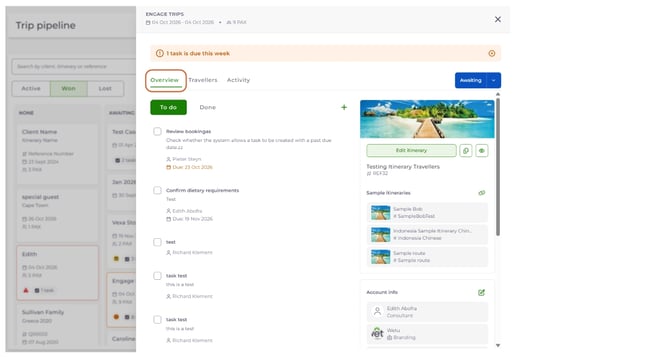
- Select a trip card in Trip Pipeline. The Trip Panel opens.
- Select the Overview tab.
Trip information
Key trip information is shown at the top of the panel:
| Information is shown |
|
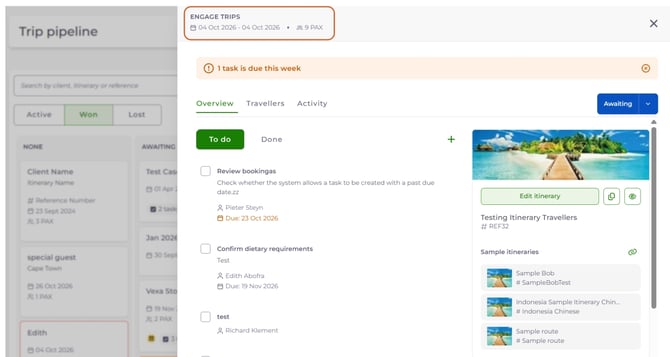
This gives you a quick summary of the booking without opening the itinerary.
Status updates
The current trip status is displayed in the top right corner of the Overview tab.
- Select the status dropdown.
- Choose the stage you want to move the trip to.
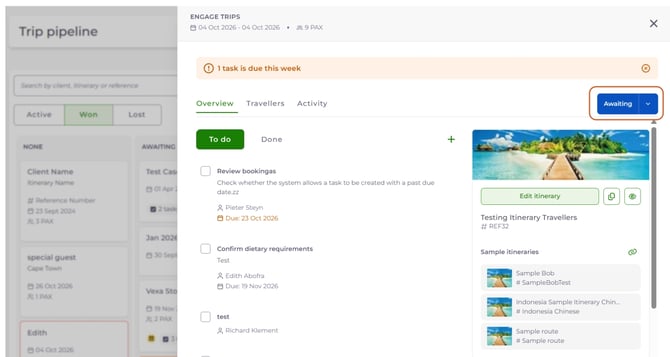
Changing a trip's status updates Trip Pipeline. It may also trigger automations, depending on how your automations are set up.
Trip notifications
Important trip notifications are displayed at the top of the Overview tab. They show time-sensitive events that may need attention.
| Examples include: |
|
The notification colour shows how urgent it is:
Tasks
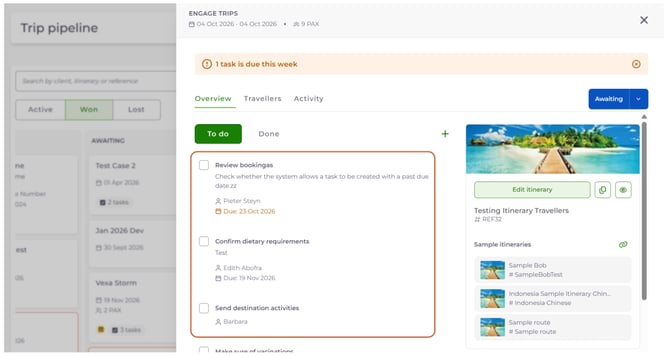
The Tasks section shows all tasks linked to the trip. Tasks are split into two views:
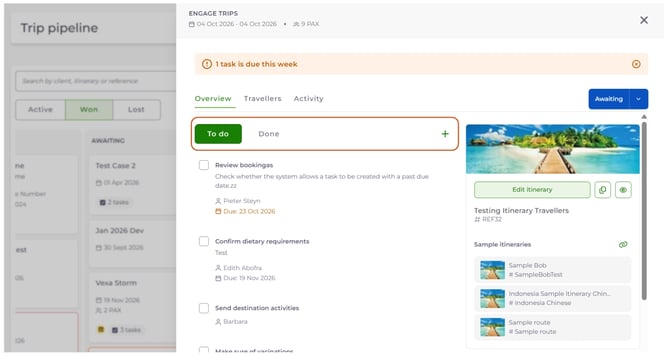
Creating a task
- Select the + icon.
- Enter the task details.
- Add a description (optional).
- Select a due date.
- Save the task.
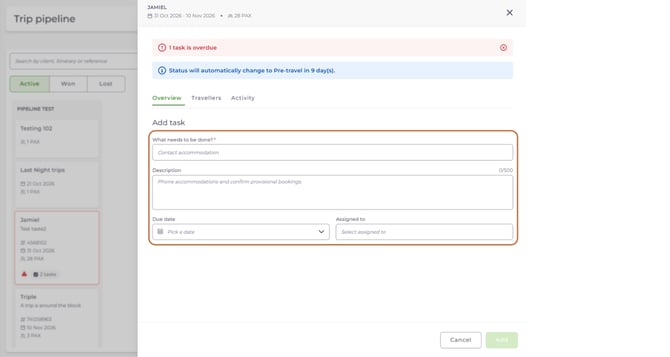
The task appears in the To do list straight away.
Notes
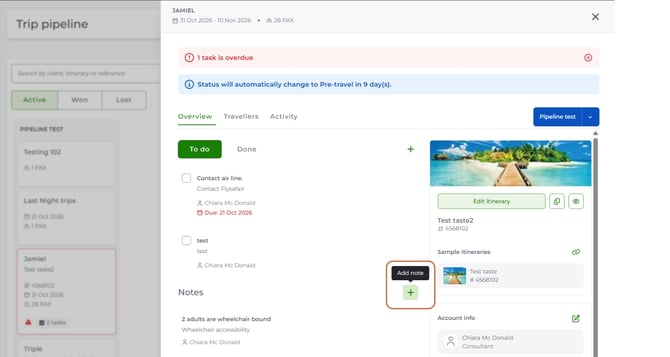
The Notes section lets you record important information about the trip, such as customer preferences, special requests and communication details.
To add a note, select the + icon next to the Notes heading. If the trip has no notes yet, you can also select + Add note.
Personal itinerary
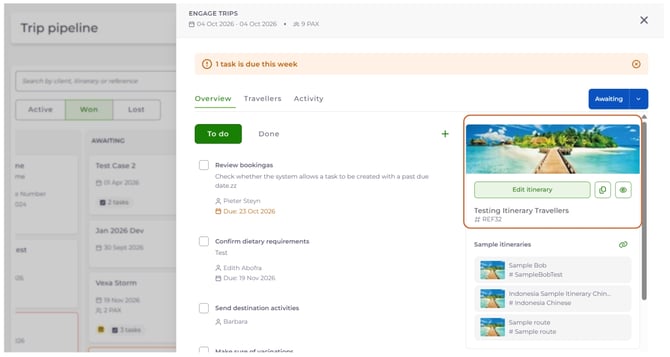
The Personal itinerary section lets consultants create, link and manage the itinerary linked to the trip.
| Once an itinerary has been linked, the itinerary card shows: |
|
| Option | What it does | When to use it |
|---|---|---|
| Add Itinerary | Creates a new personal itinerary that can be customised for the traveller | When no itinerary has been linked to the trip yet |
| Edit Itinerary | Opens the itinerary in Itinerary Builder | When you need to make changes to the itinerary |
Sample itineraries
Sample itineraries can be linked to a trip to help consultants during the planning process. They can be used as a starting point when creating a personal itinerary for a traveller.
To use a sample itinerary:
- Browse the available sample itineraries.
- Select the itinerary you need.
- Select Copy as Personal.
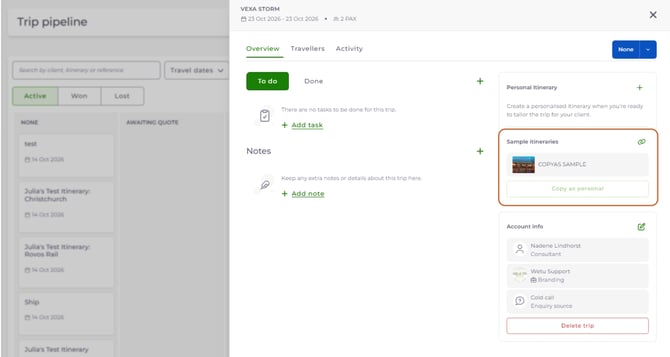
A personal itinerary is created based on the selected sample itinerary.
Trip settings
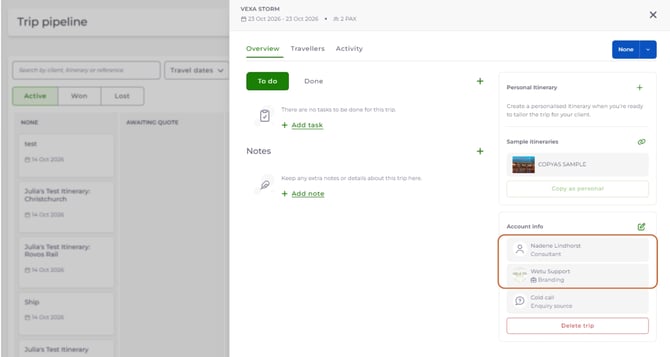
The Settings section lets consultants manage ownership and branding for the trip.
| Setting | What it does |
|---|---|
| Consultant | Assigns the consultant responsible for managing the trip. This helps teams understand ownership and responsibility for each booking. |
| Branding | Assigns the branding used for the trip. Branding controls the client-facing experience and makes sure the correct company identity is applied to communications and itineraries. |
Deleting a trip
You can permanently remove a trip from the pipeline.
- Go to the Account info section of the Overview tab.
- Select Delete trip.
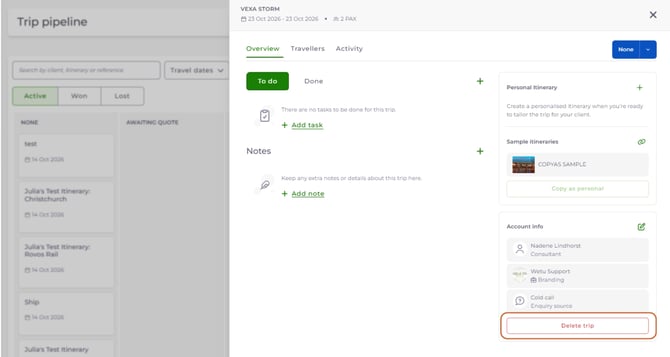
Caution: Deleting a trip cannot be undone.
Best practice
We recommend using the Overview tab as your main workspace for a trip.
| Consultants should: |
|
Keeping the Overview tab up to date means more accurate reporting, better team visibility and smoother trip management.
Need help?
Contact Wetu Support at support@wetu.com.
Chat to us Live from the dashboard.