
Quick Links
- Access account settings
- Itinerary output settings
- Miscellaneous fees and defaults
- Itinerary Tags
- Languages
- Printable Itinerary Options
- Need Help?
Access account settings
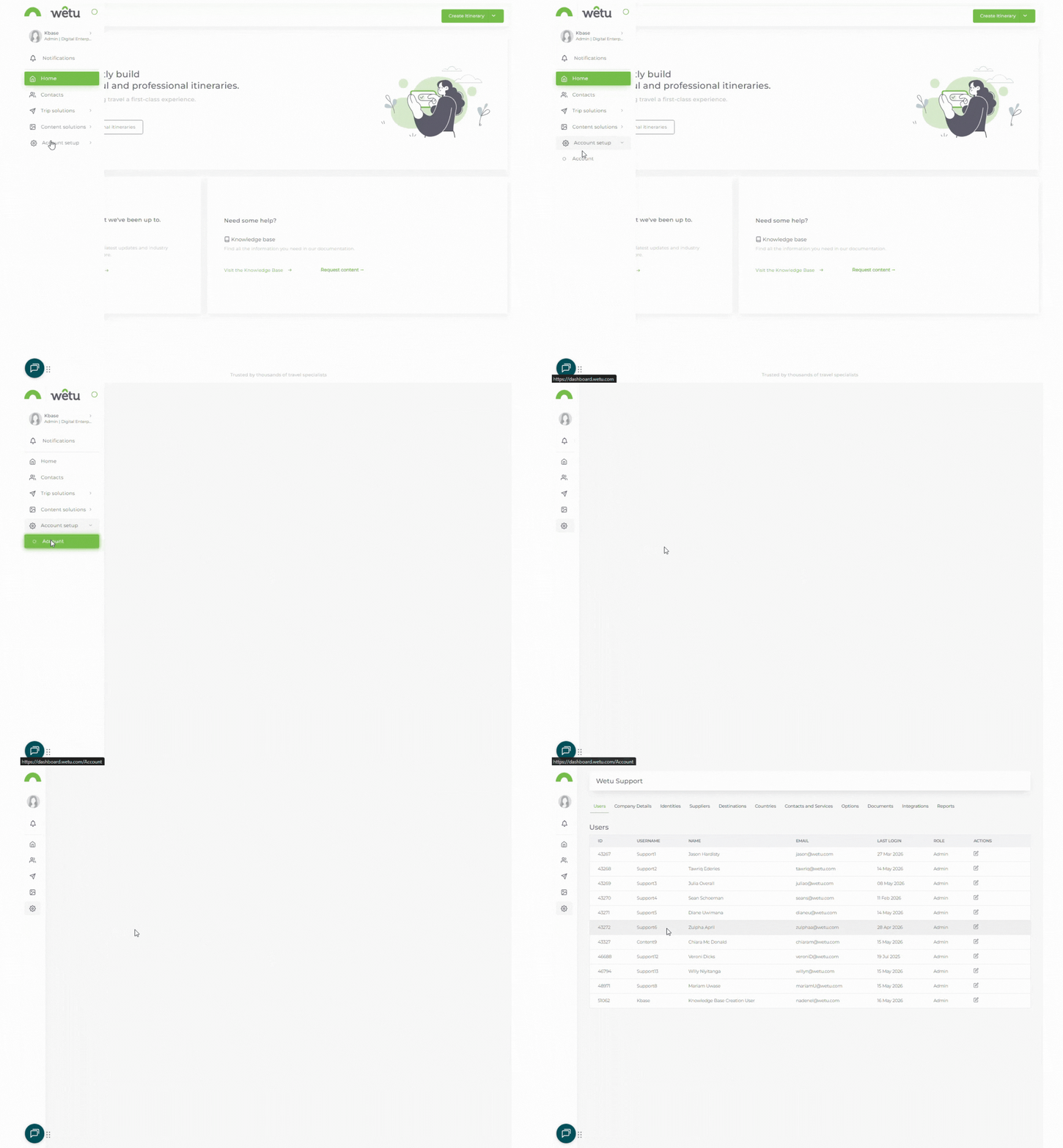
1. In the navigation panel, go to Account Setup › Account.
2. Click the Account tab.
Itinerary output settings
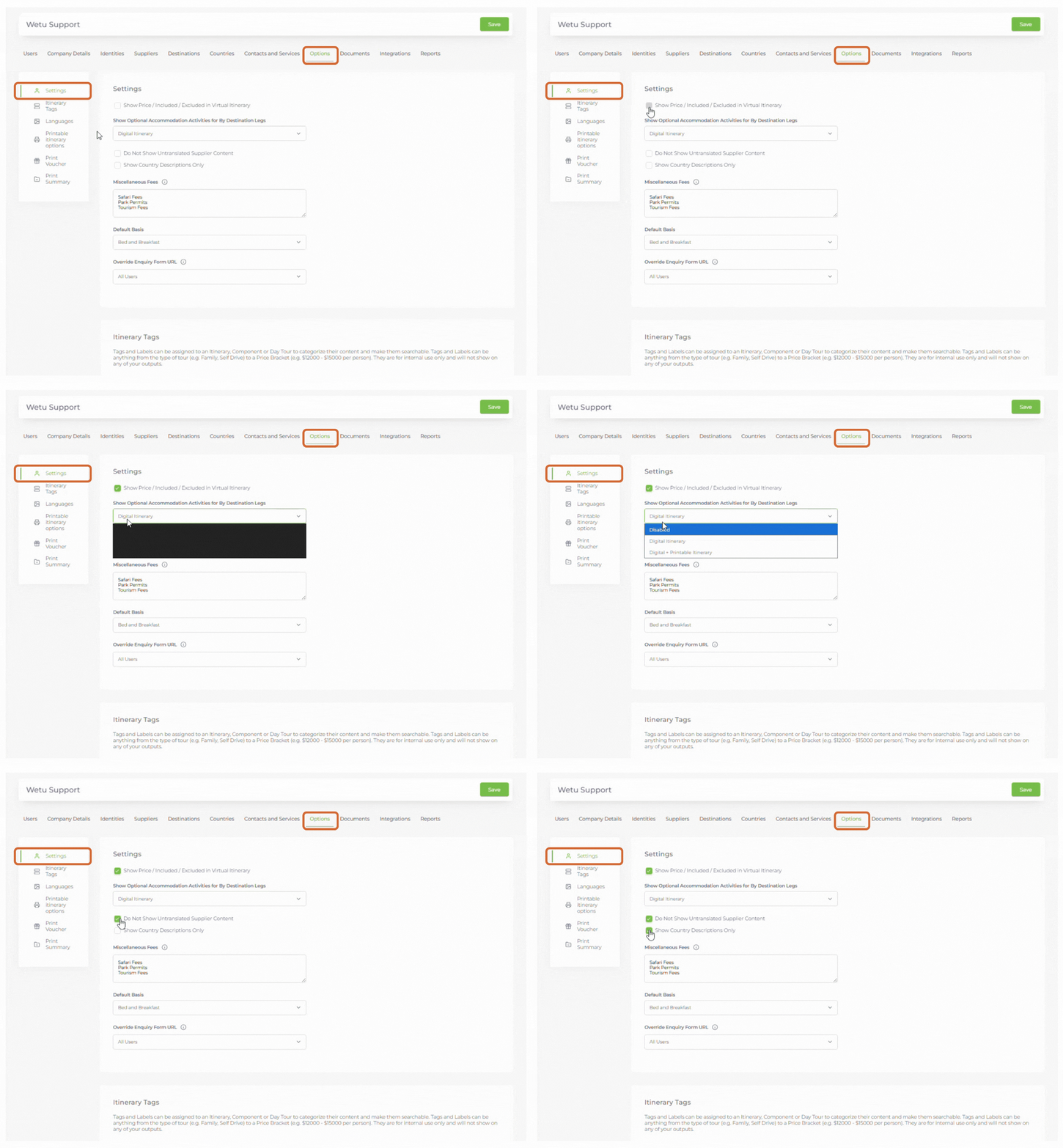
The settings below may or may not apply to your account depending on your Wetu package.
| Setting | Description | ||||||
|---|---|---|---|---|---|---|---|
| Show Price / Included / Excluded in Virtual Itinerary | When enabled, pricing information and includes/excludes entered in the Itinerary Builder will display on the itinerary output. If disabled, this information will not appear. For Digital packages: applies to the map page of the itinerary. |
||||||
| Show Optional Accommodation Activities for By Destination Legs | Controls how supplier-loaded activities appear in the itinerary. Three options:
Any custom activities created in the Supplier tab in Admin will also display. |
||||||
| Do Not Show Untranslated Supplier Content | When machine translations are inactive, untranslated content defaults to displaying in English. Enabling this setting leaves the description blank instead of showing the English version. | ||||||
| Show Country Descriptions Only | By default, the Information tab shows all country information (descriptions, Currency, Dress, Transport, etc.). Enabling this setting displays only the country description, affecting both the digital itinerary and the Country tab in Admin. |
Miscellaneous fees and defaults
| Setting | Description |
|---|---|
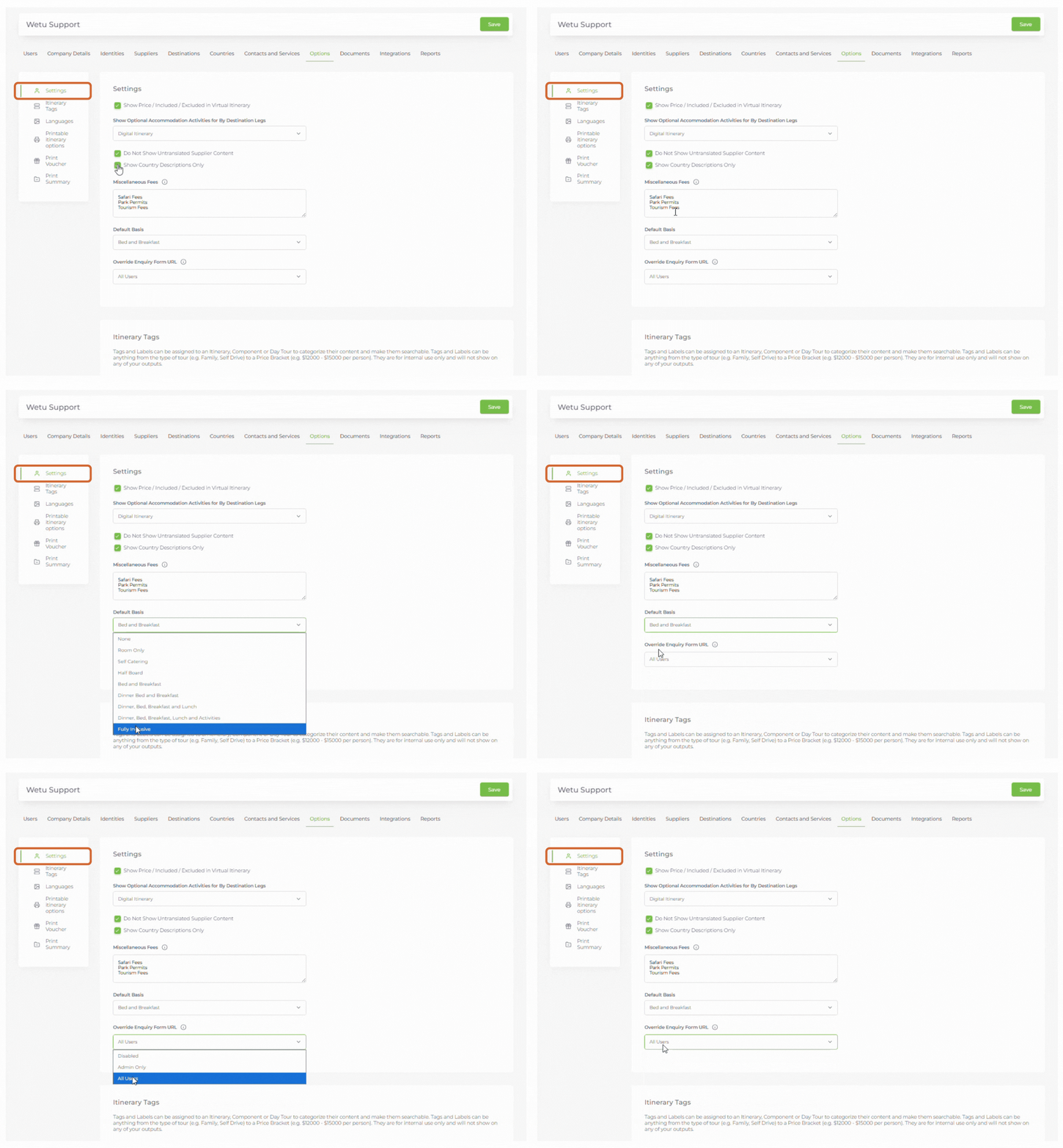
| Miscellaneous Fees | Add fees that appear in costing but not in the itinerary itself. In Step 5: Review, select which fees apply to the specific itinerary - they will then be added to the Pricing Sheets generated in Step 6: Additional Details. |
| Default Basis | Sets the default meal basis for accommodations added in the Itinerary Builder. |
| Override Enquiry Form URL | Add a unique URL to the Enquiry button on the itinerary. Refer to the article on adding a Unique Booking URL for more information. |
Itinerary Tags
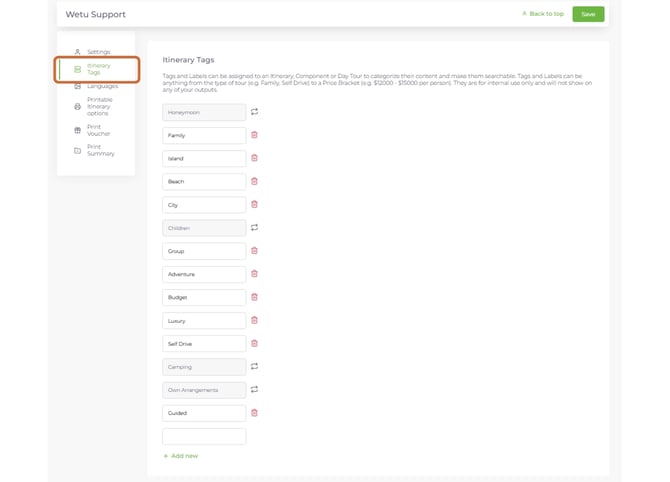
Itinerary Tags let you sort and filter itineraries into search categories. You can delete default tags and create new ones relevant to your team. Once created, tags can be assigned to individual itineraries and used as a filter in the Itinerary Browser.
Languages
Manage the languages available in your Wetu account and enable or disable machine translation functionality for itinerary content.
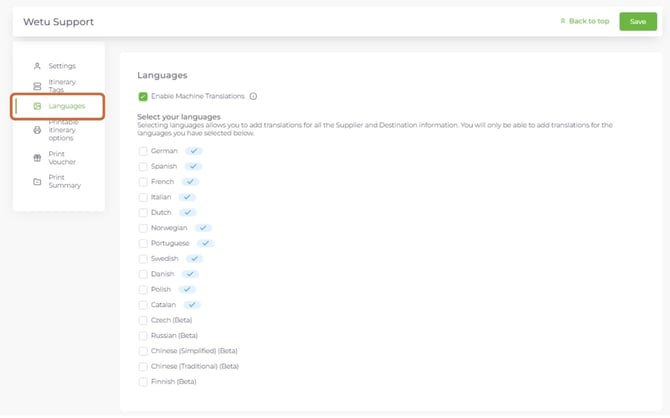 back to top
Printable Itinerary Options
|
Setting |
Description |
|---|---|
|
Select the Printable Version |
Choose between Classic and Contemporary printable formats as the default for your account. |
|
Allow Consultants to Override Print Options |
When enabled, all users can adjust printable settings (except the version selection). When disabled, all users must use the default settings configured here. |
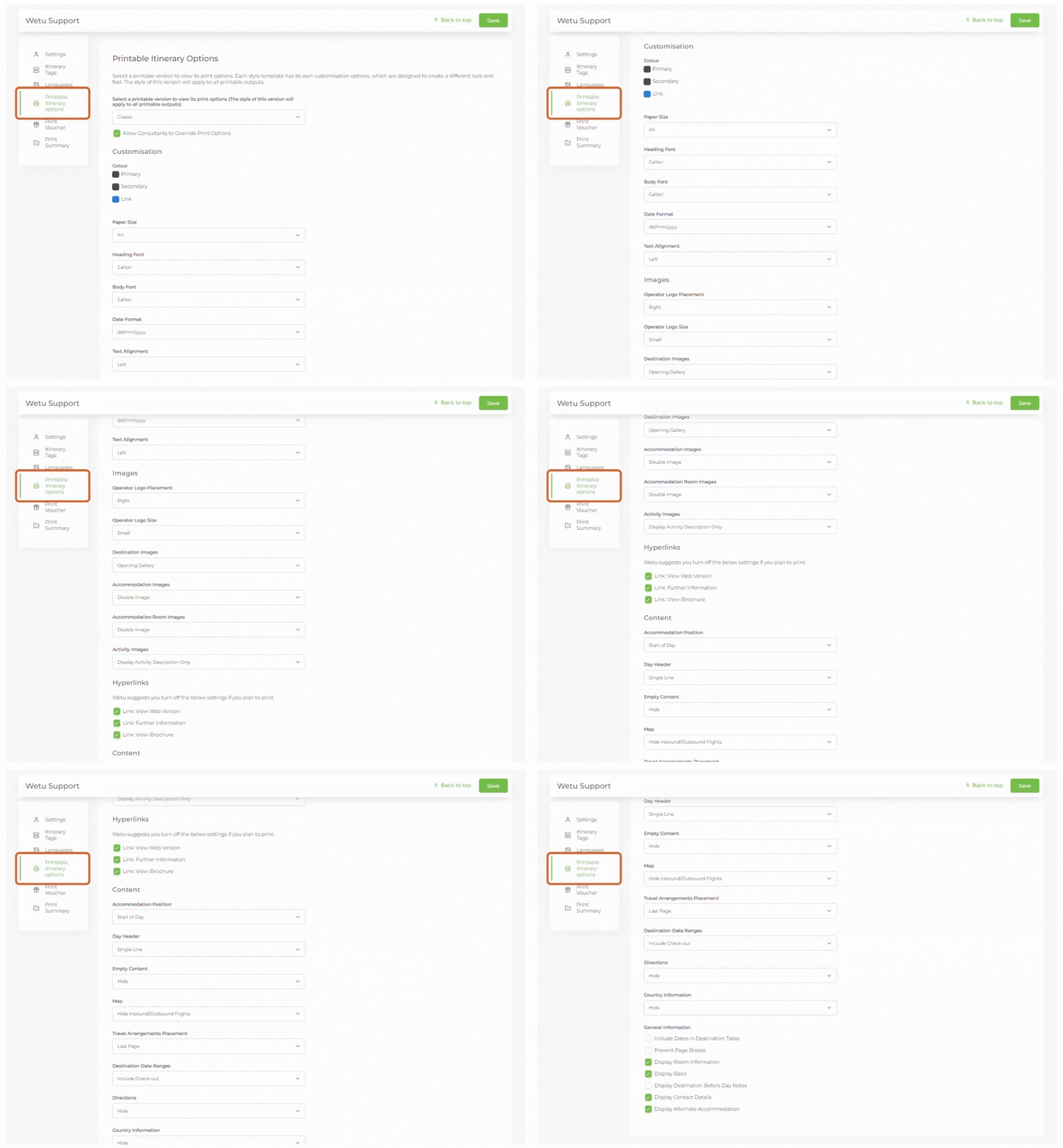
Note: Detailed settings for each printable version are covered in the dedicated articles for the Classic and Contemporary Printable Itinerary.
Need Help?
- Contact Support: support@wetu.com
- Live Chat: Available on your Dashboard