
Quick Links
- Access Itinerary History
- View the history
- History actions: Create Copy & Revert
- Need help?
Access Itinerary History
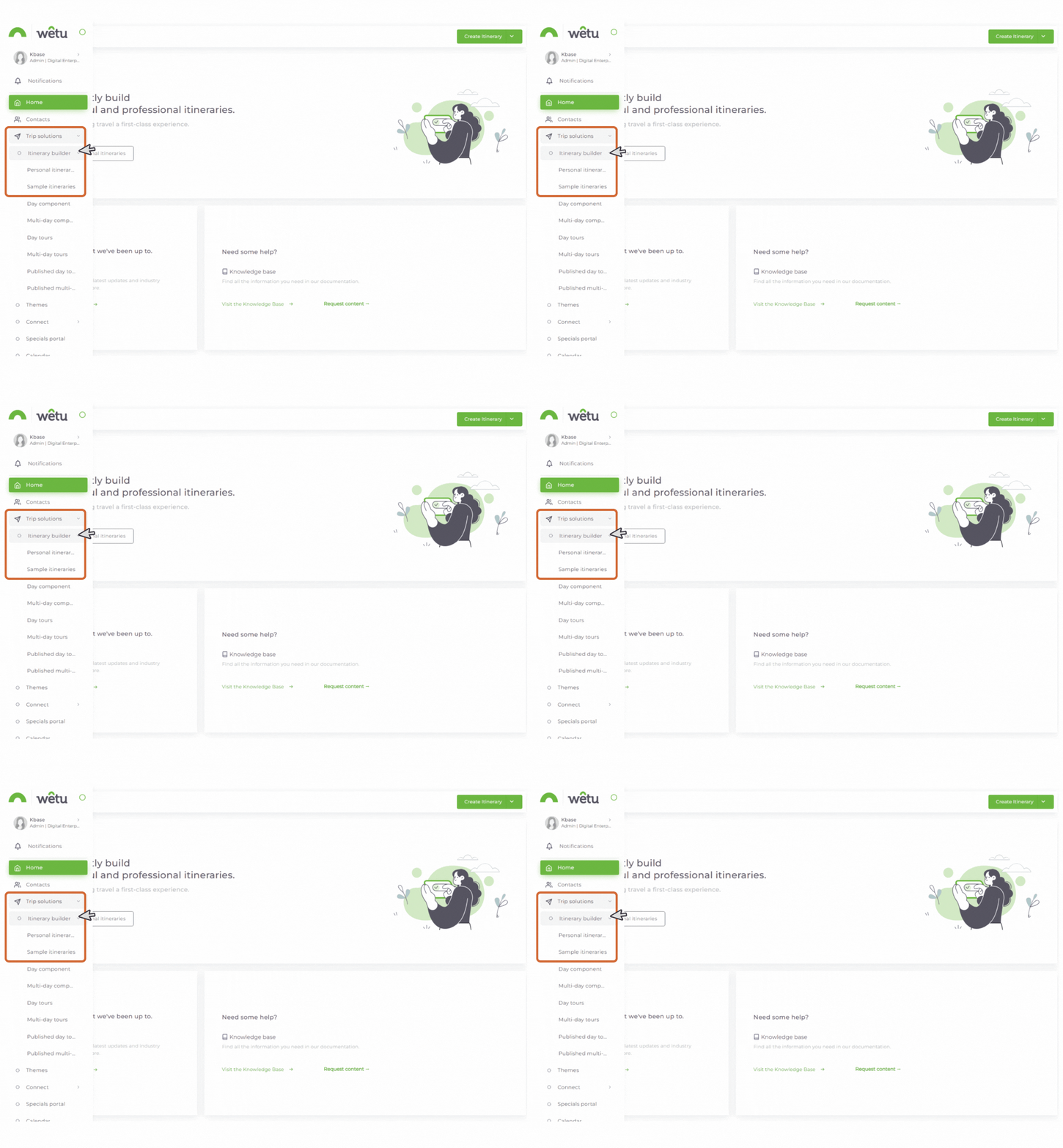
1. Navigate to Trip Solutions.
2. Click Itinerary Builder to open the dropdown menu.
3. Select Personal Itineraries or Sample Itineraries.
4. The Itinerary Browser will open.
Note: The Itinerary History function is available for both Personal and Sample Itineraries.
View the history
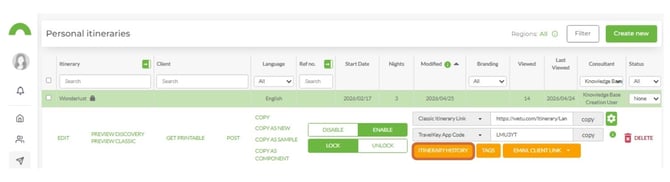
1. In the Itinerary Browser, select the itinerary you want to review.
2. Click the Itinerary History button.
3. The Itinerary History modal will open.
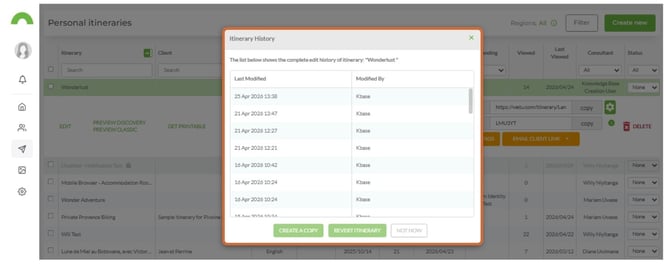
The history table displays:
- Date and time of each modification
- The user who made the change
Note: When an itinerary is newly created, the Itinerary History button will be greyed out - no edits have been recorded yet. Once changes are saved, the history will begin to populate.
History actions: Create Copy & Revert
Select a version from the history table, then choose one of the following actions:
1. Create Copy
|
2. Revert (Replace Itinerary)
Before reverting, the following confirmation message will appear: "You are about to replace this itinerary with a previously saved version of the itinerary. Any changes made after the 'Last Modified' date will be overwritten. Do you wish to proceed?" |
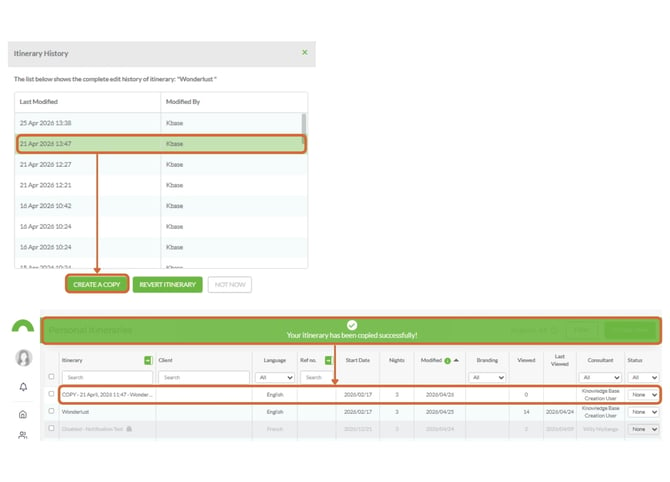
Recommendation: Use Create Copy instead of Revert wherever possible. Reverting will permanently overwrite the current version of the itinerary.
Need Help?
- Contact Support: support@wetu.com
- Live Chat: Available on your Dashboard