
Quick Links
- Add landing page images
- Image gallery icons
- Add a landing page video
- Toggle between images and video
- Need Help?
Add landing page images
1. Open the itinerary in the Itinerary Builder and navigate to Step 6: Additional Details.
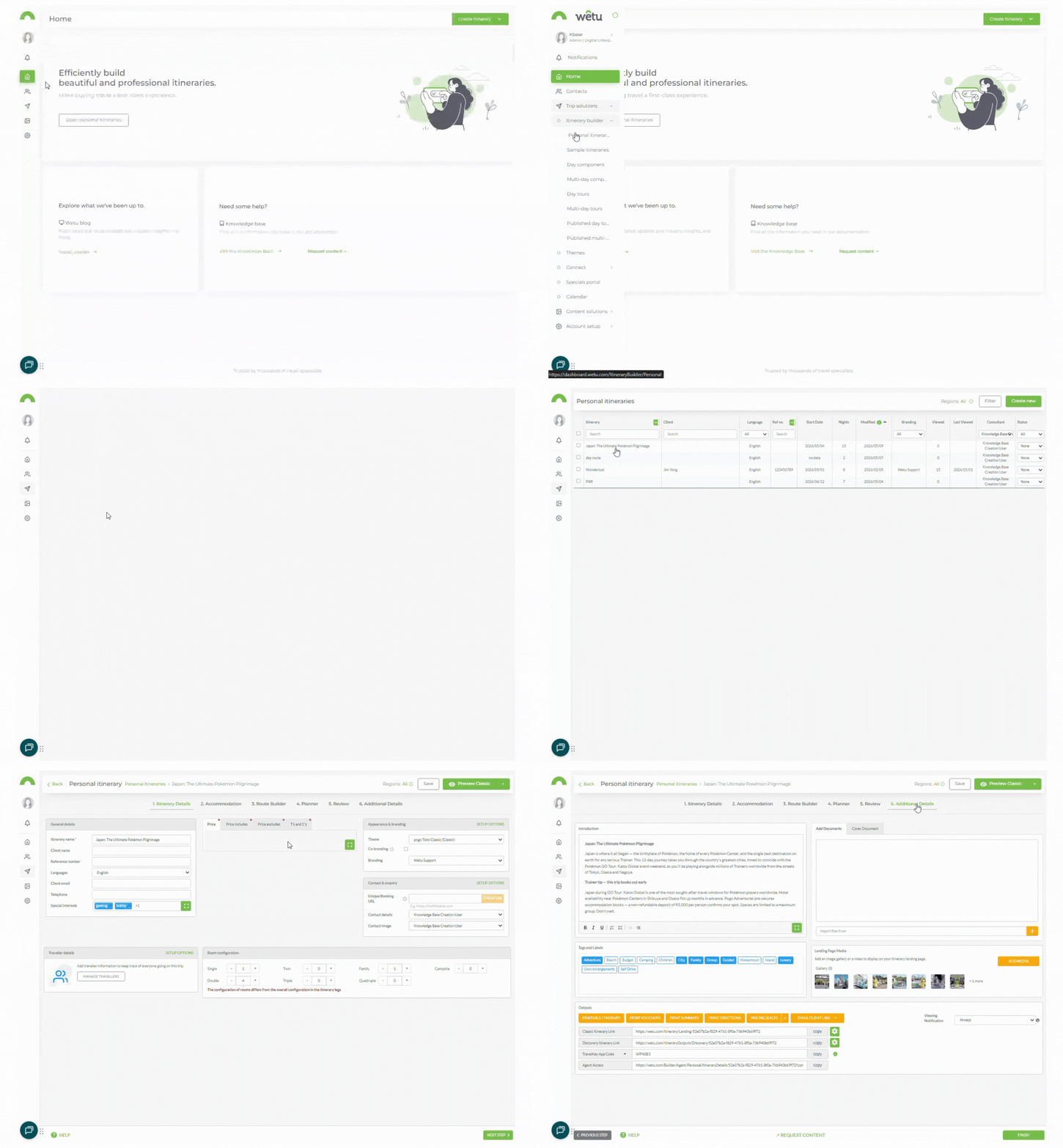
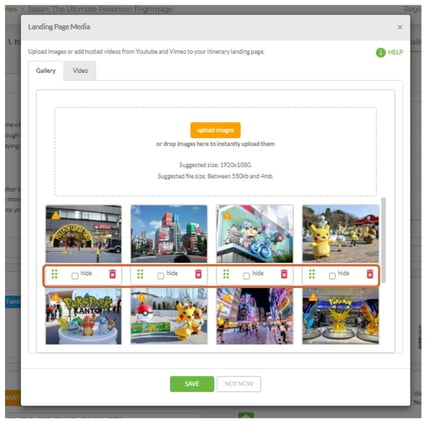
2. Locate Landing Page Media in the bottom right of the screen.
3. Click the orange button to open the Landing Page Gallery pop-up window.
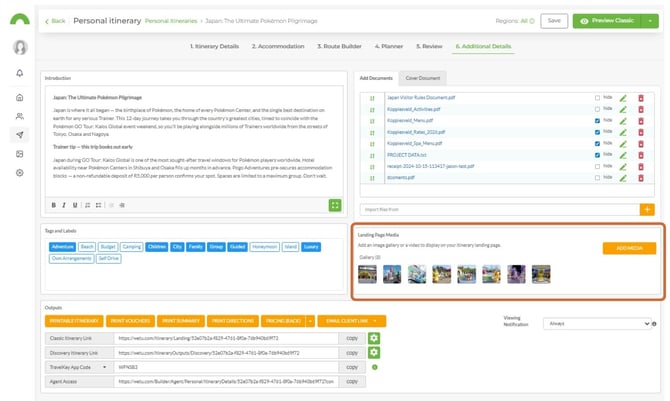
Tip: For best results, use images at 1920 x 1080 px and between 550 KB and 4 MB in file size.
-
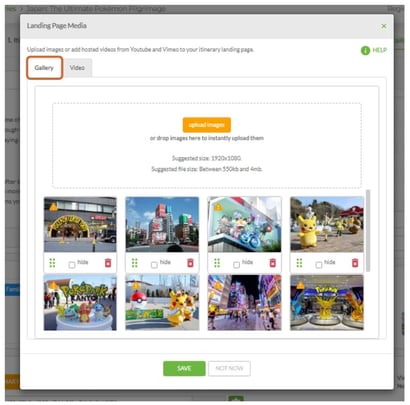
- Drag and drop images from your file manager onto the drag-and-drop zone.
- Click Upload Images, select your files (hold Ctrl to select multiple), and click Open.
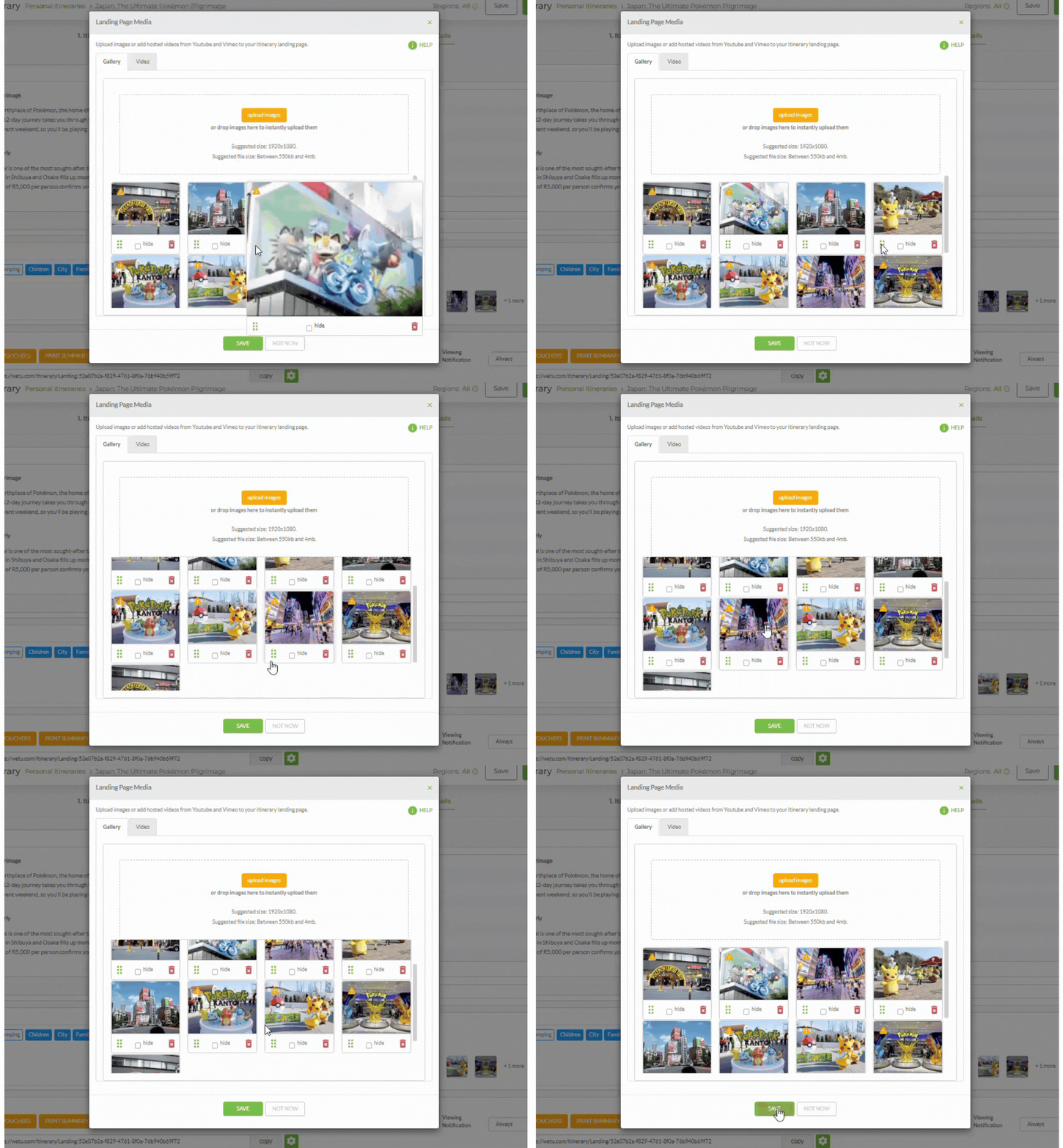
Note: Images uploaded to the Landing Page Gallery replace the images that would otherwise be pulled from the accommodations and destinations in your itinerary. If a Landing Page Cover Image has been set on your itinerary's theme, it will also appear in the gallery.
5. Once all images are in the desired order, click Save.
6. A confirmation banner will appear and the uploaded image thumbnails will display in the Landing Page Media section.
7. To preview the landing page, click Preview Itinerary then View Itinerary.
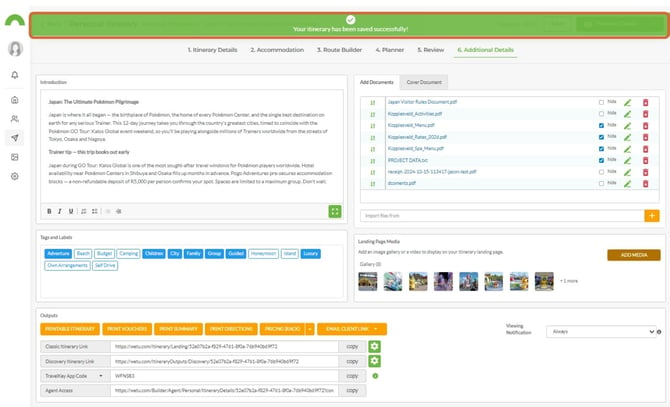
Image gallery icons
Each image in the gallery may display up to four icons:
| Icon | Description |
|---|---|
| Warning (top left) | Indicates the image does not meet the recommended size or quality. Check the details and consider replacing the image. |
| Drag / Move (bottom left) | Click and drag to reorder the images in the gallery. |
| Delete (red trash can) | Permanently removes the image from both the gallery and the archive. |
| Hide | Hides the image from the landing page slideshow without deleting it. |
Add a landing page video
-
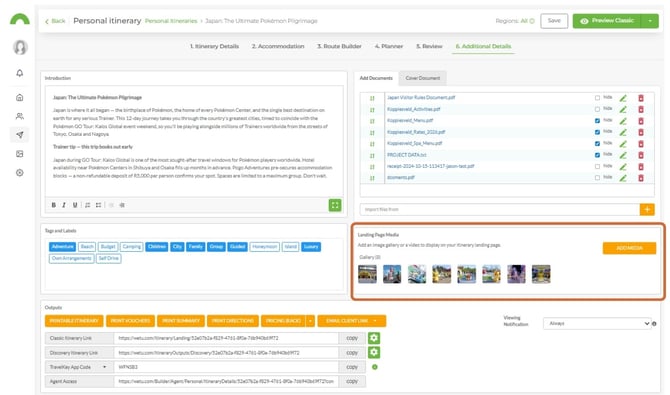
In Step 6: Additional Details, locate Landing Page Media in the bottom right of the screen.
-
Click the orange button to open the Landing Page Gallery pop-up.
-
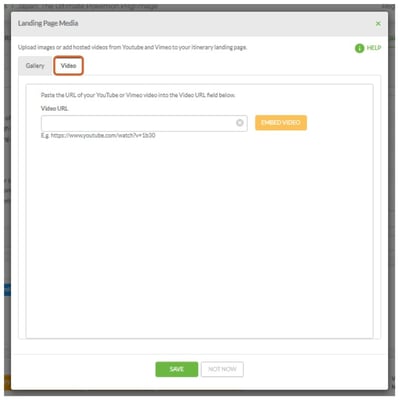
Select the Video tab.
-
Paste the URL of your YouTube or Vimeo video into the Video URL field.
-
Click Embed Video.
-
A preview of the video will appear - confirm it is the correct video.
-
If incorrect, click Delete and paste the correct URL.
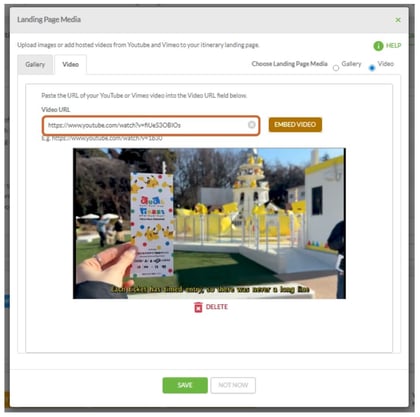
Note: The embedded video will play without sound on the landing page - this feature is designed for moving images and short video clips only.
Toggle between images and video
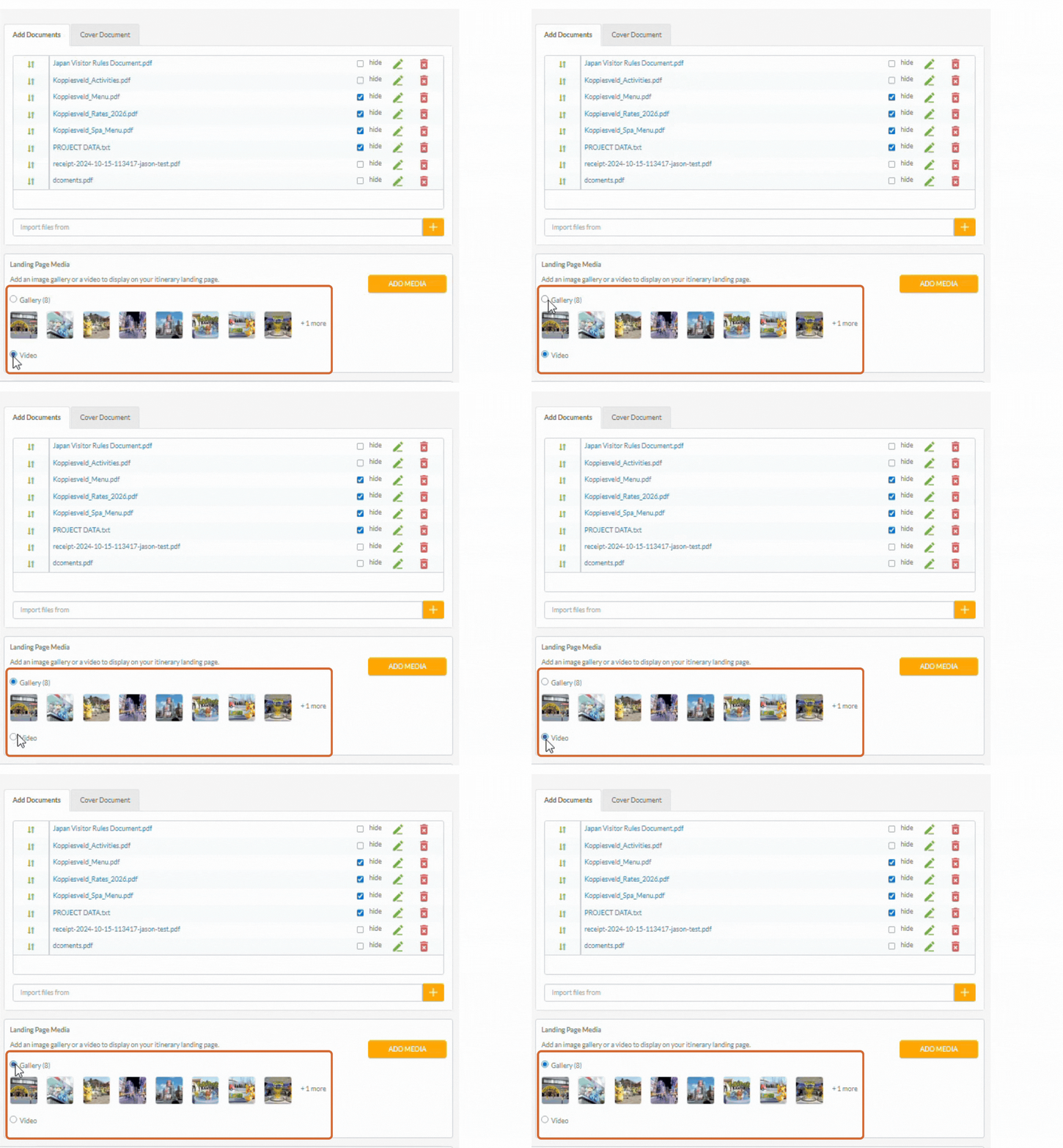
If both landing page images and a video have been uploaded, use the radio buttons to select which should display on the itinerary.
1. In the Landing Page Media section, select the radio button for either Images or Video at the top right of the section.
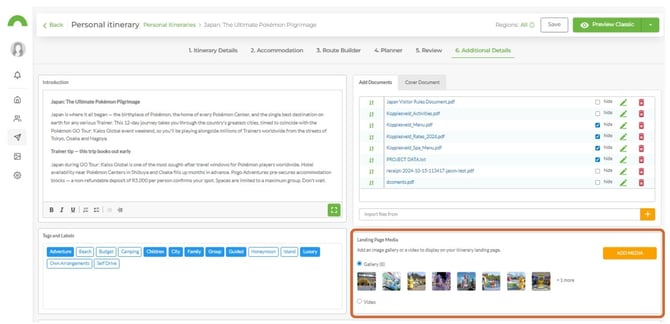
Note: You can switch between images and video directly from the Additional Details step without reopening the Landing Page Gallery.
Need Help?
- Contact Support: support@wetu.com
- Live Chat: Available on your Dashboard