
Quick Links
- Check device info on iPhone (iOS)
- Check device info on Android
- Check the TravelKey app version
- Check for TravelKey updates
- When reporting an issue
- Need Help?
Support may ask for:
- Device model (e.g. iPhone 15 Pro, Samsung Galaxy S24)
- Operating system version (e.g. iOS 18, Android 14)
- TravelKey app version (e.g. Version 2.7.0 (456))
- Screenshots or screen recordings
Check device info on iPhone (iOS)
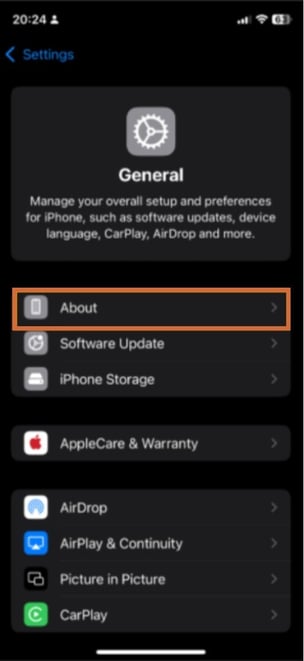
1. Open Settings.
2. Select General.
3. Select About.
Check device info on Android
1. Open the Settings app.
2. Scroll down and select About Phone or About Device.
You will find: device model, Android version, device name, and storage information.
Note: Android devices vary between manufacturers and some app behaviour or settings may differ between devices.
Check the TravelKey app version
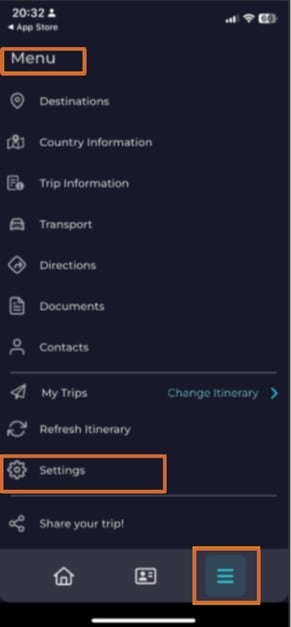
1. Open the TravelKey app.
2. Tap the Menu icon.
3. Scroll down and tap Settings.
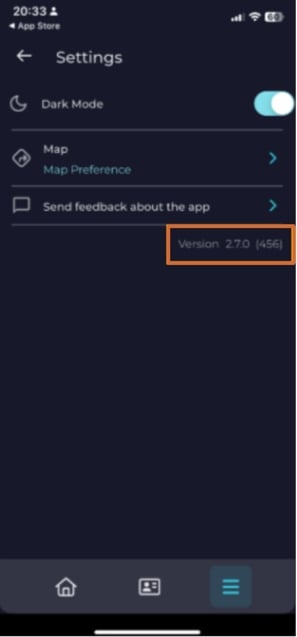
The app version number will display in Settings. For example: Version 2.7
Check for TravelKey updates
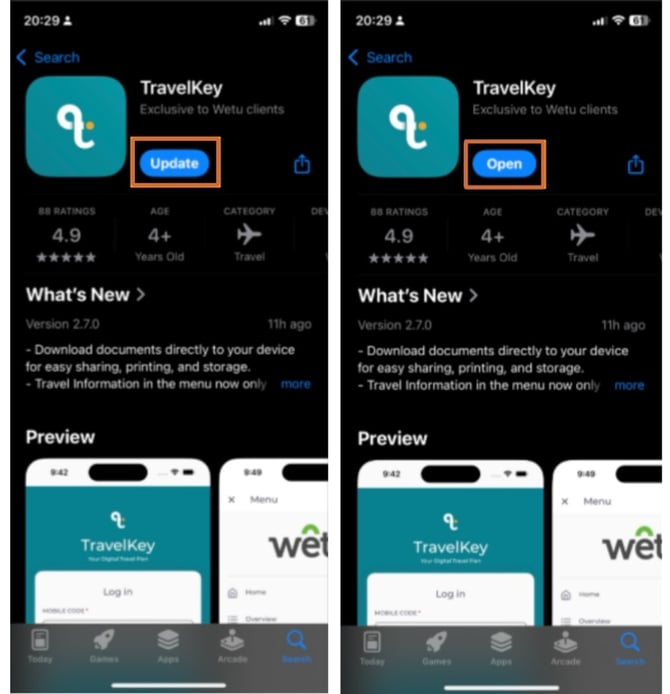
You can check if a newer version of TravelKey is available from the app store.
1. Open the App Store (iOS) or Google Play Store (Android).
2. Search for TravelKey.
3. Open the app page.
-
Open - you are on the latest version.
-
Update - a newer version is available. Tap to install it.
When reporting a TravelKey issue
Include in your support request:
- Your device model
- Operating system version
- TravelKey app version
- Screenshots or screen recordings
- A description of the issue
- The time the issue occurred
The more information Support receives, the easier it is to reproduce and investigate the issue.
Need Help?
- Contact Support: support@wetu.com
- Live Chat: Available on your Dashboard