
Clear cache in Google Chrome
Note: These steps use Google Chrome as an example, but the same process applies to other browsers such as Firefox and Microsoft Edge.
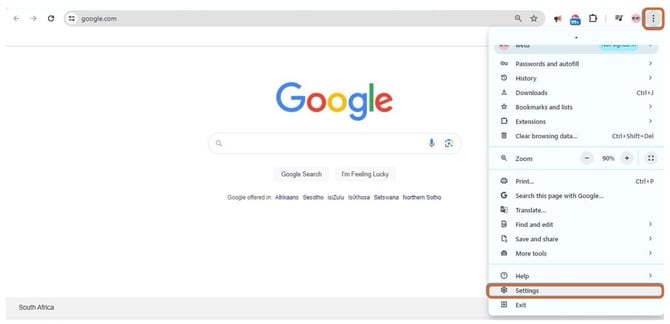
1. Click the browser menu (three dots, top right) and select Settings.
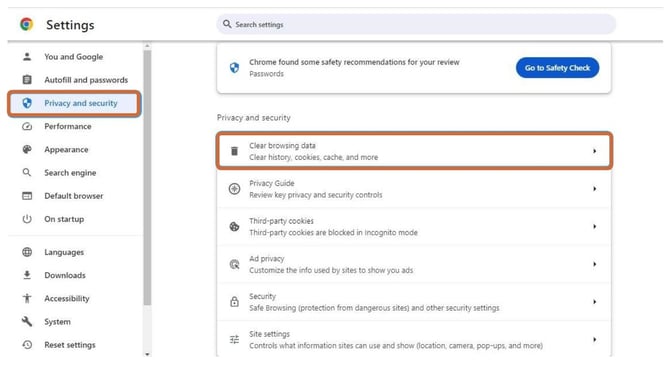
2. In the left menu, click Privacy and security, then scroll down and click Clear browsing data.
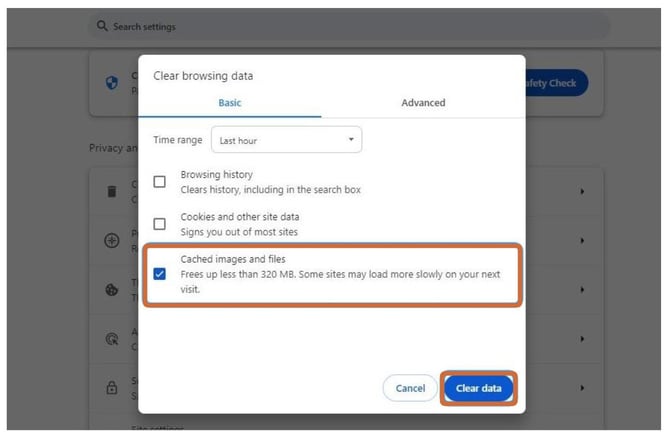
3. Tick Cached images and files.
4. Click Clear data.
Note: Clearing the cache may take a minute or two depending on how much data has been stored. Reload Wetu once it is complete.
Need Help?
- Contact Support: support@wetu.com
- Live Chat: Available on your Dashboard