
Caution: Manage Languages is only available on the Professional tier.
Quick Links
- How to navigate to profiles
- How to Access Manage Languages
- How It Works
- What Content is Translated
- Editing Translations
- When to Use Manage Languages
- Key Notes
- Need help?
How to navigate to profiles
1. Log in to your Wetu account.
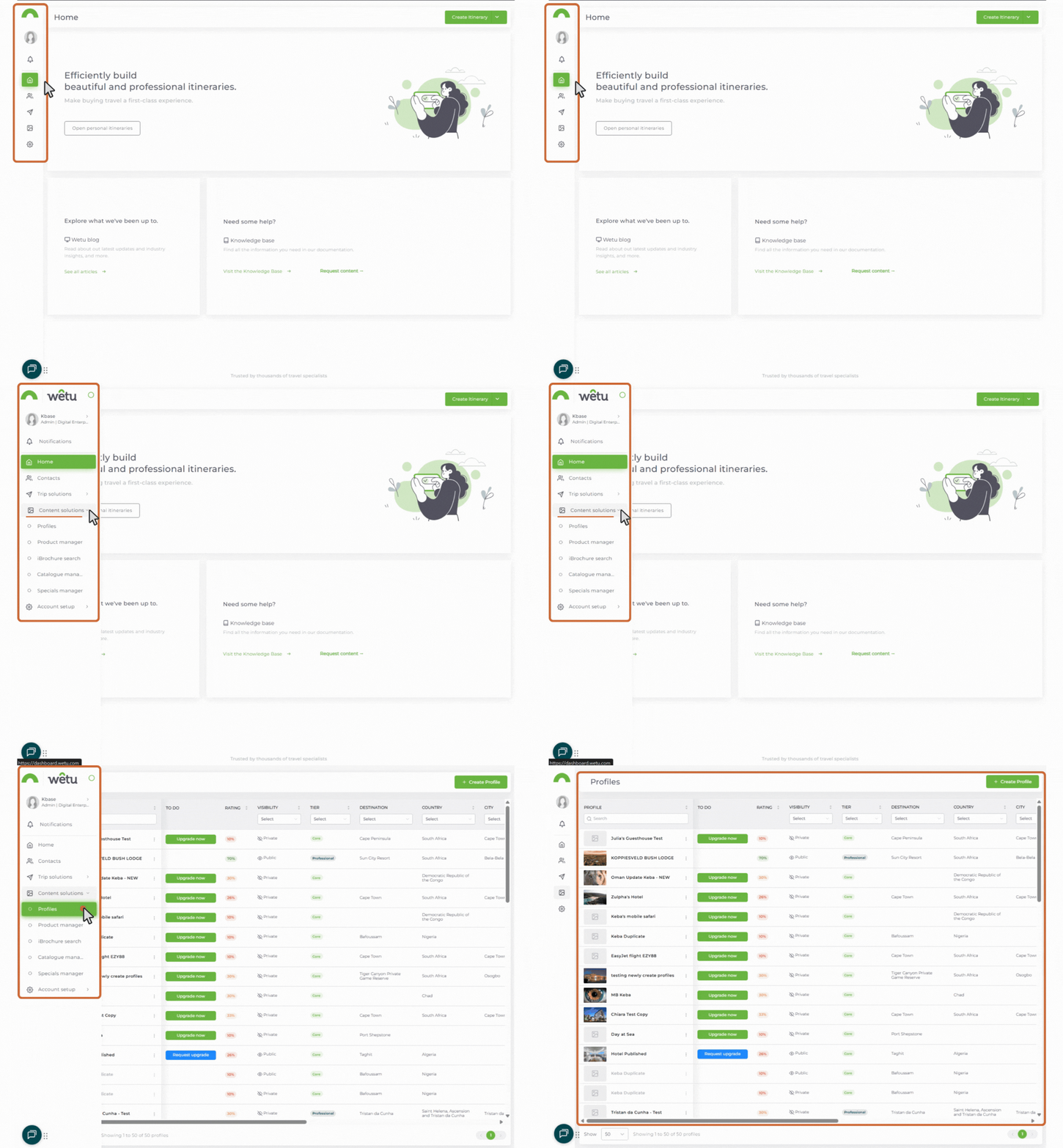
The menu expands when you move your mouse over it, revealing labelled icons.
.jpg?width=114&height=195&name=finding%20profiles%20(1).jpg)
This takes you to the Profiles landing page.
back to top
How to Access Manage Languages
- Click Profiles to open your Profile Library.
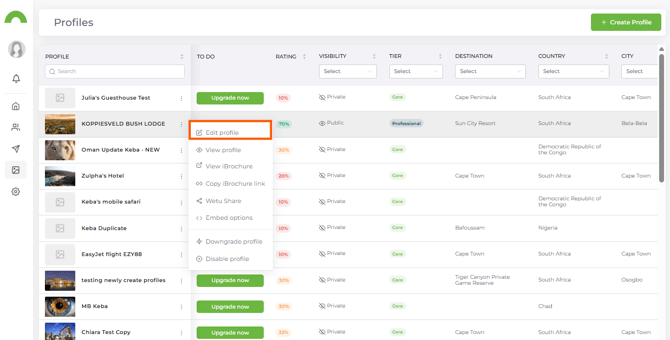
- Scroll to the profile you want to edit.
- Click the three dots (⋮) next to the profile name.
- Select Edit Profile. The profile opens on the General, Details tab.
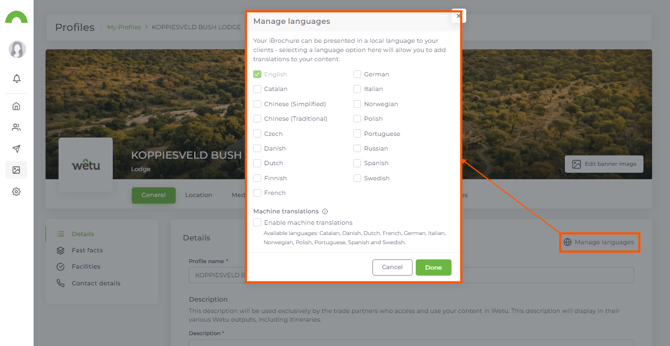
- Navigate to the Manage Languages option.
- Open the Manage Languages modal.
- Select the languages you want to enable.
How It Works
Machine Translations
|
When Enabled |
When Disabled |
Best for saving time and quickly generating multi-language content. |
Best for when you require full control over translation quality. |
What Content is Translated
Machine Translations will automatically populate the following:
Profile Content
- Profile description
- Extended description
Profile Item Content
- Sleeping arrangements
- Activities
- Venues
- Spaces
- Activities on site
- Restaurants on site
- Amenities on site
- Attractions
- Options
Editing Translations
Even when Machine Translations are enabled:
- You can manually edit any translated field
- Your changes will override the automated translation
When to Use Manage Languages
Use this feature when:
- You want to make profiles available in multiple languages
- You need to reach a broader, international audience
- You want to save time using automated translations
- You want the flexibility to customise translations manually
Key Notes
- This feature is only available on Professional profiles
- Machine Translations are based on the English content
- Disabling Machine Translations requires manual input for all languages
Need Help?
- Contact us at support@wetu.com
- Live Chat: Avaialable on your dashboard