
Quick Links
- Generate Wetu Itinerary Message
- Open Tourplan Inbound Connector
- Connect to Your Booking
- Itinerary Created Screen
- Need Help?
1. Generate Wetu Itinerary Message
Important: Your booking needs to contain at least one Accommodation in order to generate a Wetu Itinerary.
1. Enter all your booking services in Tourplan, adding in as many details as possible.
2. Select Operations and Accounts, then Documentation.
3. Select Generate Message.
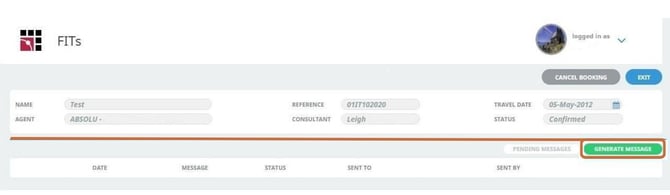
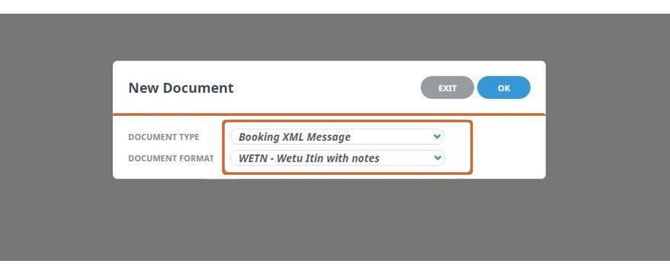
4. Ensure Document Type is set to Booking XML Message.
5. Ensure Document Format is set to the message template you created.
You can use this document to help you create your Message Template.
6. Select OK.
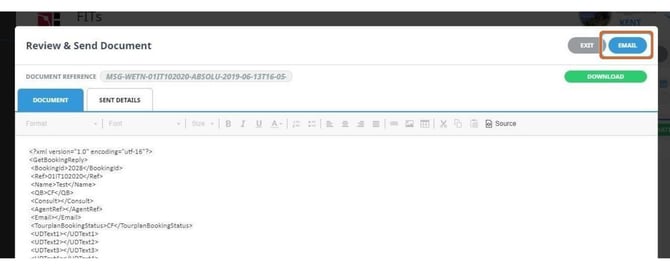
7. Your booking XML message will open. Select Email to send the booking from Tourplan through to your Wetu Connector.
Important: The Tourplan user's email address must also be registered against a user in Wetu.
2. Open Tourplan Inbound Connector
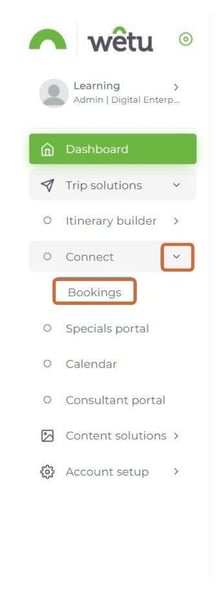
1. Log in to Wetu and navigate to your Dashboard.
2. Select Connect, then select Bookings.
3. The Wetu / Tourplan (Inbound) Connector will open, displaying a list of all bookings sent to Wetu.
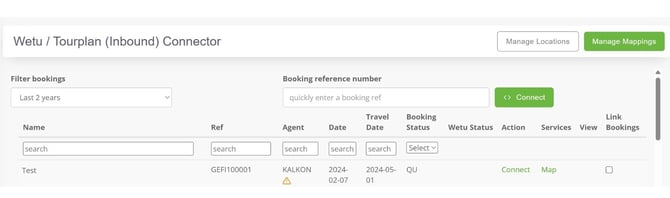
4. Search for your booking using any of the following methods:
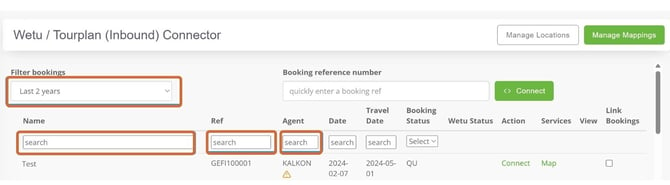
- Filter - Choose your date range according to when the booking was sent from Tourplan to Wetu.
- Name - Search by booking name as loaded in Tourplan.
- Ref. - Search by booking reference as loaded in Tourplan.
- Agent - Search by booking agent code as loaded in Tourplan.
Learn how to link your Agent Code to your connector screen here
3. Connect to Your Booking
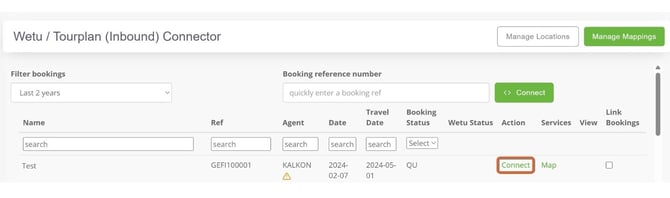
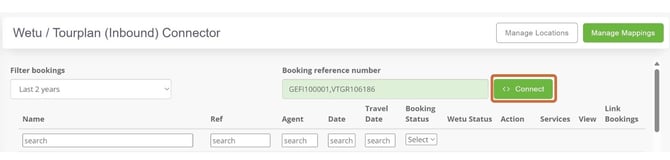
1. Select Connect next to your booking. The mapping screen containing all services for that booking will open.
Link Bookings
2. To create one itinerary from multiple bookings, tick the checkbox under the Link Bookings column for each booking you want to include.
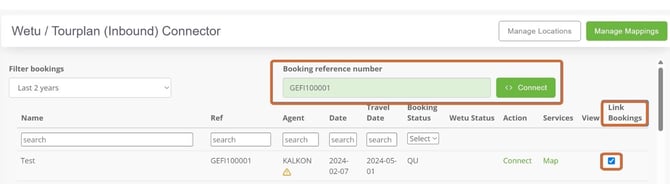
3. The linked bookings will appear within the Connect field. Select Connect to proceed to the mapping screen.
Important: Ensure that merged bookings follow the correct date sequence. For example: Booking one end date - 1 March; Booking two start date - 2 March.
Mapping Your Services
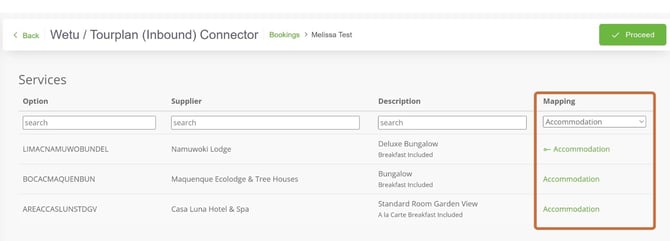
4. The mapping screen will open, showing all services for the booking. The Mapping column shows how each service is mapped (e.g. Accommodation, Activity). If all services are mapped, a green Proceed button will appear in the top right-hand corner.
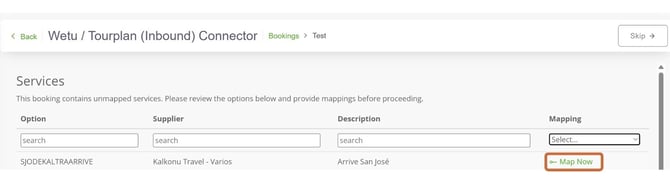
5. If there are services that still need to be mapped, the Mapping column will show Map Now and a grey Skip option will appear in the top right-hand corner. Select Map Now next to each service line to map it.
4. Itinerary Created Screen
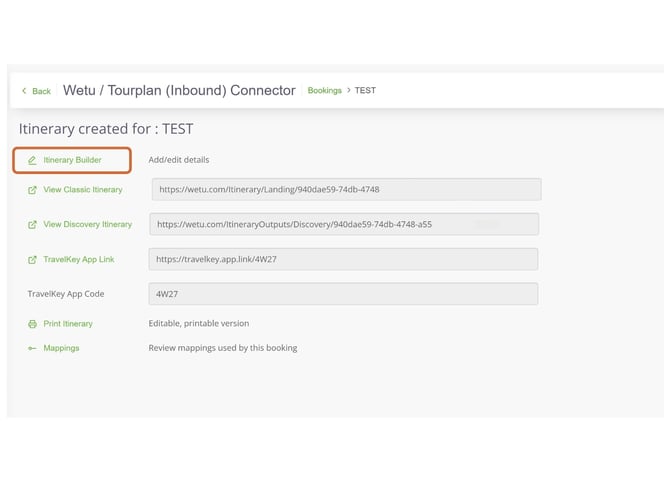
1. Once all services are mapped and you have selected either Proceed or Skip, the system will generate your itinerary and the Itinerary Created Screen will open.
2. From this screen you can select Itinerary Builder to open and edit your itinerary.
Did you know: You can update your existing itinerary by selecting Update. Learn more about the Update Function.
For more information on Tourplan, click here.
Need Help?
For support reach out to the Wetu enterprise team.
enterprise@wetu.com