
Quick Links
- Google Chrome
- Mozilla Firefox
- Microsoft Edge
- Need Help?
Important
Pop-up settings are controlled by your browser, not by Wetu. The steps below may vary slightly depending on your browser version.
Google Chrome
1. Open Chrome and click the browser menu (three dots, top right), then select Settings.
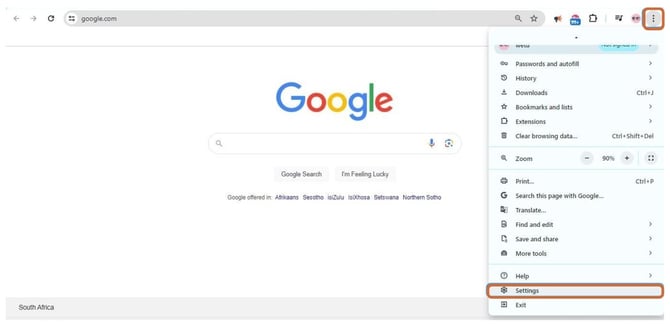
2. In the left menu, click Privacy and security, then select Site Settings.
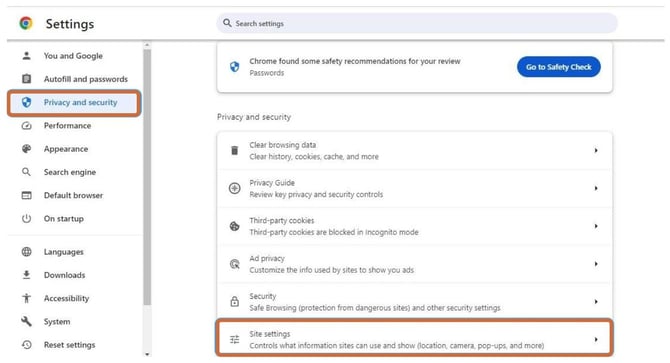
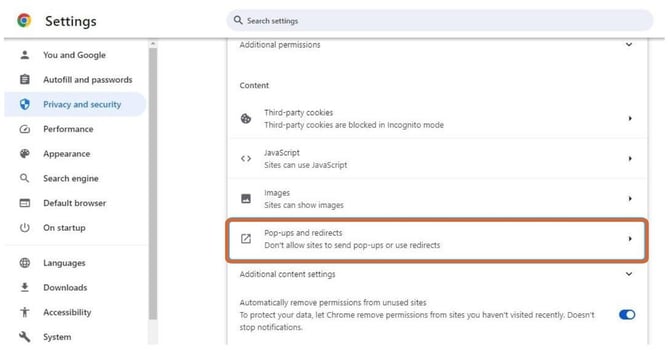
3. Scroll down and click Pop-ups and redirects.
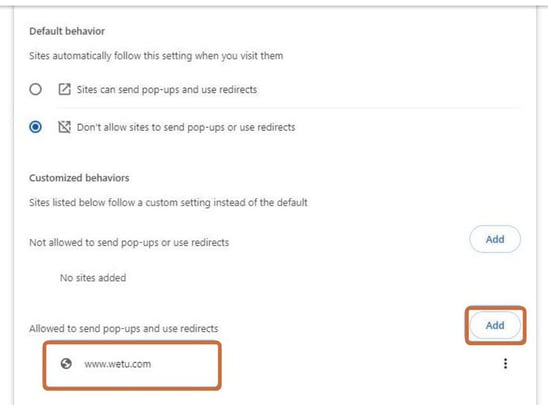
4. Under Allowed to send pop-ups and use redirects, click Add.
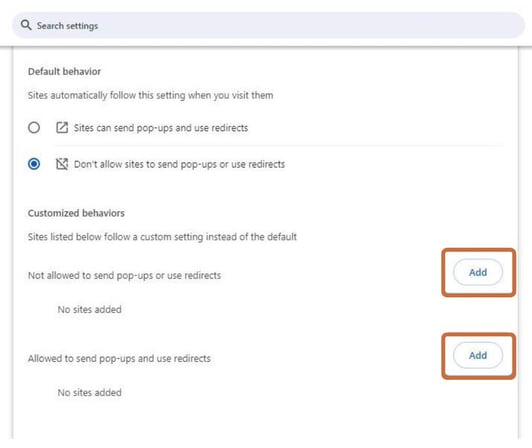
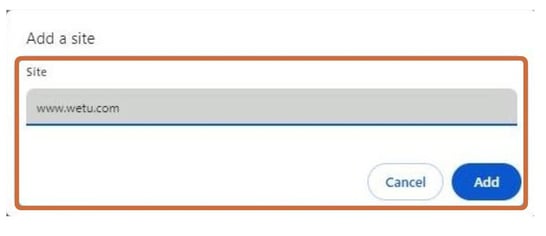
5. Enter wetu.com and click Add.
6. Wetu.com will now appear in the allowed list.
Mozilla Firefox
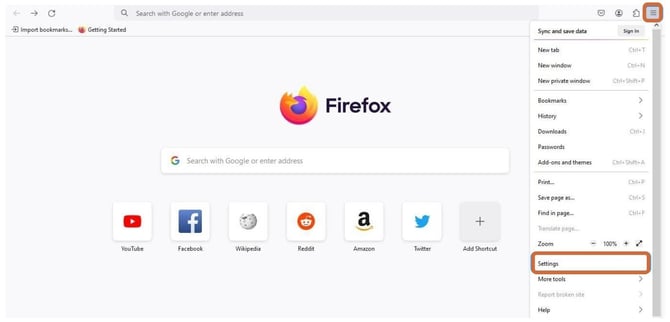
1. Open Firefox and click the browser menu(three lines, top right), then select Settings.
2. Click Privacy & Security in the left menu and scroll down to the Permissions section.
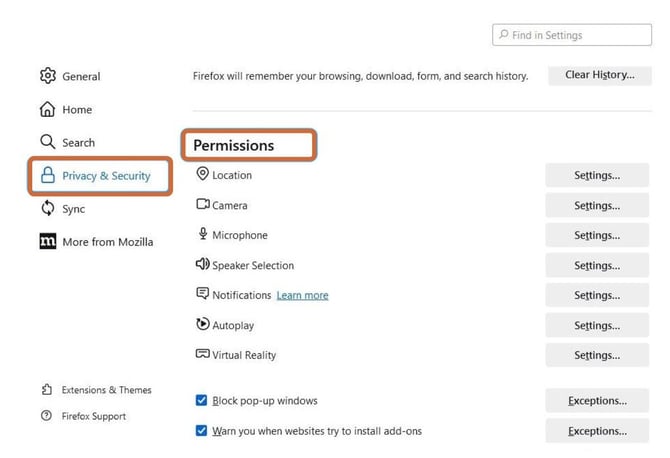
3. FindBlock pop-up windows. Untick it to allow all pop-ups, or click Exceptions to allow only specific sites.
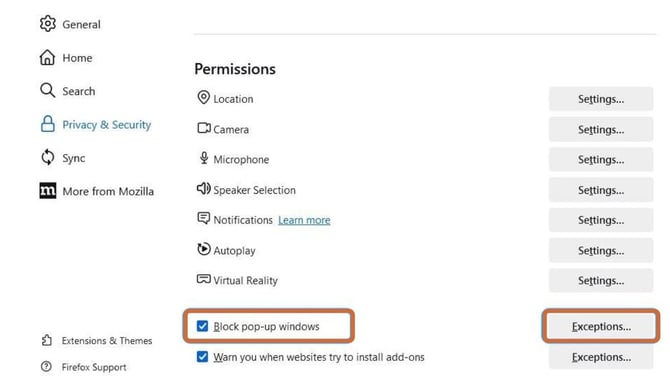
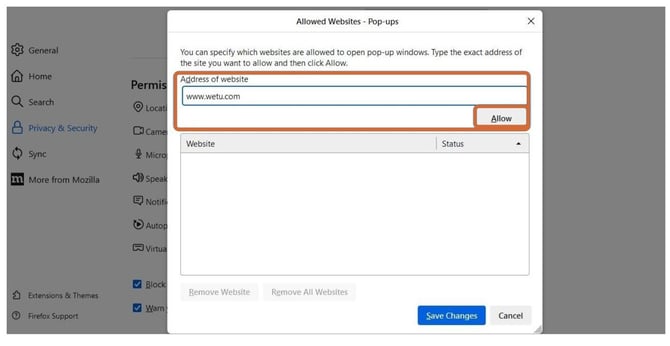
4. In the Exceptions window, enterwetu.comand click Allow.
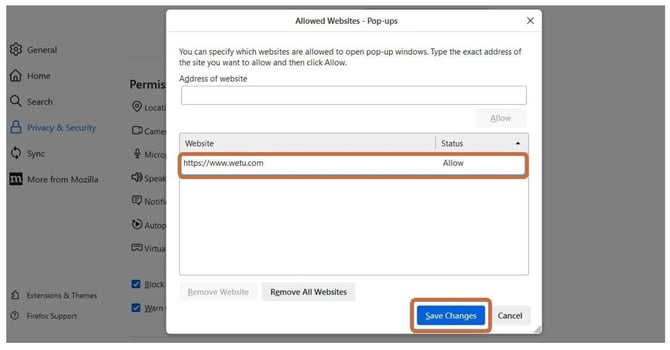
5. Wetu.com will appear in the exceptions list. Click Save Changes.
Microsoft Edge
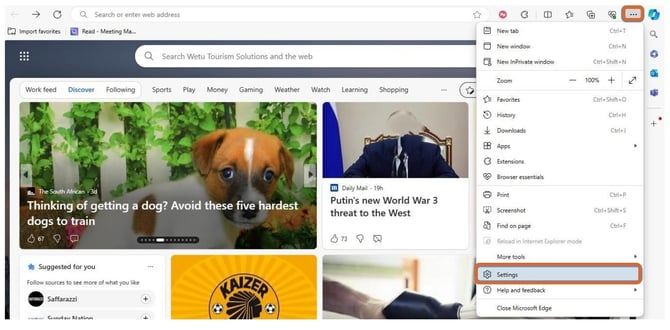
1. Open Edge and click the browser menu (three dots, top right), then select Settings.
2. In the left menu, click Cookies and site permissions.
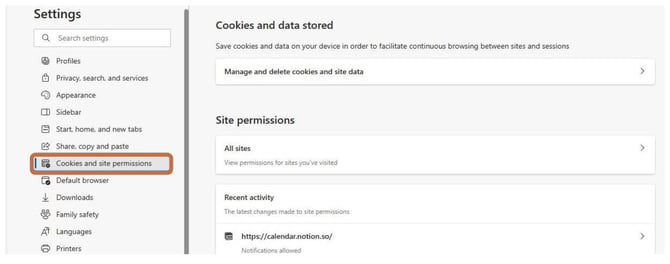
3. Scroll to All permissions and click Pop-ups and redirects.
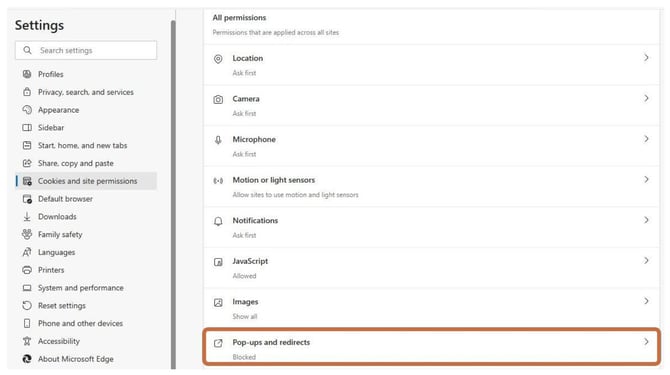
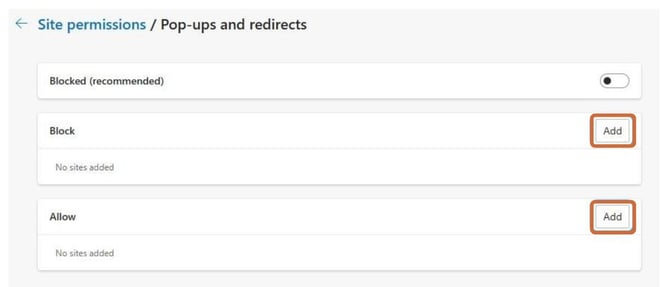
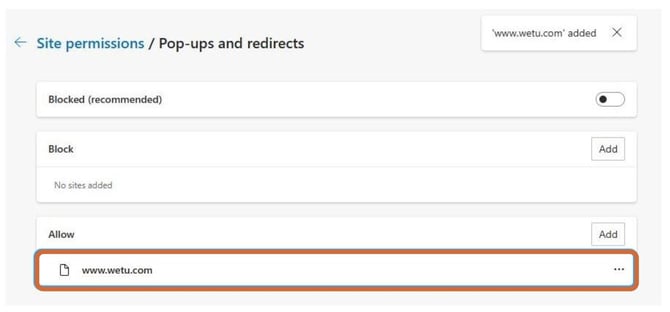
4. Under Allow, click Add.
5. Enter wetu.com and click Add.
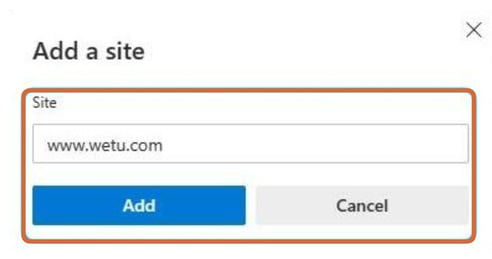
6. Wetu.com will now appear in the allowed list.
Need Help?
- Contact Support: support@wetu.com
- Live Chat: Available on your Dashboard