
Quick Links
- What is the Product Manager?
- Who can access it?
- How to access the Product Manager
- The Accommodation tab
- View modes
- Need Help?
1. What is the Product Manager?
The Product Manager houses all the suppliers you have used in itineraries. It is a central space to view your company's supplier intelligence.
Consultants can view supplier documentation, commission rates, preferred suppliers, and any flags and tags set by your admin. Use it as a training tool and information hub to build consistent, quality itineraries every time.
2. Who can access it?
Every user in your account has access to view the Product Manager. Management of the information is done in the Account Settings, ensuring only Admin users can edit critical business information.
| Role | What they can do |
|---|---|
| All users | View supplier information, documentation, commissions, preferred suppliers, flags, and tags |
| Admin users | All of the above, plus customise supplier information via Account Settings |
3. How to access the Product Manager
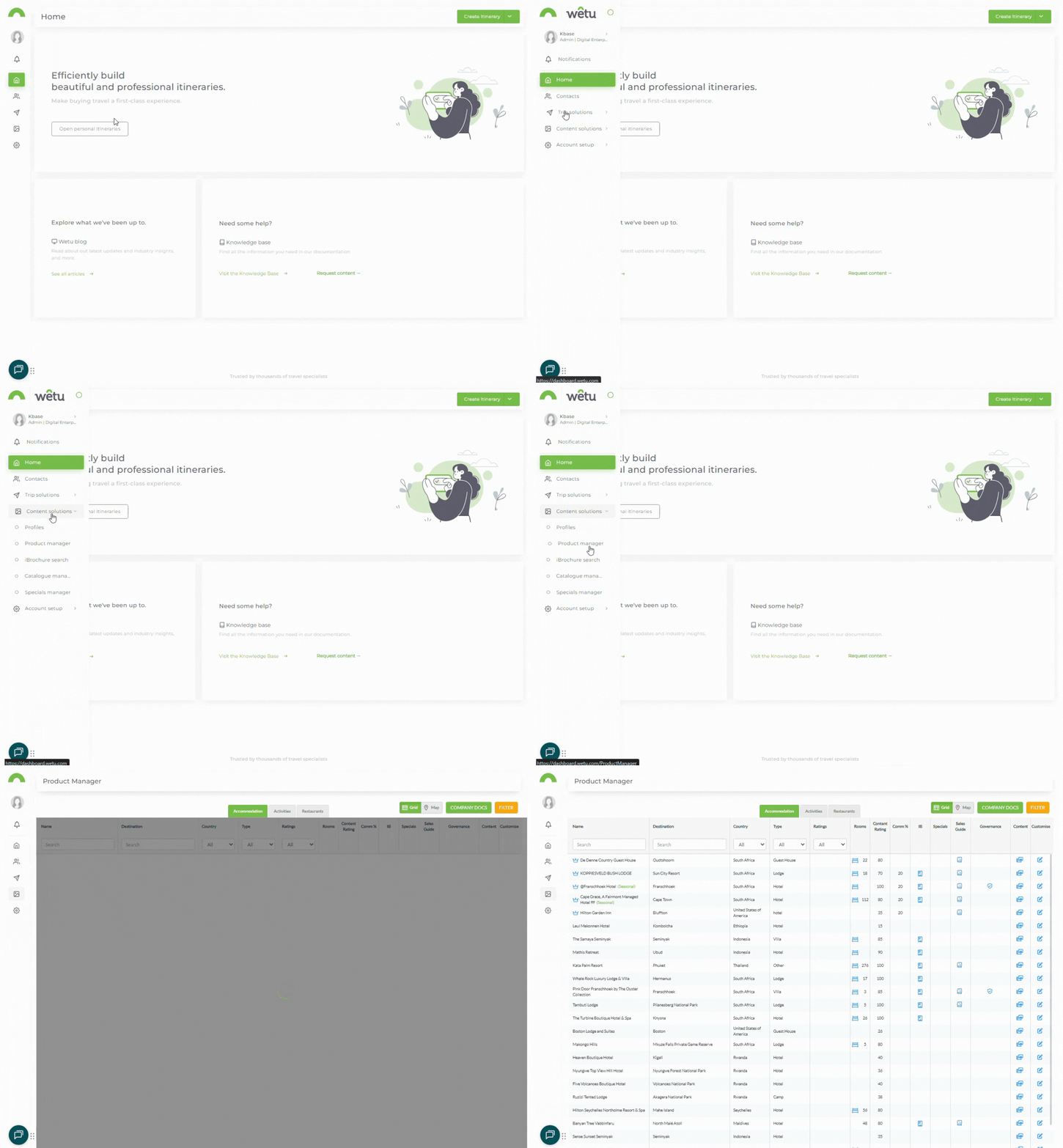
From the main menu
- Navigate to Content Solutions in your main menu.
- Click Product Manager.
From the Itinerary Builder
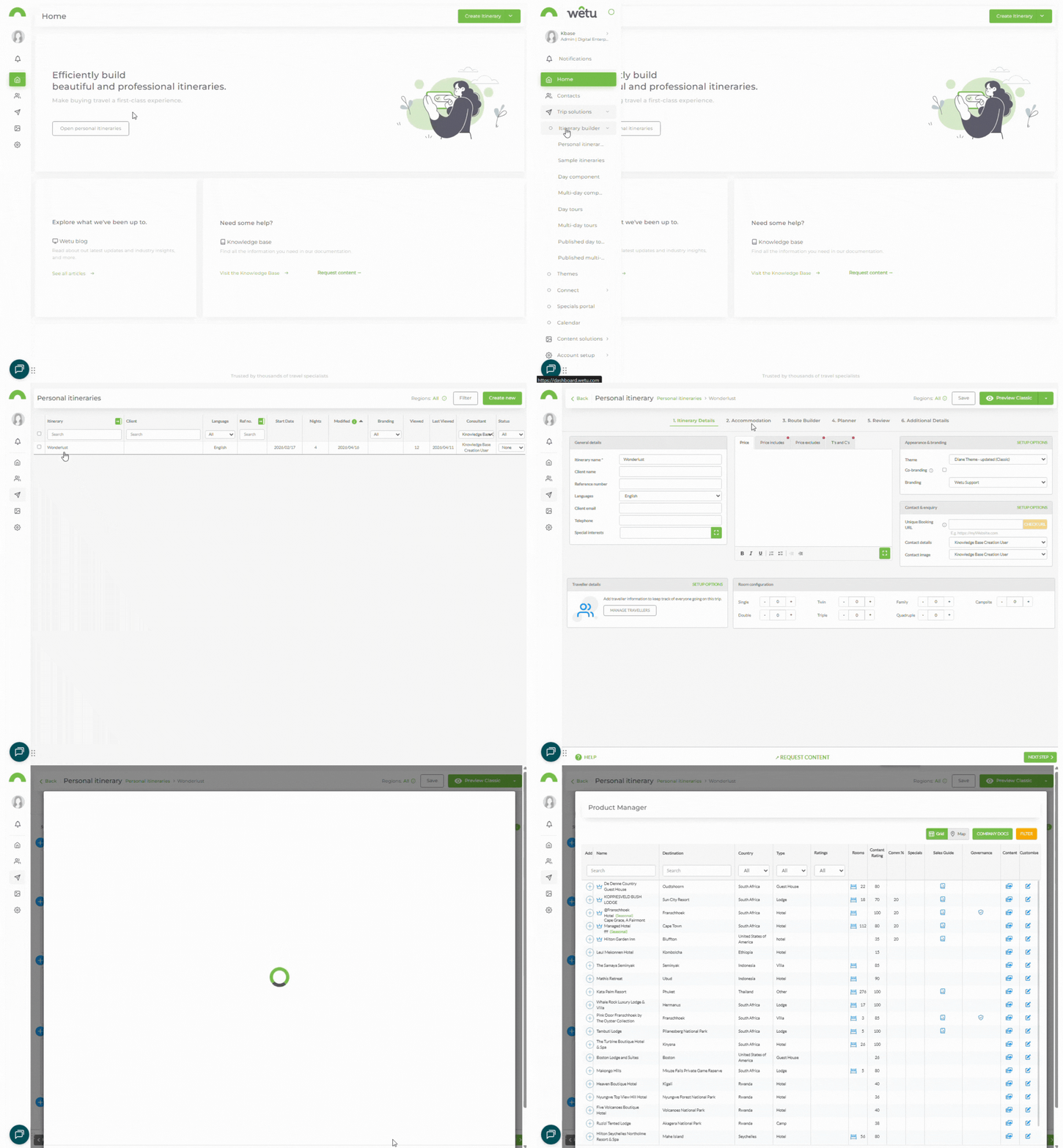
The Product Manager can also be accessed directly from the Accommodation step in the Itinerary Builder.
- Open an itinerary in the Itinerary Builder.
- Click on the wanted Itinerary and
- Click on Edit
- Go to the Accommodation step.
- Click the Product Manager link. (bottom right)
4. The Accommodation tab
The Accommodation tab - Product Manager - lists all accommodation you have used in your itineraries.
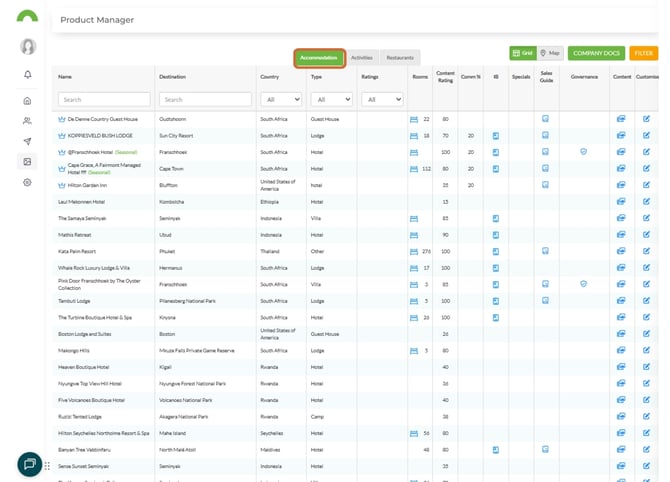
Note: Mobile Accommodations and Cruises do not show in the Product Manager. Only standard accommodations will appear.
The list can be filtered using the Filter option (top right corner) to help you identify accommodations that suit your needs. A quick preview of important information is available at a glance.
5. View modes
The Accommodation section
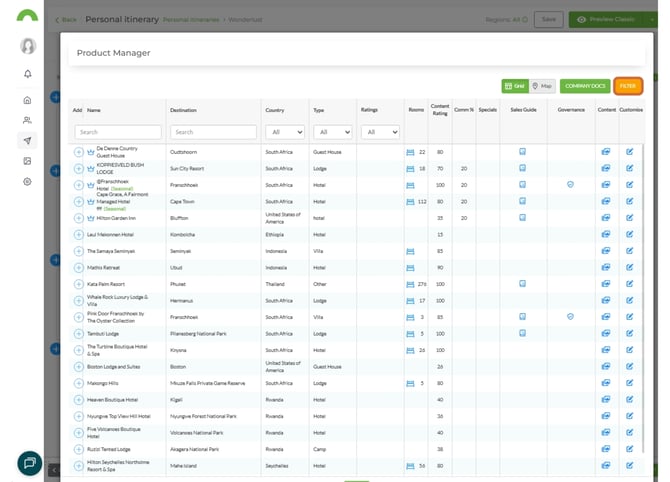
1. Click on Product Manager (bottom right)
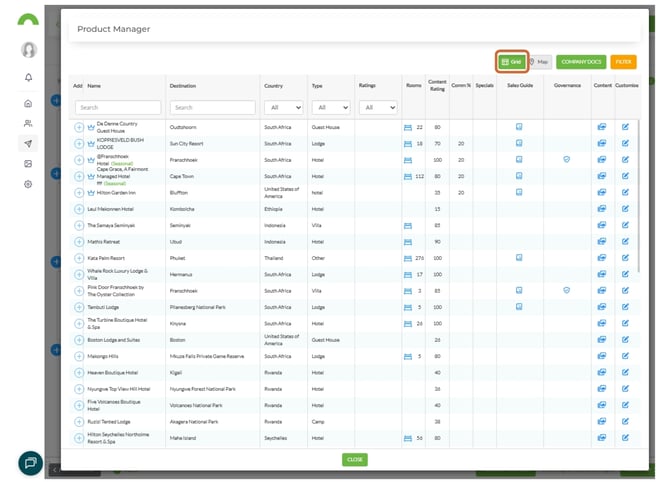
2. You can view either grid view or map view here.
Grid view
Displays accommodations as cards with key information visible at a glance.
Map view
Displays accommodations plotted on a map by location.
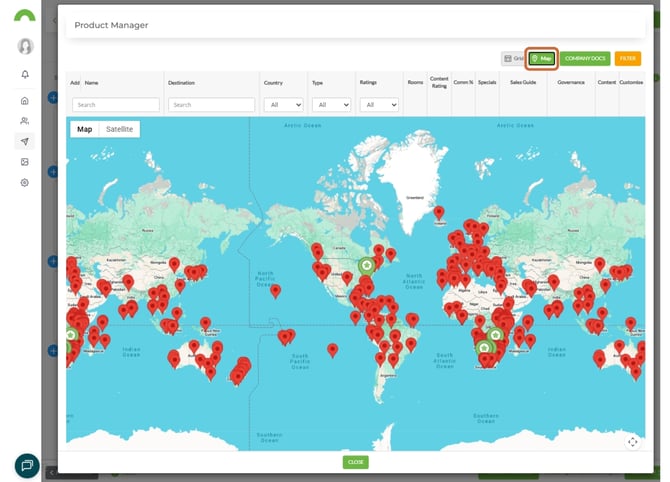
Tip: Toggle between grid and map view using the view icons in the top-right corner of the Product Manager pop up.
Need Help?
- Contact Support: support@wetu.com
- Live Chat: Available on your dashboard