
Quick Links
- Windows - device details
- Windows - browser version
- Mac - device details
- Mac - browser version
- When reporting an issue
- Need Help?
Windows - device details
1. Open the Start Menu.
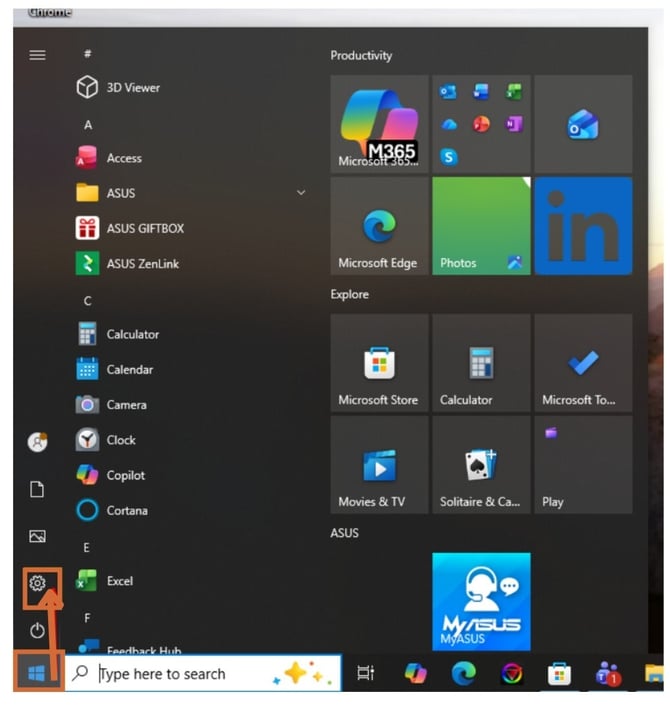
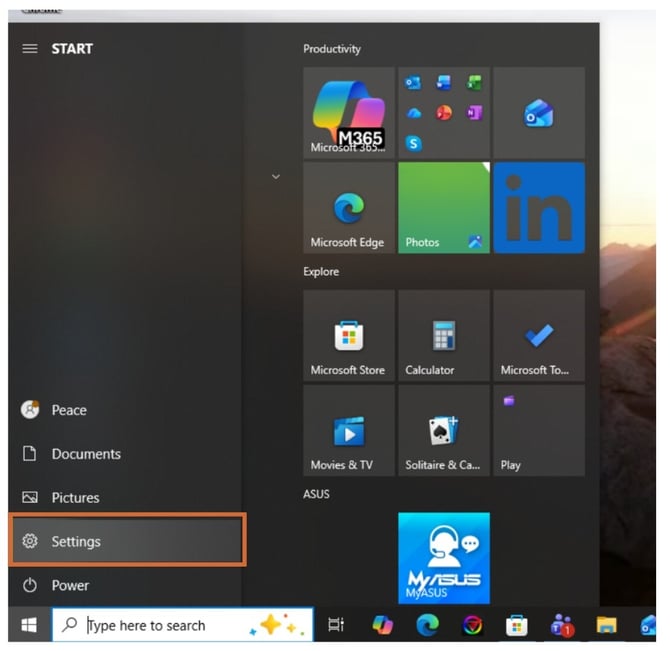
2. Select Settings.
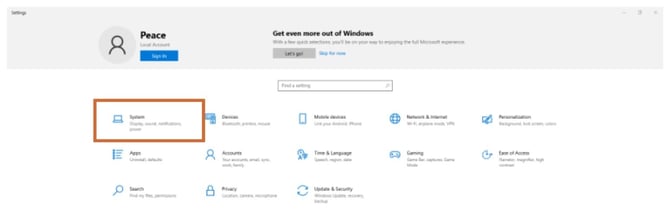
3. Select System.
4. Select About.
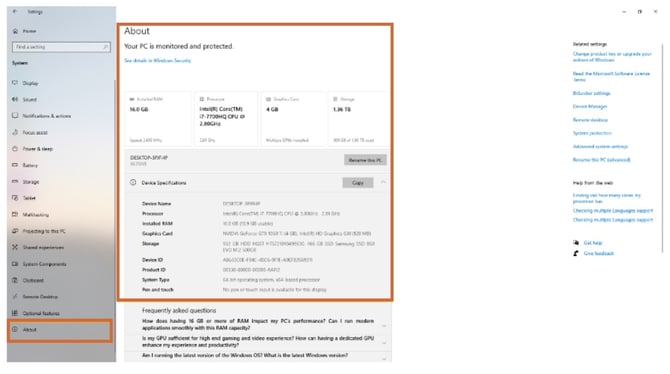
You will find: device name, processor, installed RAM, Windows version, and system type.
Windows - browser version
Google Chrome
1. Open Chrome and click the three-dot menu in the top right.
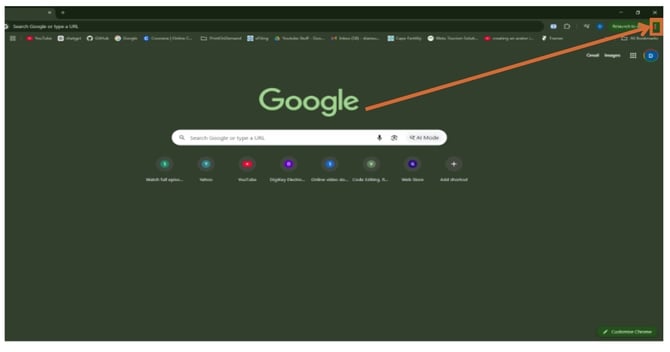
2. Select Help.
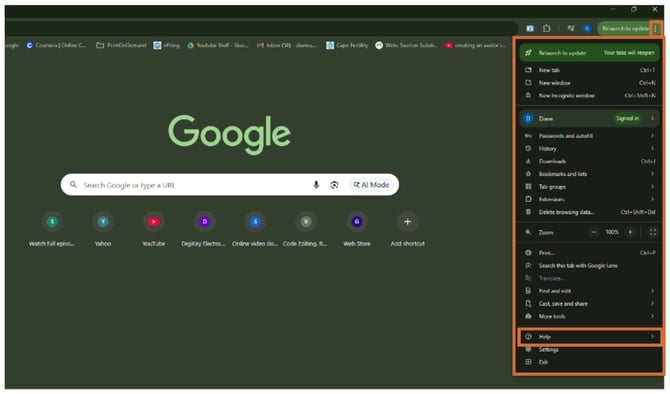
3. Select About Google Chrome.
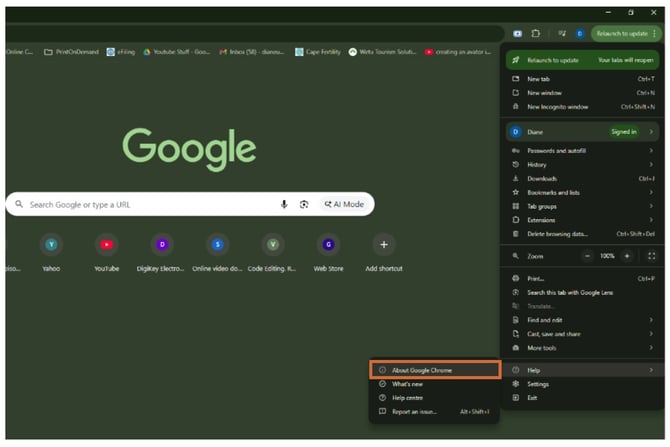
The browser version will display automatically.
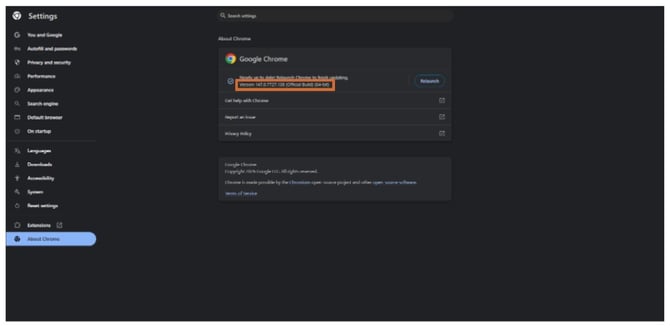
Note: Older browser versions may not fully support newer Wetu features or layouts. Update Chrome if a newer version is available.
Microsoft Edge
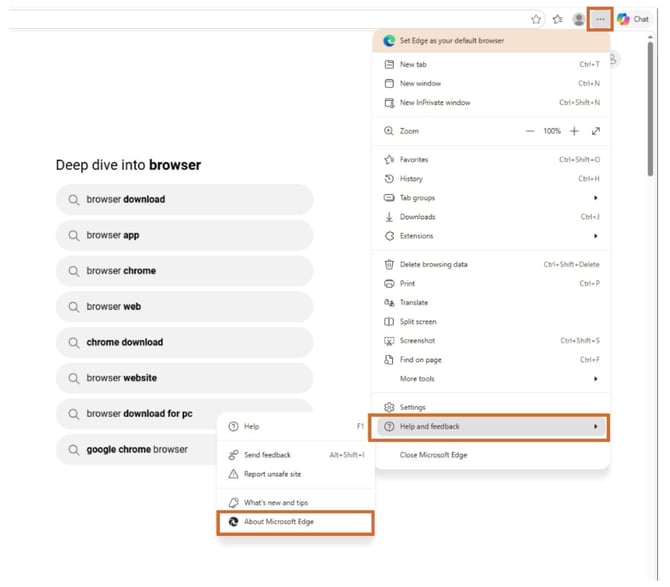
1. Open Edge and click the three-dot menu in the top right.
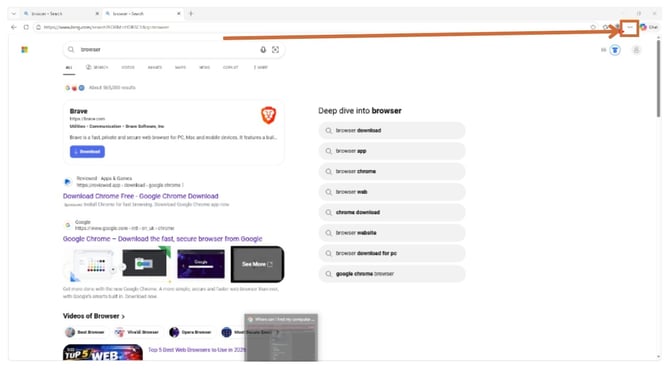
2. Select Help and Feedback.
3. Select About Microsoft Edge.
Mac - device details
1. Click the Apple menu(top left).
2. Select About This Mac.
You will find: Mac model, macOS version, processor, and memory.
Mac - browser version
Safari
1. Open Safari.
2. In the top menu, click Safari.
3. Select About Safari.
Google Chrome
1. Open Chrome.
2. In the top menu, click Chrome.
3. Select About Google Chrome.
When reporting an issue
Include in your support request:
- What you were doing when the issue occurred
- The itinerary link or itinerary ID
- Screenshots or screen recordings
- Browser name and version
- Device information
- The time the issue happened
The more detail Support receives, the easier it is to reproduce and investigate the issue.
Need Help?
- Contact Support: support@wetu.com
- Live Chat: Available on your Dashboard