
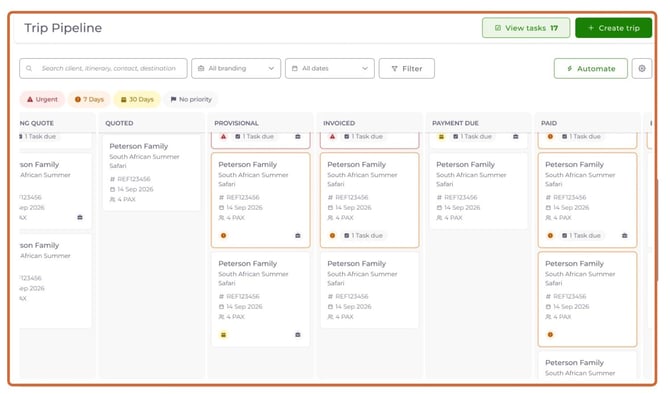
Each trip is displayed as a card on the board. Cards are organised into statuses that show where the trip is within your workflow.
Quick Links
- Statuses
- Trip cards
- Priority filters
- Search and filtering
- View tasks
- Create trip
- Automations
- Need Help?
Statuses
Statuses are the columns displayed in your Trip Pipeline.
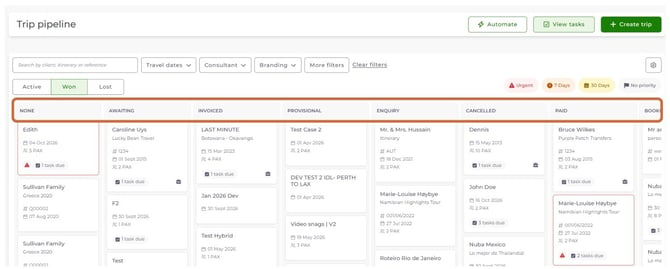
By default, these statuses are synced with the itinerary statuses used in the Itinerary Browser. This keeps both areas of the platform consistent.
Your business can customise these statuses to match your internal workflow. Any changes made to statuses in Trip Pipeline are also reflected in the Itinerary Browser.
Trips can be moved between statuses manually by dragging and dropping the trip card into a different column.
Managing statuses
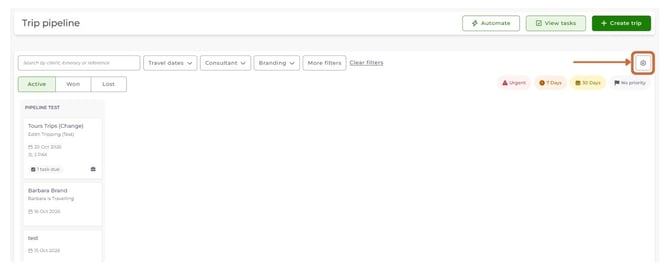
1. Select the Settings cog in the top right corner of the Trip Pipeline.
2. Choose Edit statuses.
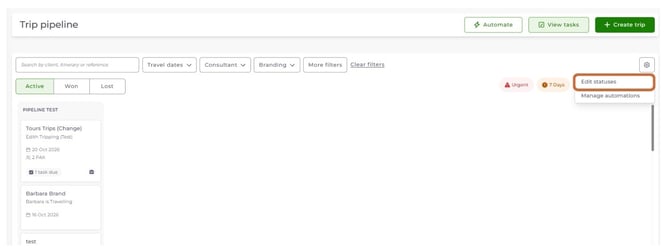
From here you can:
- Create new statuses
- Rename existing statuses
- Reorder statuses
- Delete statuses
- Configure your workflow to match your business processes
Note: Any changes made to statuses in Trip Pipeline are automatically reflected in the Itinerary Browser.
For more information on configuring statuses, see How do I manage pipeline statuses in Trip Pipeline?.
Examples of statuses
Examples of statuses may include:
- Enquiry
- Awaiting Quote
- Quoted
- Provisional
- Invoiced
- Payment Due
- Paid
- Booked
- Travelling
- Post-travel
- Cancelled
- Did not book
Trip cards
Each trip on the board is represented by a trip card. Trip cards give a quick overview of key information, including:
- Client name
- Itinerary name
- Reference number
- Travel date
- Number of travellers
- Task indicators
- Notification indicators
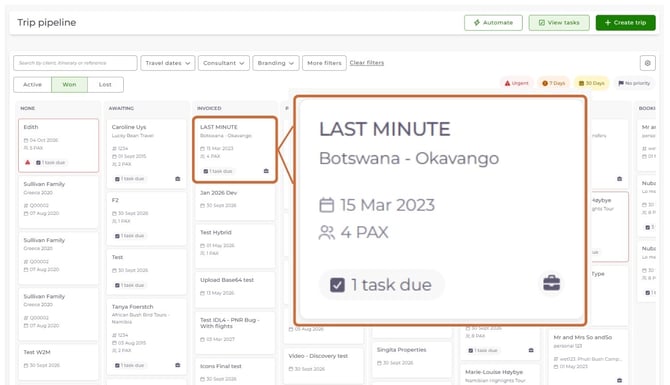
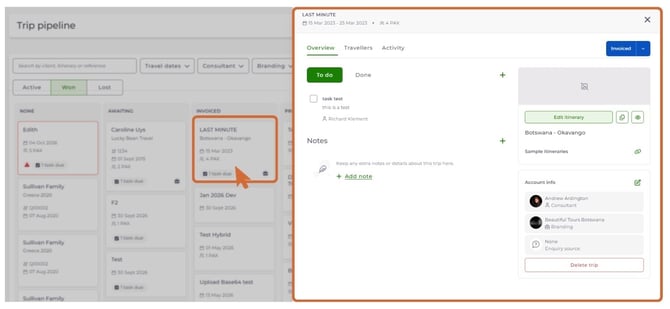
Selecting a trip card opens the Trip Panel, where you can view and manage all trip information.
Moving trips through your workflow
Trips progress through your workflow by moving from one status to another.
To update a trip's status:
- Locate the trip card on the board.
- Click and drag the card.
- Drop the card into the required status column.
.jpg?width=670&height=383&name=Trip%20Pipeline%20Overview%20(1).jpg)
The trip updates immediately and shows its new position in the workflow. Moving trips through the pipeline means consultants always know where each booking sits in the customer journey.
Card colours and indicators
Trip cards change colour as a deadline gets closer, so you can see at a glance what needs attention.
In addition to colour indicators, trip cards may display:
- Overdue task notifications
- Upcoming task notifications
These visual indicators let consultants quickly assess the state of a trip without opening the Trip Panel.
Tip: To learn which automations change card colours, see How do automated workflows work in Trip Pipeline?
Priority filters
Priority filters help you quickly identify trips that require attention. Available filters include:
- Urgent
- 7 Days
- 30 Days
- No Priority
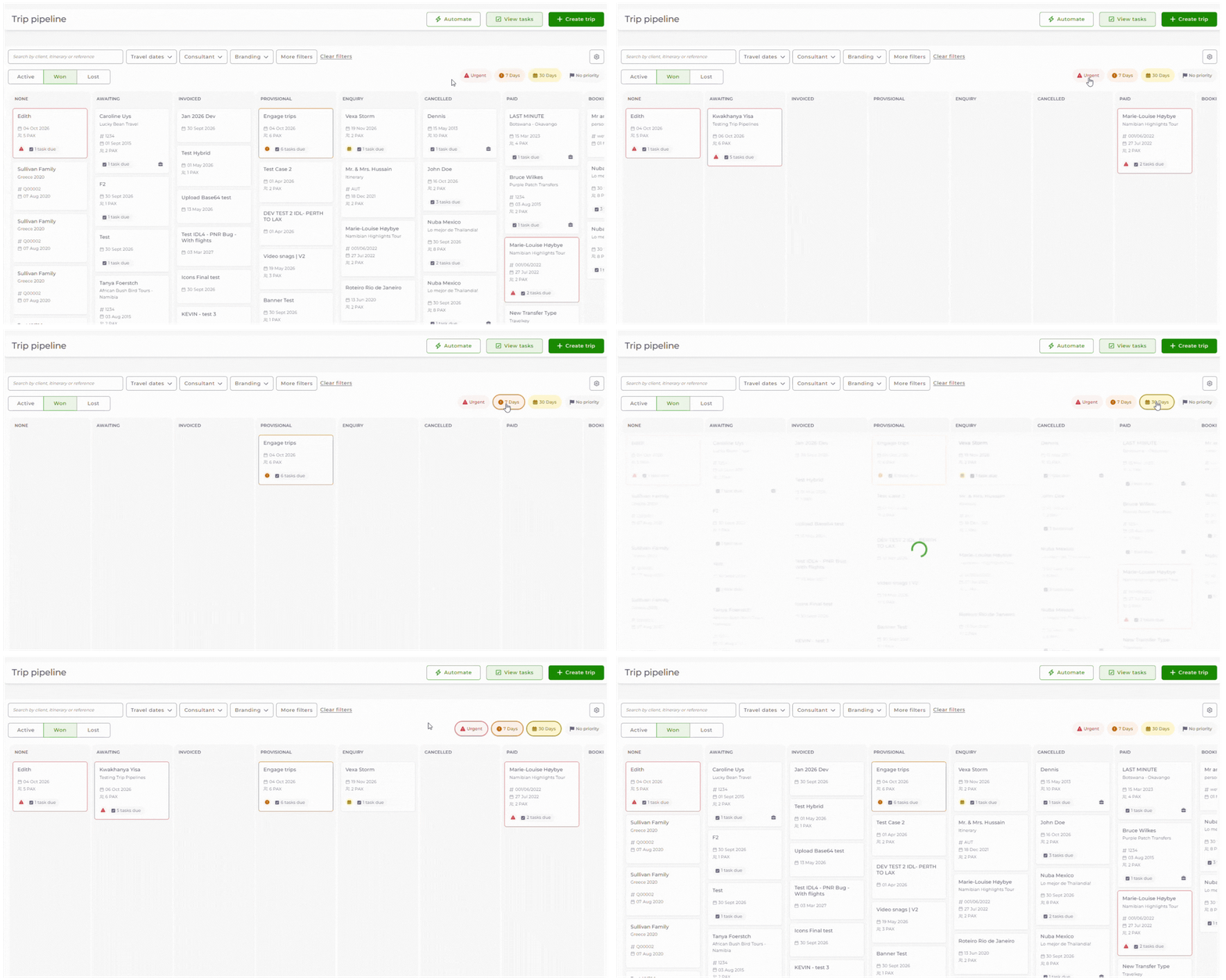
Selecting a filter updates the board to show only trips that match the selected priority level. This lets consultants focus on the trips that need immediate action.
Search and filtering
Trip Pipeline includes several ways to find specific trips.
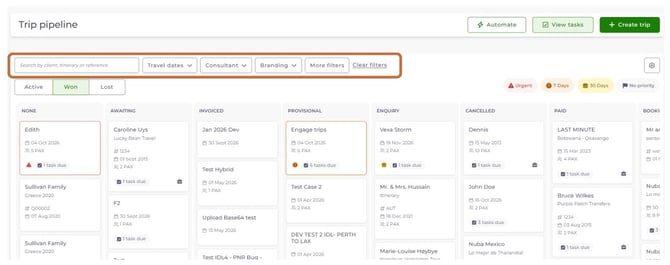
Search
Use the search bar to quickly locate trips by:
- Client name
- Itinerary name
- Booking reference
Branding filter
Use the branding filter to show trips linked to a specific agent or brand.
Date filter
Use the date filter to show trips within a specific travel or booking period.
Advanced filters
The More filters button lets you refine your results using multiple criteria:
- Trip category
- Trip priority
- Number of nights
- PAX
- Consultant
- Branding
- Travel dates
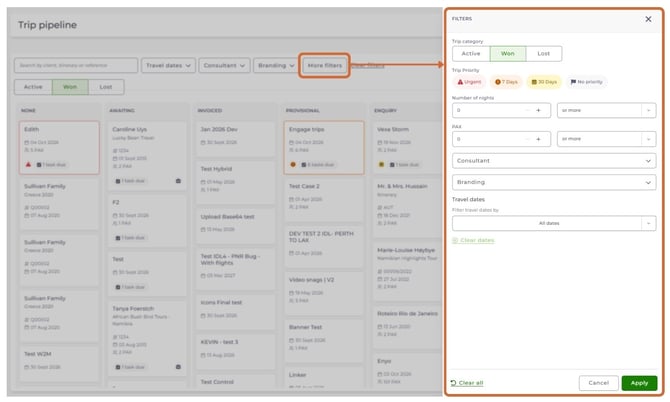
Multiple filters can be combined to create highly specific views of your pipeline. For more information, see How do I filter and search trips in Trip Pipeline?
View tasks
Selecting View tasks opens the Tasks panel.
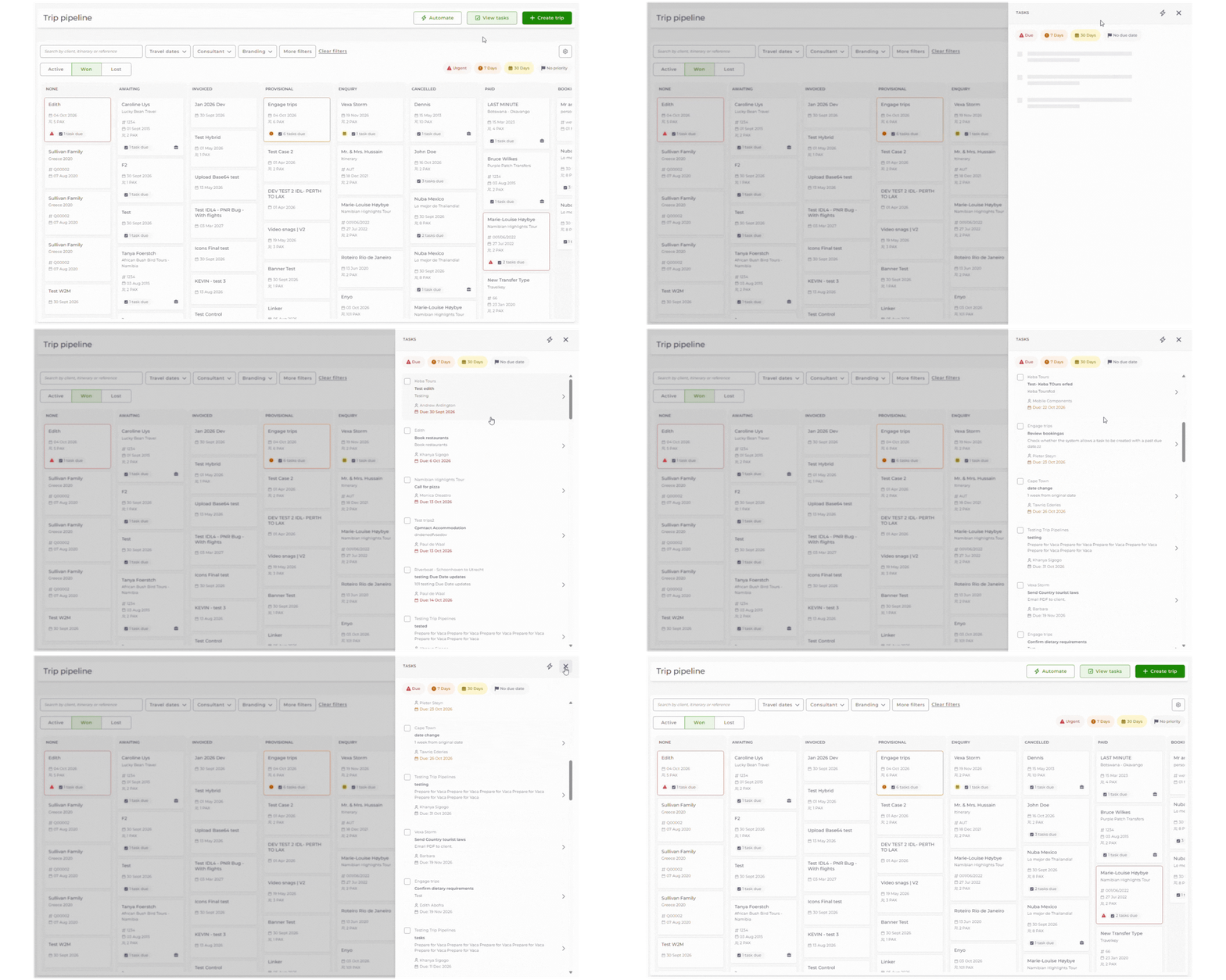
The Tasks panel gives a consolidated view of all tasks across your trips. It helps consultants manage operational workloads from a single location.
For more information, see How do tasks work in Trip Pipeline?.
Create trip
Selecting Create trip lets you manually create a new trip in your pipeline.
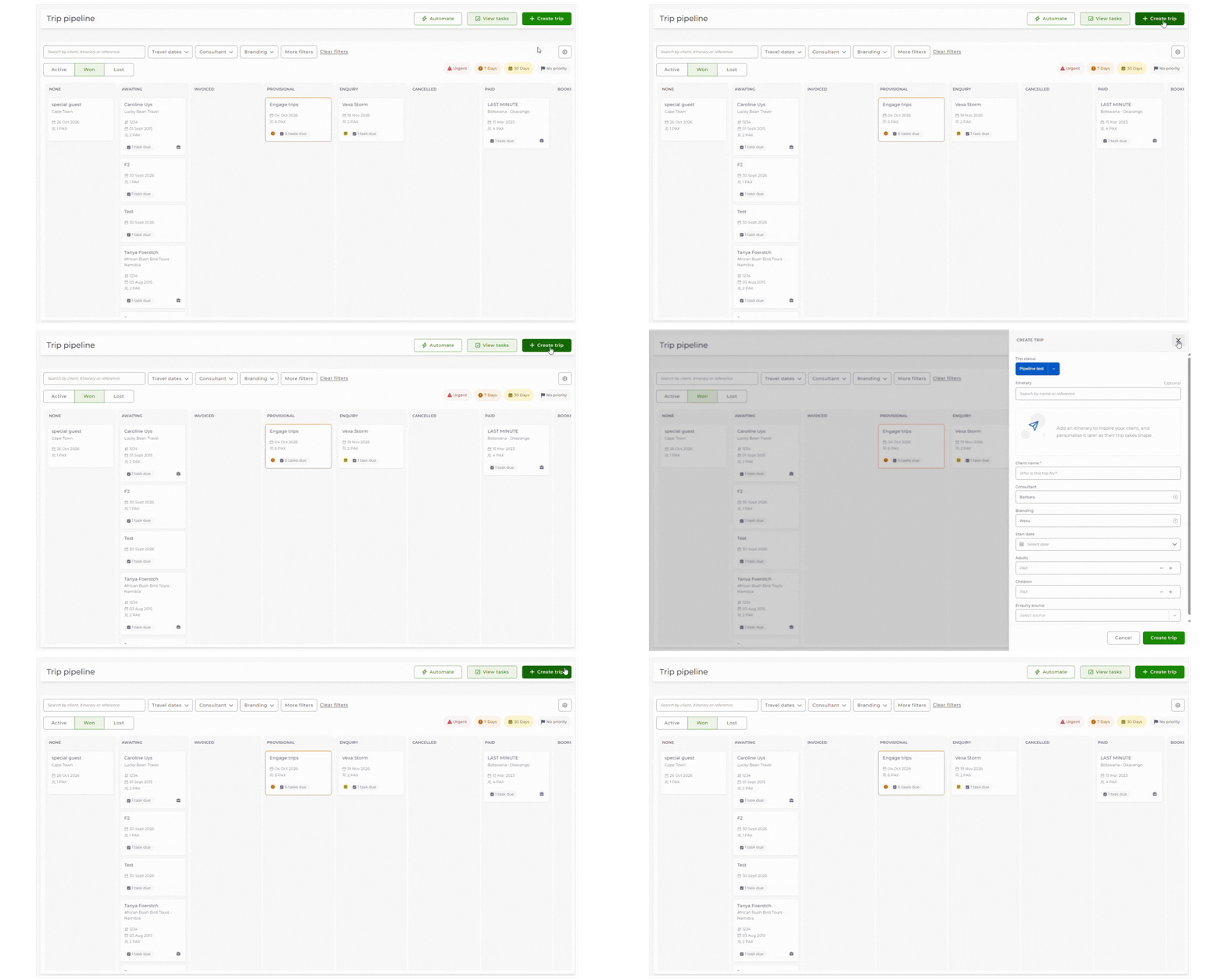
Once created, the trip appears on the board and can immediately be managed through the Trip Panel.
For more information, see How do I create a trip in Trip Pipeline?.
Automations
Click the Automate button in the top right of the Trip Pipeline to open the Automate window.
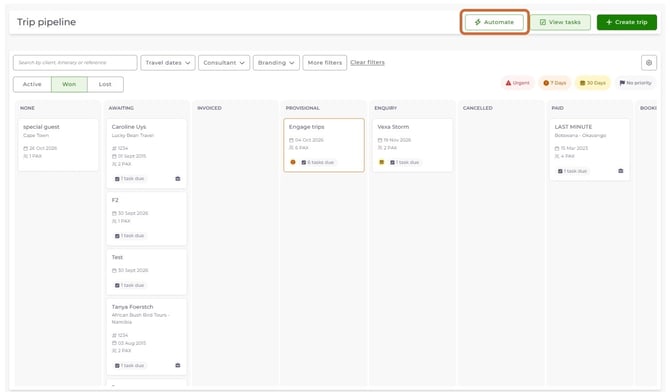
Automations do routine admin on your trips for you. Each automation has a trigger, conditions and actions. Automations can change a trip's status, add tasks to the trip, mark all tasks as done and send in-app notifications.
Your account comes with automations already set up. You can edit, switch off or delete any of them. You can also create your own automations. For the full list, see Automations we've set up for you.
For more information, see How do automated workflows work in Trip Pipeline?
Need help?
Contact Wetu Support at support@wetu.com.
Chat to us Live on your Dashboard